Welcome to Solomon!

Enter the Access Code below

Access code is invalid

Solomon Logo

Versions Compared

Key

  • This line was added.
  • This line was removed.
  • Formatting was changed.

...

Excerpt

Coverage information and many other resources regarding Guidestone medical coverage are available on the Highmark website. Other resources are available on the Guidestone website. See this Solomon page for details on using that website: MyGuideStone.

Which website should I use?

HighmarkBCBS.comMy.GuideStone.org

Claim details

Deductible information

Set up and monitor your HSA

Find a provider

Access discounts and cost-savings benefits

1095-B Tax Documents

Detailed Plan Documents

Set up your Highmark account: 

UI Steps
sizesmall


UI Step

Begin Registration

Follow this link for the registration page: 

HighmarkBCBS.com.Enter

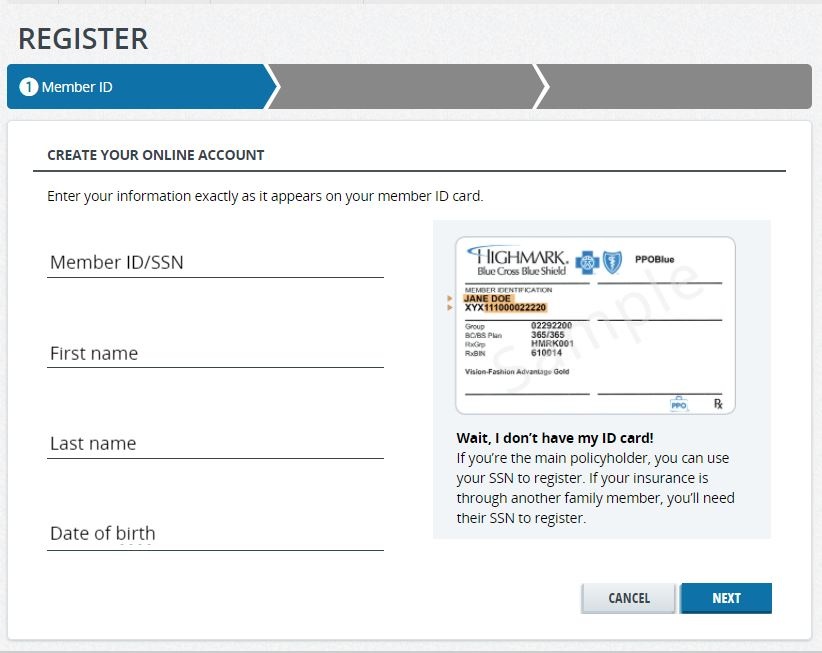
Register Your Highmark Account

Note

This may be different from your Guidestone login information. Make sure to write down both usernames and password information for each account in a safe location so you don't forget.


UI Step

Enter Required Information

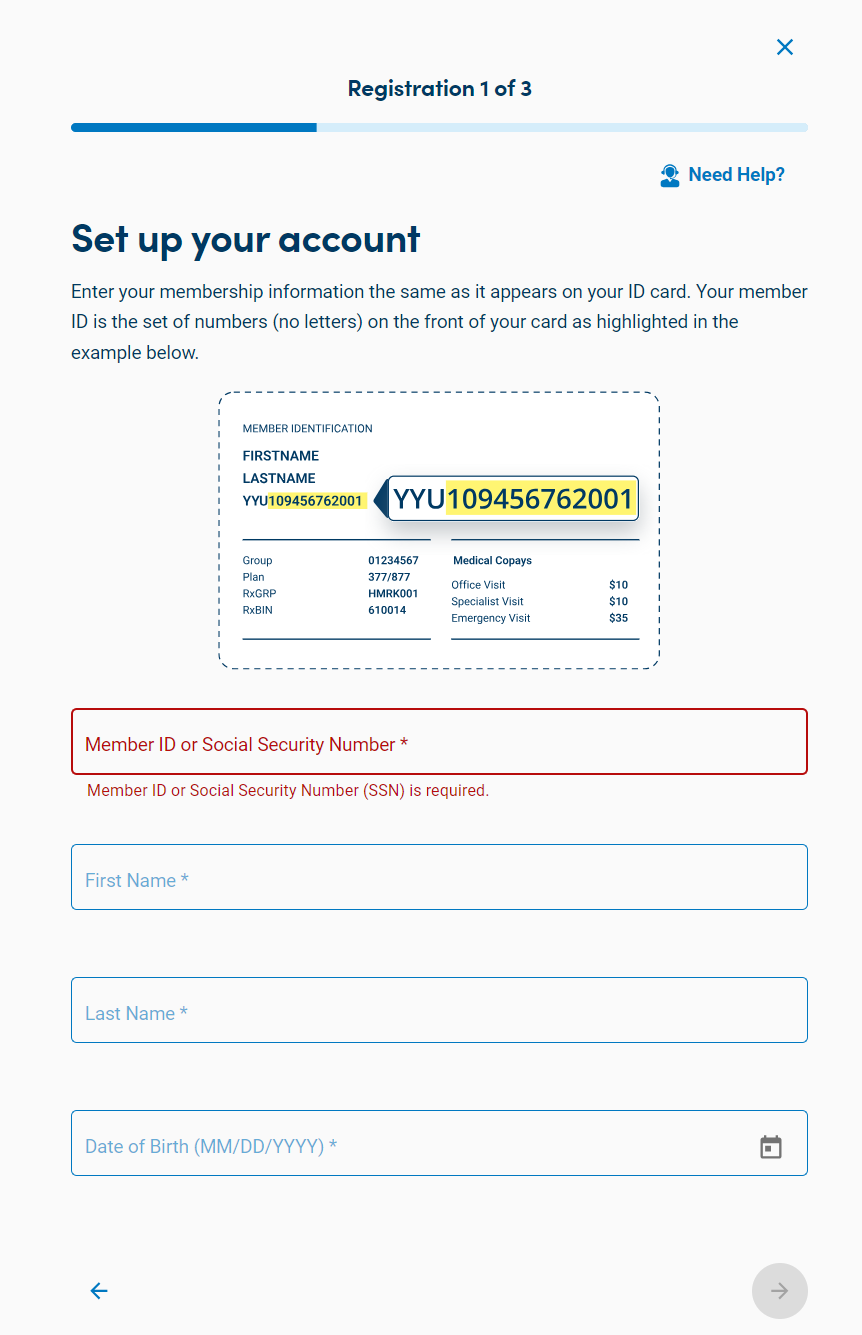
Enter the required information so that Highmark can locate your account

.  If you have not received your ID card yet, you can use your Social Security number
  • Image Removed

:

  • Member ID or Social Security Number
  • First Name
  • Last Name
  • Date of Birth

Image Added

Note

If you had a Highmark account in the past or with another medical plan, you may already have an account. Use your previous account information to log in, or call Highmark Customer Service at: 1-866-472-0924.


UI Step

Identification Verification

Answer the

Answer the following

questions to verify your identity.

Note

If the address on your driver's license does not match what is registered with Guidestone, you will not pass the security check.
If this occurs, you will receive an e-mail and a letter in the mail with instructions you must follow to open your account in order to receive HSA contributions and use your debit card.


UI Step

Set-up Login Information

In order to continue accessing your account, set up

your log in information in order to access your account in the future.  

a unique username and password.


Continue to Setup your Health Savings Account:

UI Steps


UI Step

Log in to your Highmark account

Make sure you are logged in,

then go to "Claims and Spending

and on the "Home" tab

  • Image Removed
  • Select Access Spending Account ( this will open a new window )
    •  Image Removed
  • Once the new window is opened, you will be on your Health Saving's Account Dashboard where you can access your balance, transactions, etc...
  • .


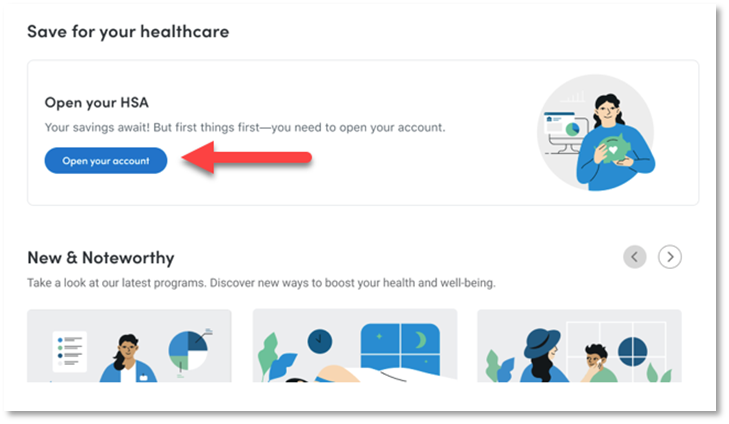
    Locate the "Save Your Healthcare" section.

    There should be a box that says "Open your HSA."


    Image Added

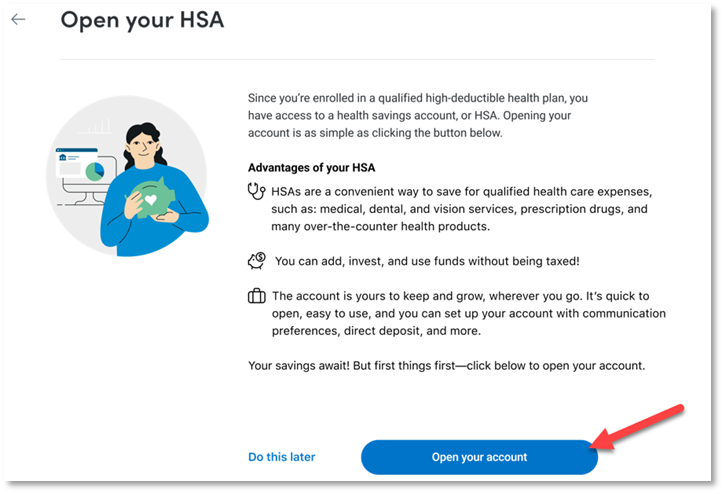
    Select "Open your account."

    Image Added


    UI Step

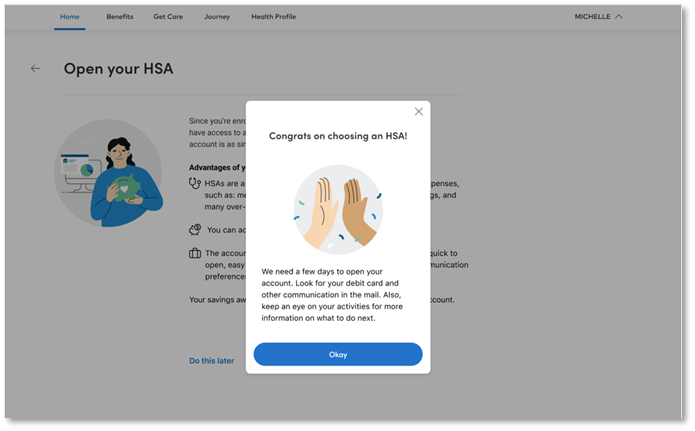
    Open your HSA

    Follow the on-screen prompts to open the HSA account.

    Note

    It may take a few days for your account to be active. Be sure to check back later to ensure your account is open.

    Image Added

    UI Step

    Select "Health Savings Account"

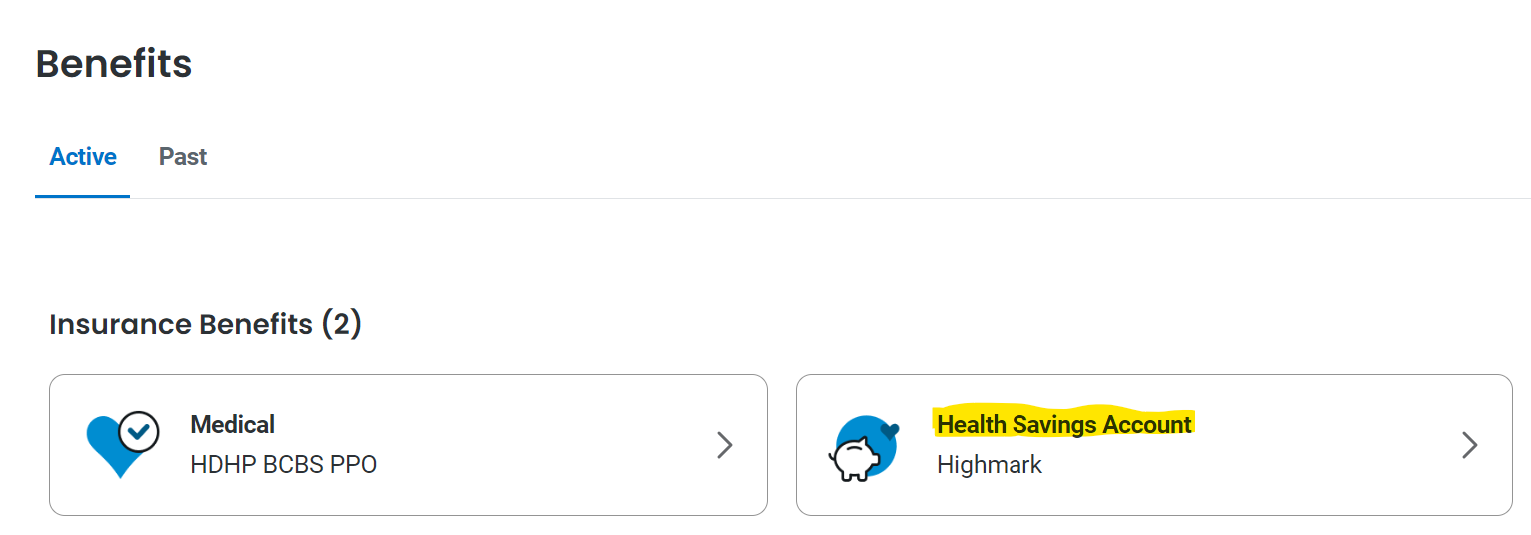
    Once your HSA account is opened, go to the Benefits tab.

    Image Added


    Under Insurance Benefits, select "Health Savings Account."
     Image Added


    UI Step

    Select "View My Account Detals"

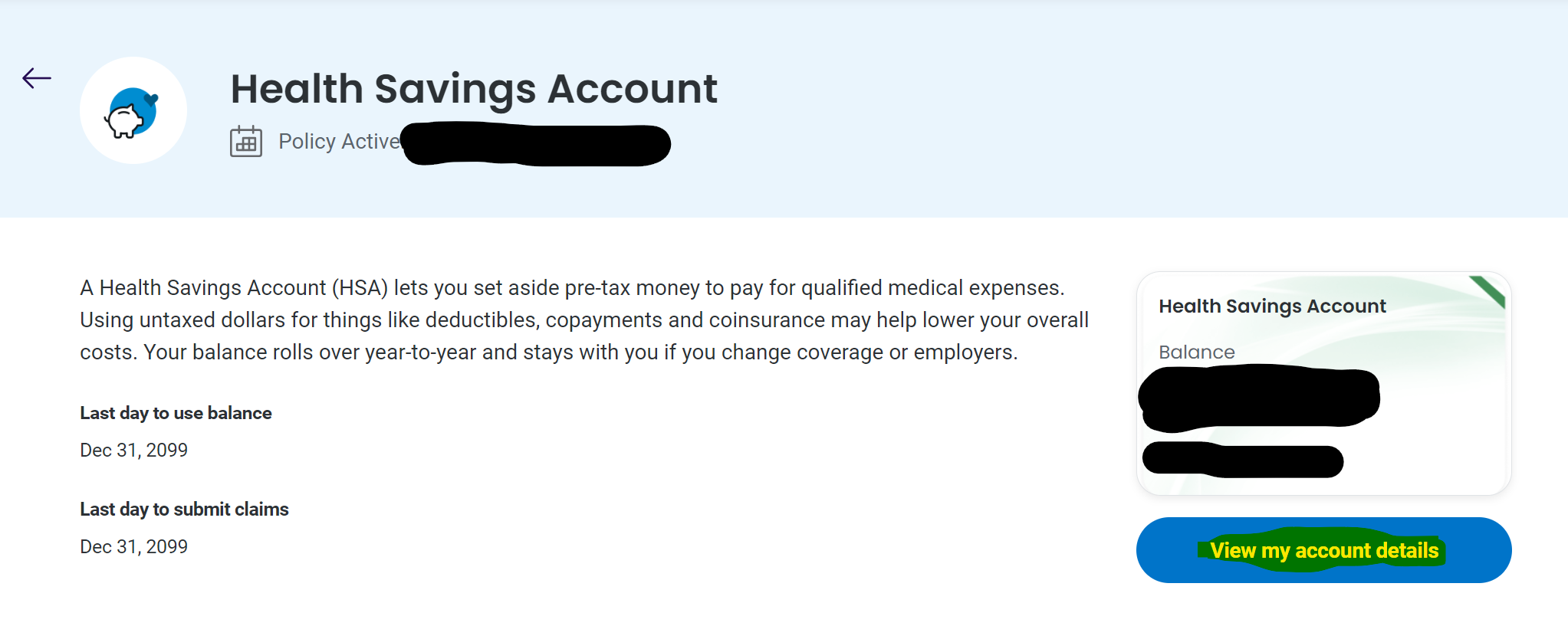
    You should see a page that states when your policy is active and how much is in your HSA.

    Click "View my account details" to get to the next page. 

    Image Added

    UI Step

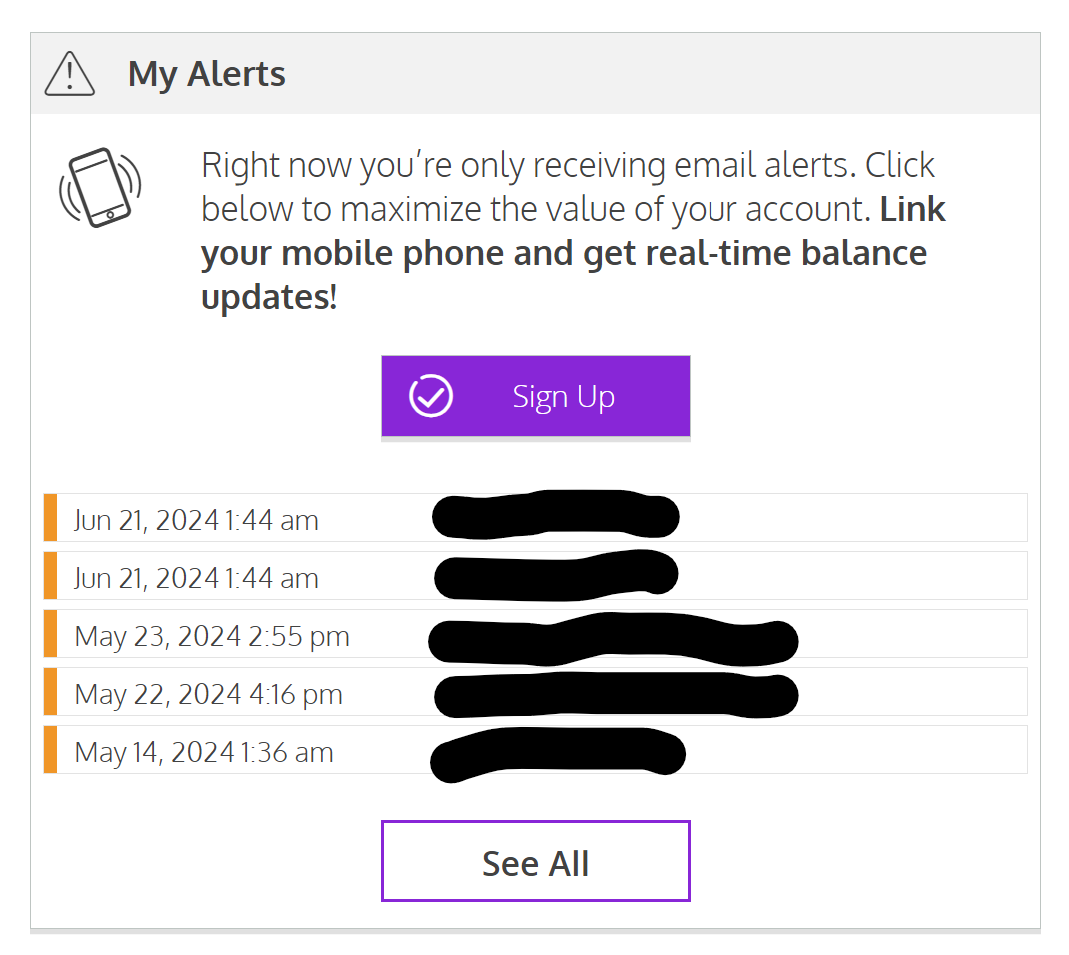
    Check Notifications and Alerts

    Notifications

    On the top right corner, you should see your name and a Notifications tab.

    Clear any red notifications that may be there.

    Image Added


    Tip

    If you have notifications that have a lightbulb icon that you can't open or get rid of, then you can click the 3 vertical dots on the right side and select "Mark as Read" or "Dismiss."

    Image Added


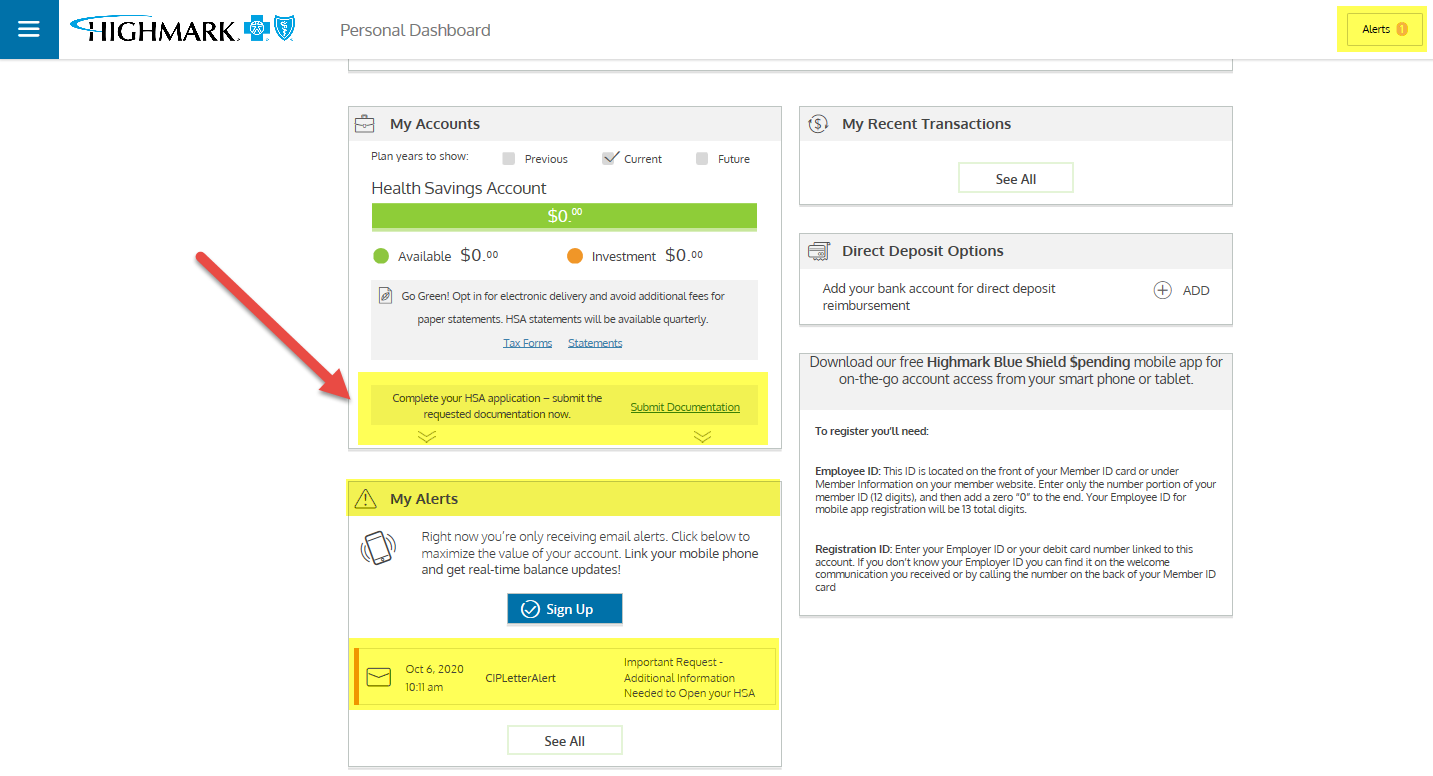
    Alerts

    If

    Look on the left side to see "Your Account", if

    your account requires additional steps to open, then look for Alerts (under Your Account), and submit additional documentation as needed.

    If you have no additional alerts, then proceed to the next step to verify your account is ready to receive funds. 

    • Image Removed
    Screenshot this screen with no alerts and send it to benefits@reliant.org so we know the account is active and ready to receive funds. 


    Image Added

    UI Step

    Screenshot and Send Email

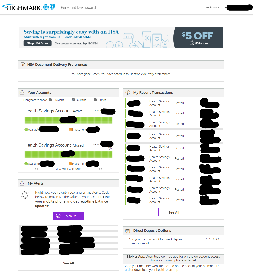
    Screenshot the entire accounts page with no notifications or alerts.

    Send the screenshot to benefits@reliant.org so the Benefits Department can verify your account is open and ready to receive contributions.


    Example screenshot:

    Image Added

    Notice how there are no active alerts or notifications. Once Benefits receives this, you will begin receiving contributions!


    Include Page
    FMHOME:Insurance Benefits contact
    FMHOME:Insurance Benefits contact