


Follow the instructions below to complete each form based on your Open Enrollment changes. If you’re adding yourself or dependents, have their date of birth and Social Security number ready.
SignNow securely limits access to your information to you and the HR team only. For questions, contact benefits@reliant.org.
Form links:
- Medical Enrollment Form
- Medical Change Form
- Medical Termination Form
- Dental Enrollment Form
- Dental Change Form
- Dental Termination Form
SignNow
If you don’t currently have medical insurance through Reliant but would like to enroll, please complete this form. To help you fill it out, we’ve included a few common scenarios below based on who you’re enrolling. Click the one that applies to you to get step-by-step guidance
- Medical Enrollment Form
- Demographic Info Required: All required information is outlined in red on the form - it must be the employee and/or dependents LEGAL information
- Legal Last name, First name
- Date of birth
- Social Security number
- Home address
- Cell phone number
- Gender
- Marital status
- If enrolling dependent(s): This includes spouse and/or eligible dependent children
- Legal Last name
- Legal First name
- Date of birth
- Social security number
This scenario is if you are enrolling only yourself in coverage and no other dependents including spouse and/or children.
Complete the boxes outlined in red with your legal information -the form will not let them continue without the boxes outlined red completed.
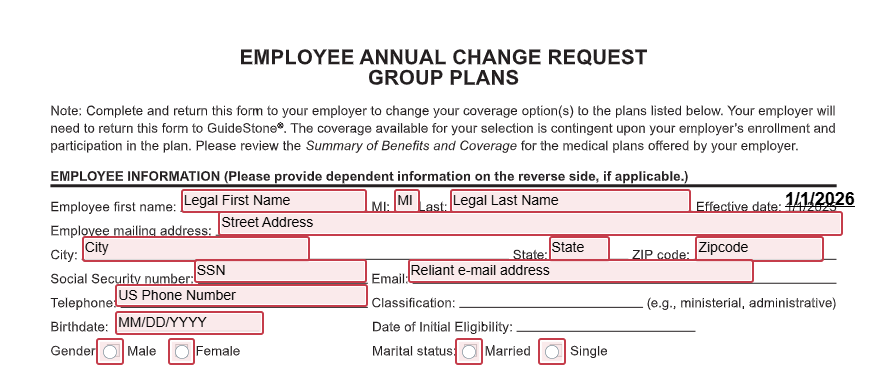
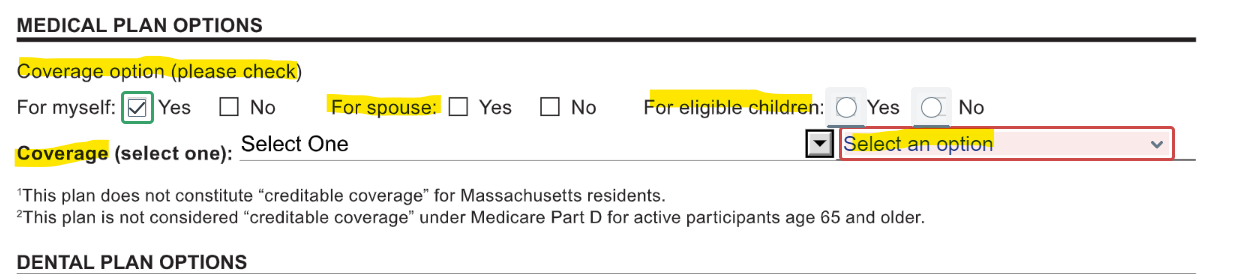
- The form will already have 'Yes' selected for 'Myself.' If you selected 'single' for marital status, you will not have the option to add 'for spouse'. But you will have the option to add eligible children if needed. For this scenario as employee only, you will select 'No' for eligible children.
- Then, select your coverage level from the dropdown next to 'Coverage.' Your selected coverage will begin on January 1, 2026.
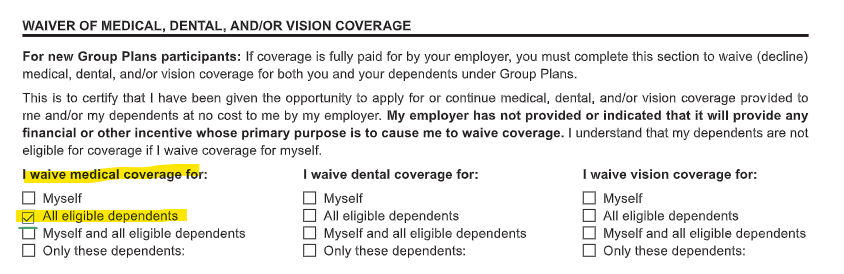
If you are married and select "no" for spouse and/or children, you will be required to complete a medical waiver for your dependents on the 2nd page of the enrollment form. See Step 4 for more information on this.
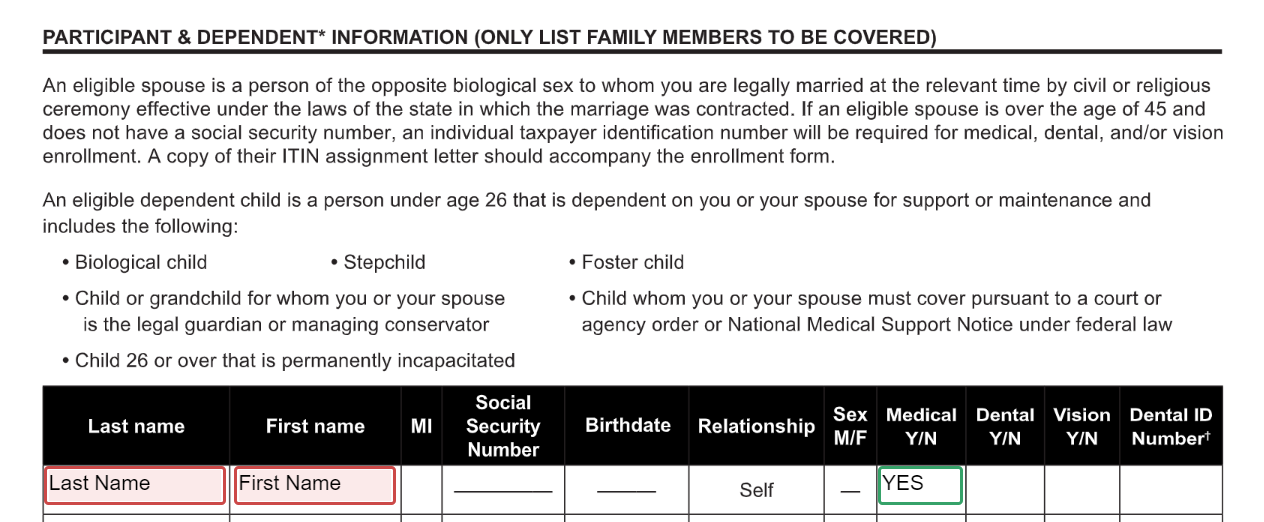
Once you select the level of coverage you would like for 2026, you will complete your last name and first name under "participant and dependents".
Note: This scenario is if the employee is enrolling in employee only coverage so the form will not let you list anyone else except yourself
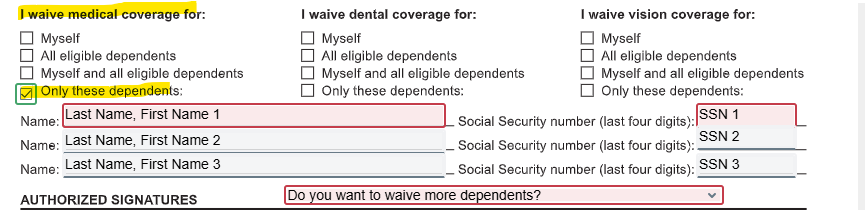
- If you are married and selected "no" for benefits for your spouse and eligible children, the form will pre-select "all eligible dependents" under "I waive medical coverage for". Then proceed to the next step.
- If you are married and selected "yes" for benefits your spouse but "no" for eligible children or vise versa, the form will pre-select "only these dependents" under "I waive medical coverage for"
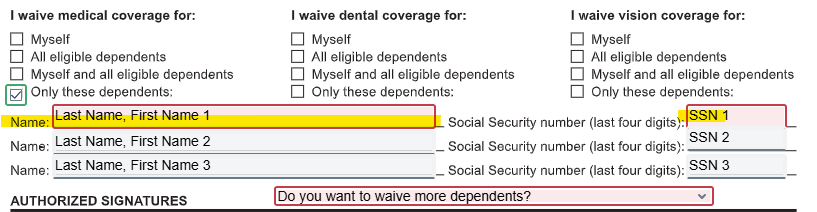
- It will then require you to input the dependent(s) last name, first name, and last 4-digits of their SSN that you are waiving coverage for
- It will also ask if you need to list more dependents if 3 is not enough. If you need to list more dependents, select yes and it will take you the next page to finish listing dependents
Once you have finished selecting your coverage level and/or waiving dependents, you will click "sign". When the form is signed, it will go to our benefits team for review and processing effective 1/1/26

This scenario is if you are enrolling yourself and your spouse with the option to waive dependent children (if applicable)
Complete the boxes outlined in red with your legal information -the form will not let them continue without the boxes outlined red completed.
- The form will already have 'Yes' selected for 'Myself.'
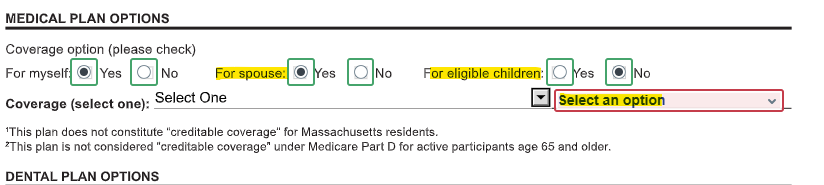
- Select "yes" for spouse
- Select "no" for eligible children (even if you don't have any, the form will make you select yes or no)
- Then, select your coverage level from the dropdown next to 'Coverage.' Your selected coverage will begin on January 1, 2026.
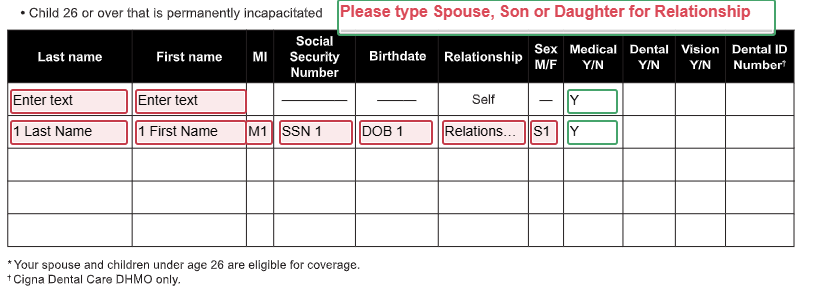
They will go to the second page of the form "Participant & Dependents" and they will type in the following information for their spouse
- Last name
- First name
- Social Security number
- Relationship to you (spouse)
- Birth Date
- Gender (Type "M" for male, "F" for female)
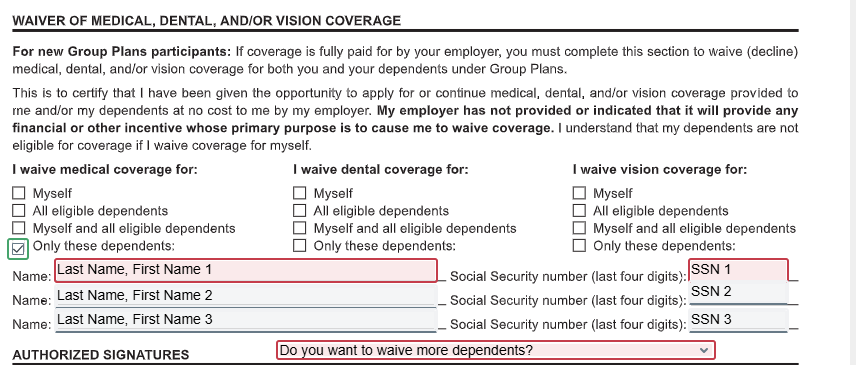
- Since you selected no for benefit eligible children, you will need to enter the dependent(s) information that coverage is being waived for
- You will be asked if you want to waive more dependents - if you need to waive more than 3 dependents, click "yes" - if not, click "no"
- If you are married but do not have children and/or don't have benefit eligible children, type NA in the boxes
Once you have finished selecting your coverage level and/or waiving dependents, you will click "sign". When the form is signed, it will go to our benefits team for review and processing effective 1/1/26
This scenario is if you are enrolling yourself and family in coverage
Complete the boxes outlined in red with your legal information -the form will not let them continue without the boxes outlined red completed.
- The form will already have 'Yes' selected for 'Myself.'
- Select "yes" for spouse or "no" if you are not married
- Select "yes" for eligible children
- Then, select your coverage level from the dropdown next to 'Coverage.' Your selected coverage will begin on January 1, 2026.

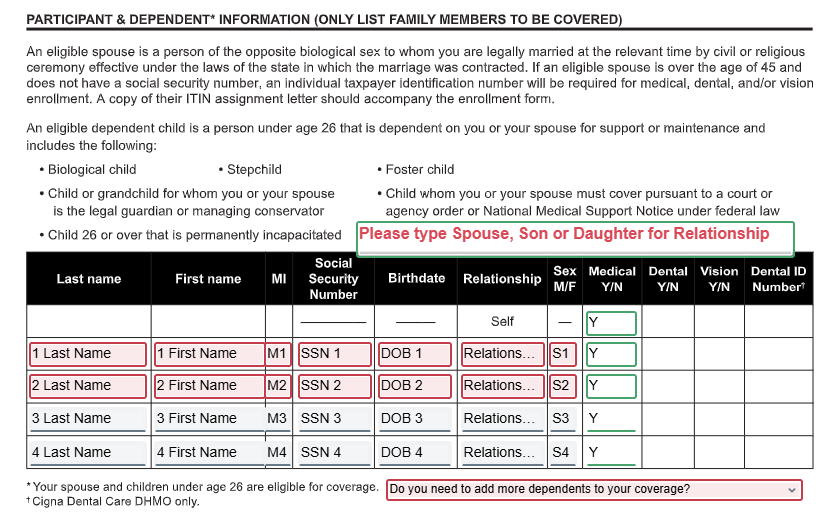
They will go to the second page of the form and in the "Participant and Dependents" section they will type in the following information for their spouse (if applicable) and children.
- Legal Last name
- Legal First name
- Social Security number
- Relationship to you (spouse)
- Birth Date
- Gender (Type "M" for male, "F" for female)
- If you need to add more than 4 dependents, please answer the question under the dependent information that says "do you need to add more dependents to your coverage?"
- If yes, then it will take you the next page to finish adding your dependents
- If no, it will take you to the bottom of the form to sign & submit
If you are not married, and select "no" for spouse - type NA in the highlighted boxes below
Once you have finished the enrollment information, you will click "sign". When the form is signed, it will go to our benefits team for review and processing effective 1/1/26
If you are terminating all your medical coverage for yourself and dependent(s) (a dependent is anyone else who is covered on their insurance plan, this includes their spouse), please complete this form via the instructions below.
Demographic Info Required:
- Legal Last Name
- Legal First Name
- Date of Birth
Complete all the red boxes with their demographic information. The form will not let you continue without the boxes outlined red completed.
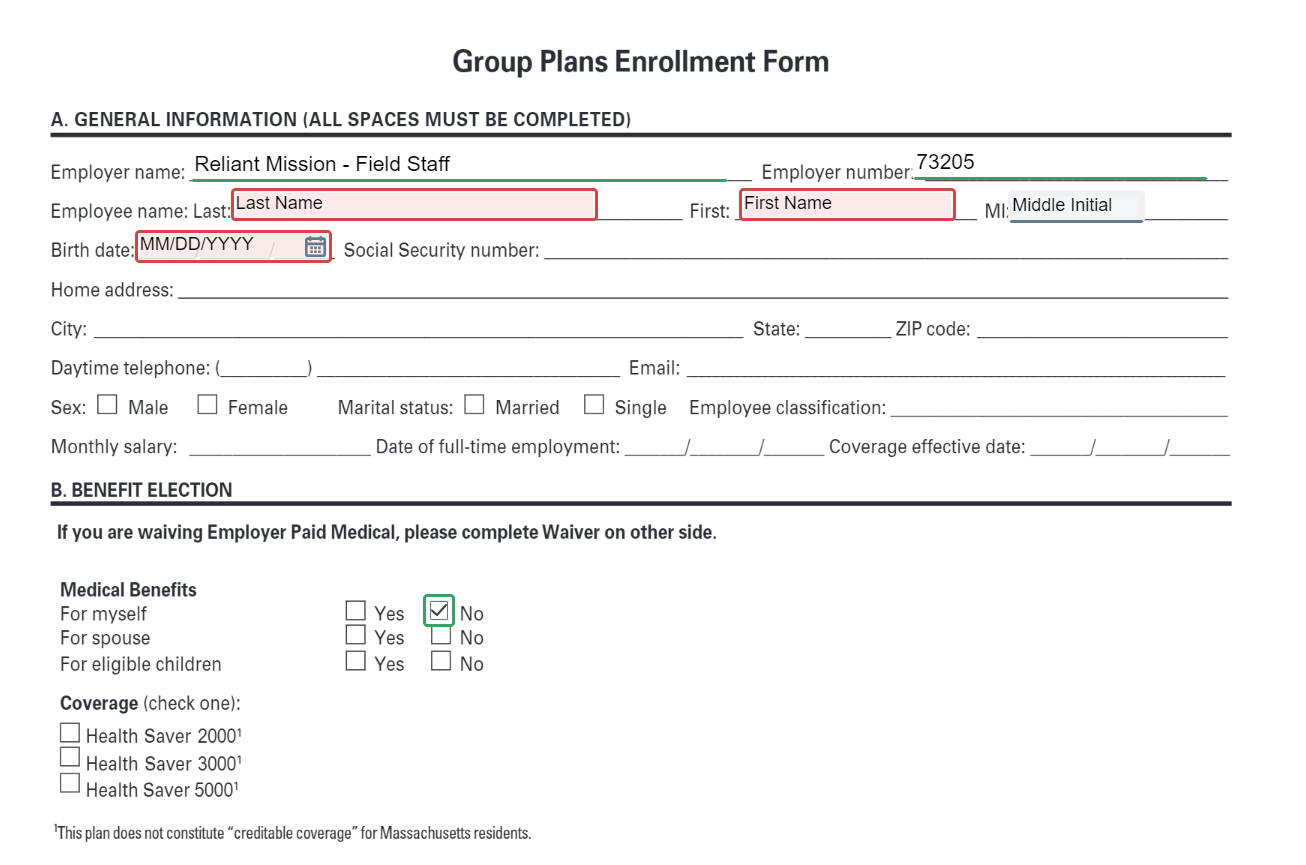
If you are terminating coverage for only yourself, you will click "myself" under " I Waive Medical Coverage For:"
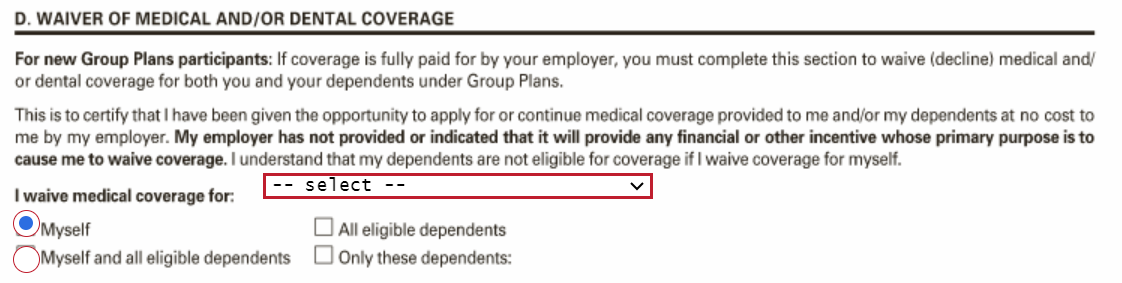
If you are terminating coverage for yourself and dependent(s), you will click "myself and all eligible dependents" under the section "I Waive Medical Coverage For: ".
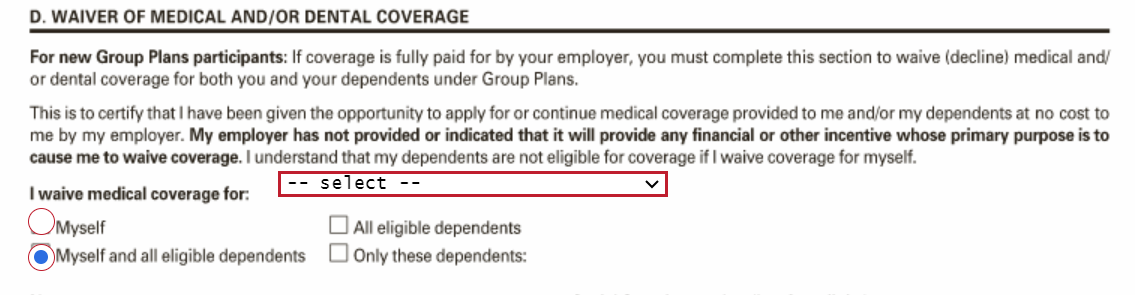
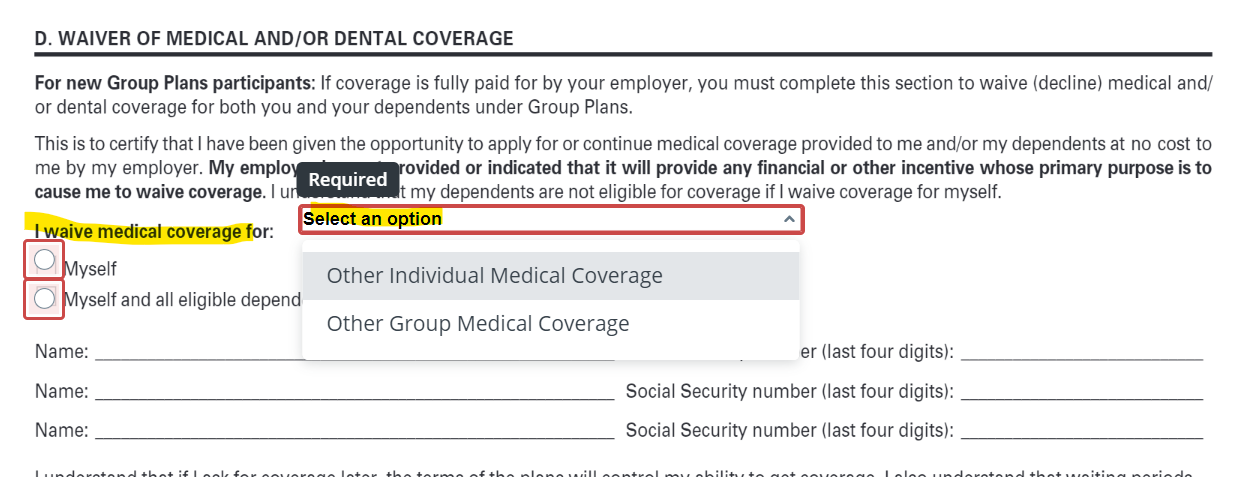
Then you will need to select the reason they are waiving coverage.
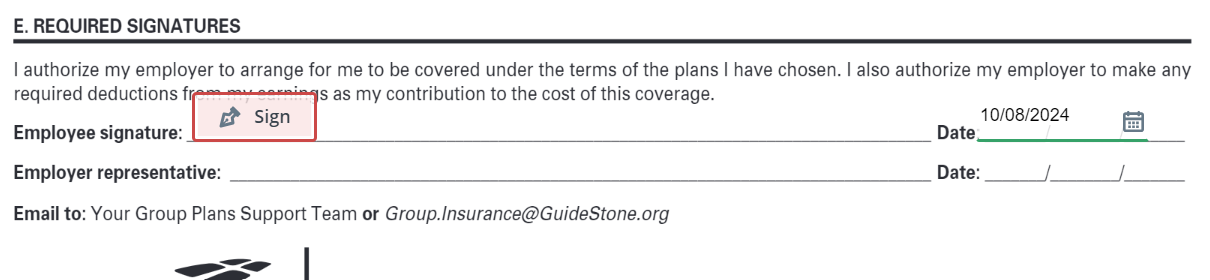
Once you have completed the waiver portion of the termination form, you will click "sign" then "finish". After you click "finish", they can choose to download a copy of their completed form for their personal record and your current medical coverage will be terminated effective 12/31/2025.
If you would like to make changes to your current medical plan, this is the form to complete. Please note the demographic information that may be required on this form depending on the change you are making.
Demographic Info Required:
- Legal Last name
- Legal First name
- Date of Birth
- If enrolling dependent(s)
- Legal Last name
- Legal First name
- Social Security number
- Relationship (spouse, son, daughter)
- Date of Birth
- Gender
- If removing dependents
- Legal name
- Relationship to you
This form is used to make the type of changes listed below...
- Change plan levels only (but keep all current dependents on your coverage, if applicable)
- Change plan levels and add dependent(s)
- Change plan level and remove dependent(s)
- Change plan levels, remove AND add dependent(s)
- Keep current plan level and add dependent(s)
- Keep current plan level and remove dependent(s)
- Keep current plan level, remove AND add dependent(s)
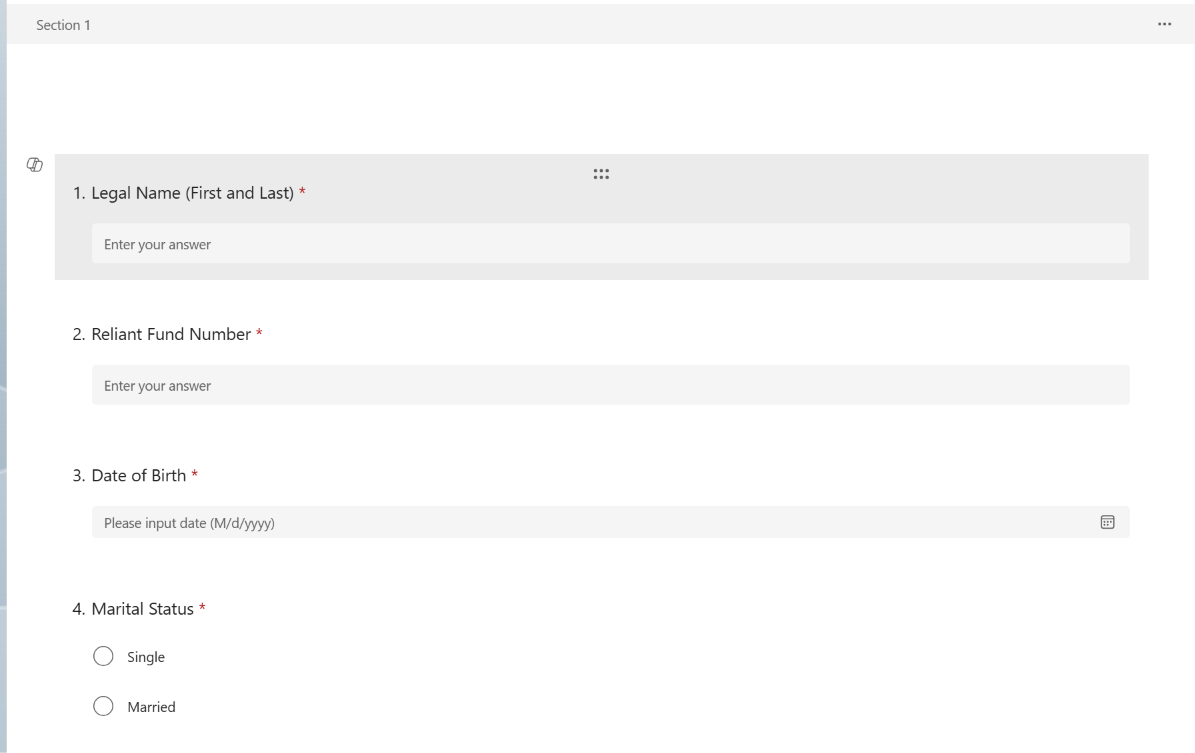
Complete Section 1:
- Legal name (first and last)
- Reliant Fund Number
- Date of birth
- Current marital status
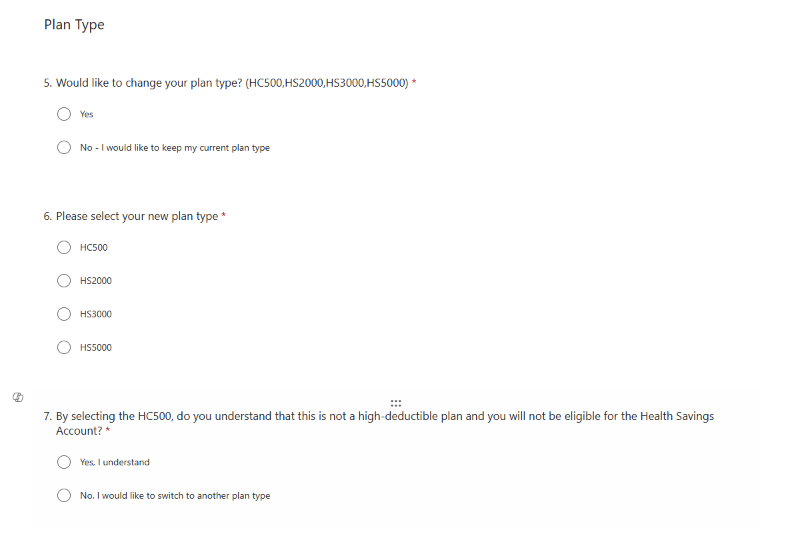
Plan Type:
- Choose if you would like to choose your plan type (HC500, HS2000, HS3000, HS5000)
- Yes (if yes, your new plan will go into effect on 1/1/2027
- No (if you would like to keep your current plan)
- If yes, you will be asked to select your new plan type
- Note: The HC500 plan is not a high-deductible plan and you will not be eligible for a Health Savings Account

Dependents:
- This section allows you add and/or remove dependents who are currently covered on your insurance, effective 1/1/2027.
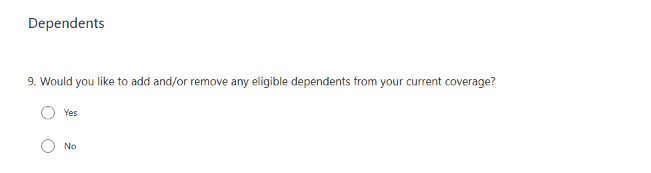
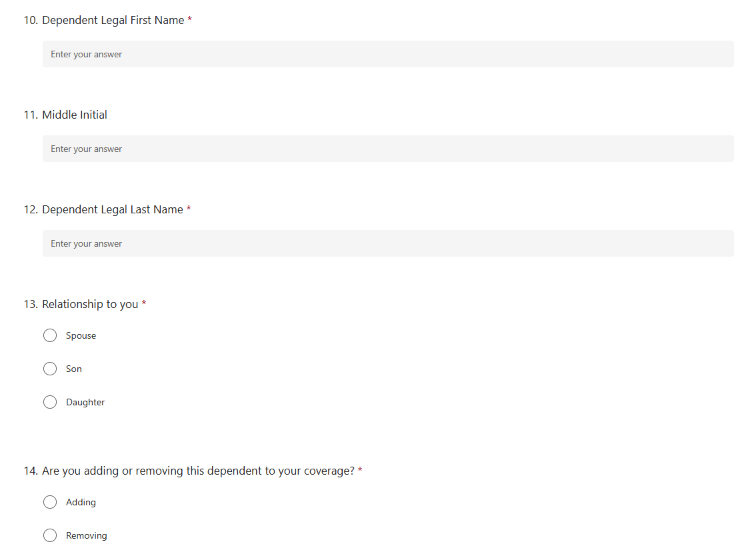
If you answered yes in Step 3, you would like to add and/or remove dependents to your coverage. You will complete all necessary dependent information
- Legal Name - First, Middle (optional), Last
- Relationship to you (Spouse, Son or Daughter)
- Answer "Are you adding or removing your this dependent to your current coverage"
- If removing, it will move you to the next question "Would you like to add or remove any more dependents to your coverage"
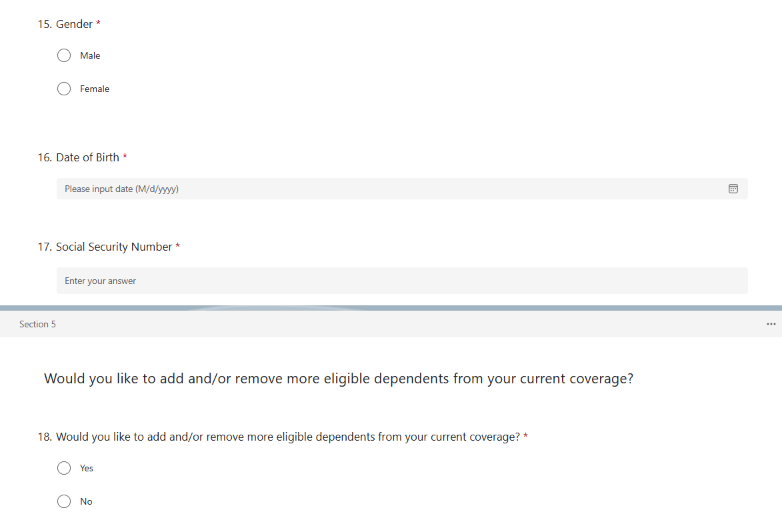
- If adding, you will be asked additional questions for their enrollment to your coverage
- Gender
- Date of Birth
- Social Security Number (MicroSoft Forms is a secured platforms that securely records the social security number)
- Once you are done entering in all required demorpahic information, you will answer "Would you like to add or remove any more dependents to your coverage"
- If yes, you will repeat this step and be able to add or remove dependents & complete the necessary fields based on adding or removing
- If no, the form is complete and you can click "submit" for your changes to go into effect on 1/1/2027
Once you have finished the form, you will click submit and copy of the form will automatically be sent to you. These changes go into effect on 1/1/2027. If you have any questions, please reach out to benefits@reliant.org

If the Field employee does not currently have dental insurance through Reliant but would like to enroll, please have them complete this form via the instructions below and their coverage will go into effect on January 1st, 2027
Demographic Info Required:
- Legal Last name, First name
- Social Security number
- Date of Birth
- Gender
- Address
- If enrolling dependent(s)
- Full legal name
- Gender
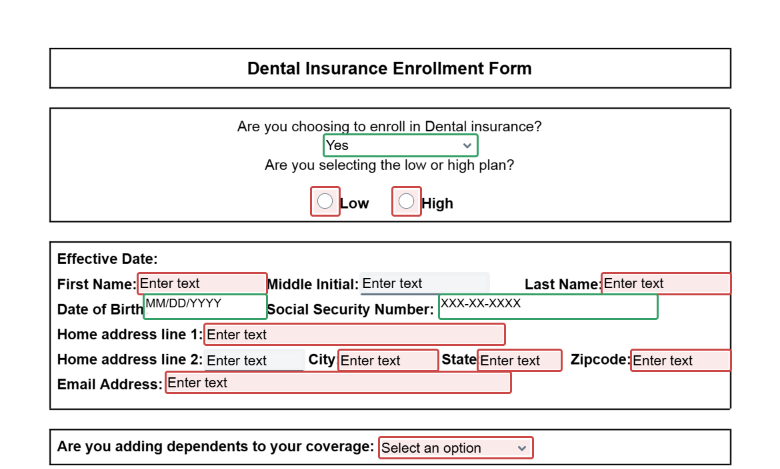
If you are enrolling in dental insurance, complete all required fields outlined in red, including your legal name, address, Social Security number, and date of birth.
Select your dental plan: Choose either the High or Low plan.
Indicate whether you would like to add dependents to your coverage by selecting one of the following:
I would like to add dependent(s).
I would NOT like to add dependent(s).
If you choose to add dependents, you will be prompted to provide their information.
If you are adding dependents to your dental coverage, select Yes and indicate the number of dependents. Enter each dependent's legal name, relationship to you, date of birth, and Social Security number.
Select Yes to add dependents and complete the required fields. Use "Add additional dependent(s)?" to enter more dependents.
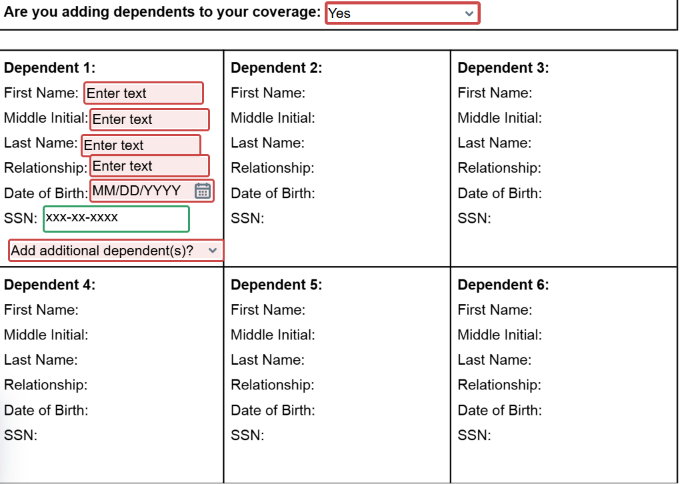
Adding More Than Six Dependents
If you're adding more than six dependents, scroll to the bottom of the page and select Yes when asked if you'd like to add more dependents. Additional fields will appear for you to enter their information.
Finished Adding Dependents?
Once you've added all your dependents, select No under "Add Additional Dependent(s)?" You'll then be prompted to sign and date the form to complete the process.
They click "sign" then "finish" at the top of the form to sign and complete the enrollment.

If the Field Employee is terminating all dental coverage for them and their dependent(s), please have them complete this form via the instructions below.
Personal Info Required:
- Legal Last name
- Legal First name
- Date of Birth
Completing this form will terminate dental coverage for the field staff and their dependents.
They click "sign" then "finish" at the top of the form to sign and complete the enrollment.

If the Field Employee is currently enrolled in dental insurance but would like to add dependent(s) (individuals covered on their plan), terminate coverage for their dependent(s), or change coverage levels, they will use the Change Forms and complete it with the changes they would like to make. Note, this change will go into effect on January, 1st 2027.
Demographic Info Required:
- Employee's Last name, First name
- If enrolling dependent(s)
- Full legal name
- Gender
- Date of birth
- Social Security number
Complete all required personal information marked with a red asterisk (*).
Required Information:
Legal Name (First and Last)
Reliant Fund Number
Date of Birth
Marital Status (Single or Married)
Be sure to review your answers for accuracy before continuing.
Indicate whether you'd like to change your current dental plan (Low or High).
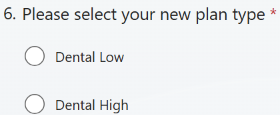
Yes: Select if you'd like to change your plan type.
- If selected, choose new plan type
No: Select if you'd like to keep your current plan.
- If selected, you can skip to next page.
Would you like to add and/or remove any eligible dependents from your current coverage?
- Yes: Select if you'd like to add and/or remove dependents.
- No: Select if you're keeping your current dependents unchanged.
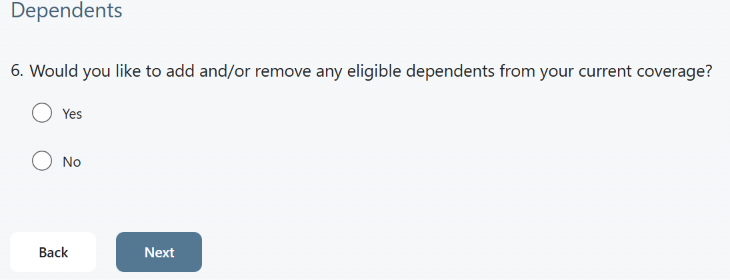
If the employee selected "Yes, I'm adding and/or removing dependents.", the employee will fill in the required demographic for each dependent.
You can use this form to:
Add dependents to your coverage.
Remove dependents from your coverage.
You can both add and remove dependents using the same form.
For each dependent, complete the required information and select whether you're Adding or Removing them from your coverage.
Repeat this process for each dependent you'd like to add or remove.
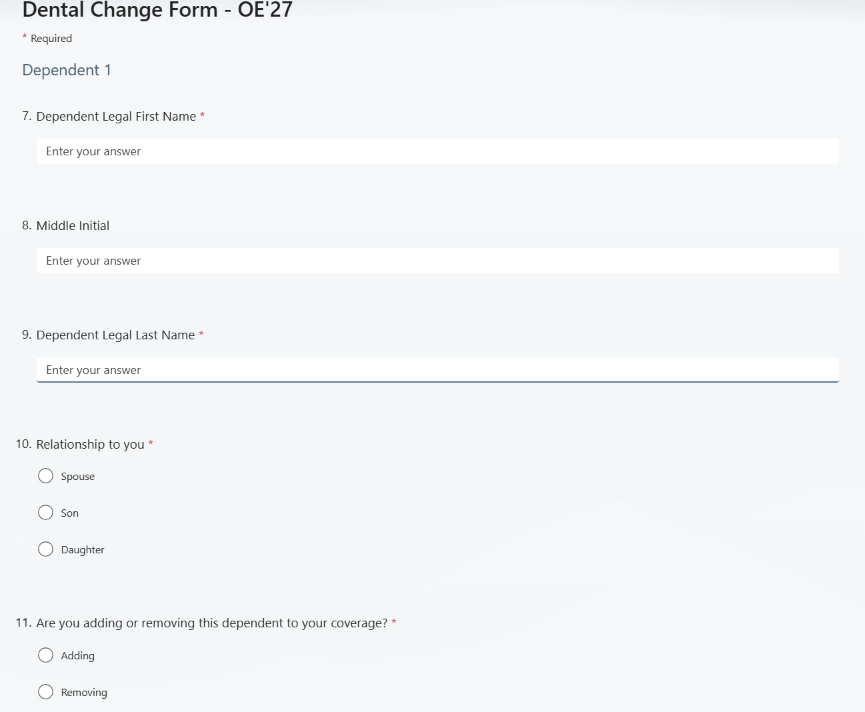
Once the form is complete with the change(s) they would like to make, they will sign the form and click "finish".

