Follow the instructions below to complete each form based on your Open Enrollment changes. If you’re adding yourself or dependents, have their date of birth and Social Security number ready.

SignNow securely limits access to your information to you and the HR team only. For questions, contact benefits@reliant.org.

Form links:


Once you’ve completed all required fields and signed the form, make sure to click “Finish.” A green banner will appear at the bottom of your screen when the form is ready to submit.

If you only sign the form and don’t click “Finish,” the Benefits Team won’t receive it, and your changes may not be processed.

image-2024-5-28_10-13-4.png


SignNow

If you don’t currently have medical insurance through Reliant but would like to enroll, please complete this form. To help you fill it out, we’ve included a few common scenarios below based on who you’re enrolling. Click the one that applies to you to get step-by-step guidance

  • Medical Enrollment Form
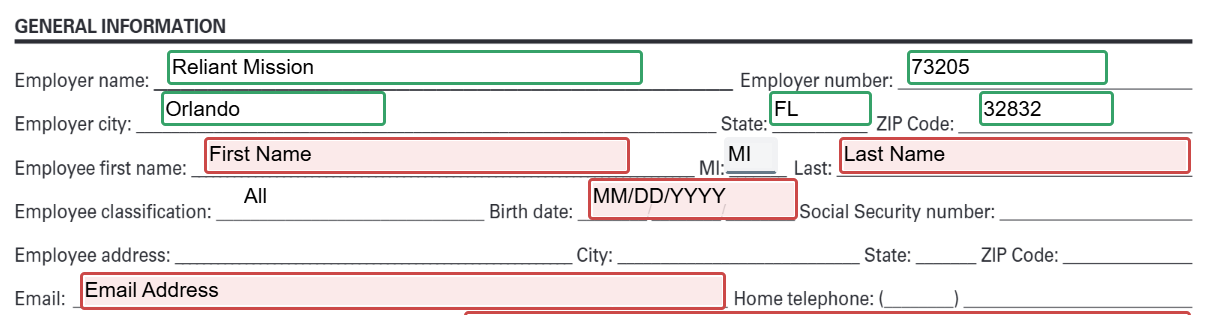
  • Demographic Info Required: All required information is outlined in red on the form - it must be the employee and/or dependents LEGAL information  
    • Legal Last name, First name
    • Date of birth 
    • Social Security number 
    • Home address 
    • Cell phone number
    • Email
    • Gender
    • Marital status
    • If enrolling dependent(s): This includes spouse and/or eligible dependent children
      • Legal Last name
      • Legal First name 
      • Date of birth 
      • Social security number

This scenario is if you are enrolling only yourself in coverage and no other dependents including spouse and/or children.


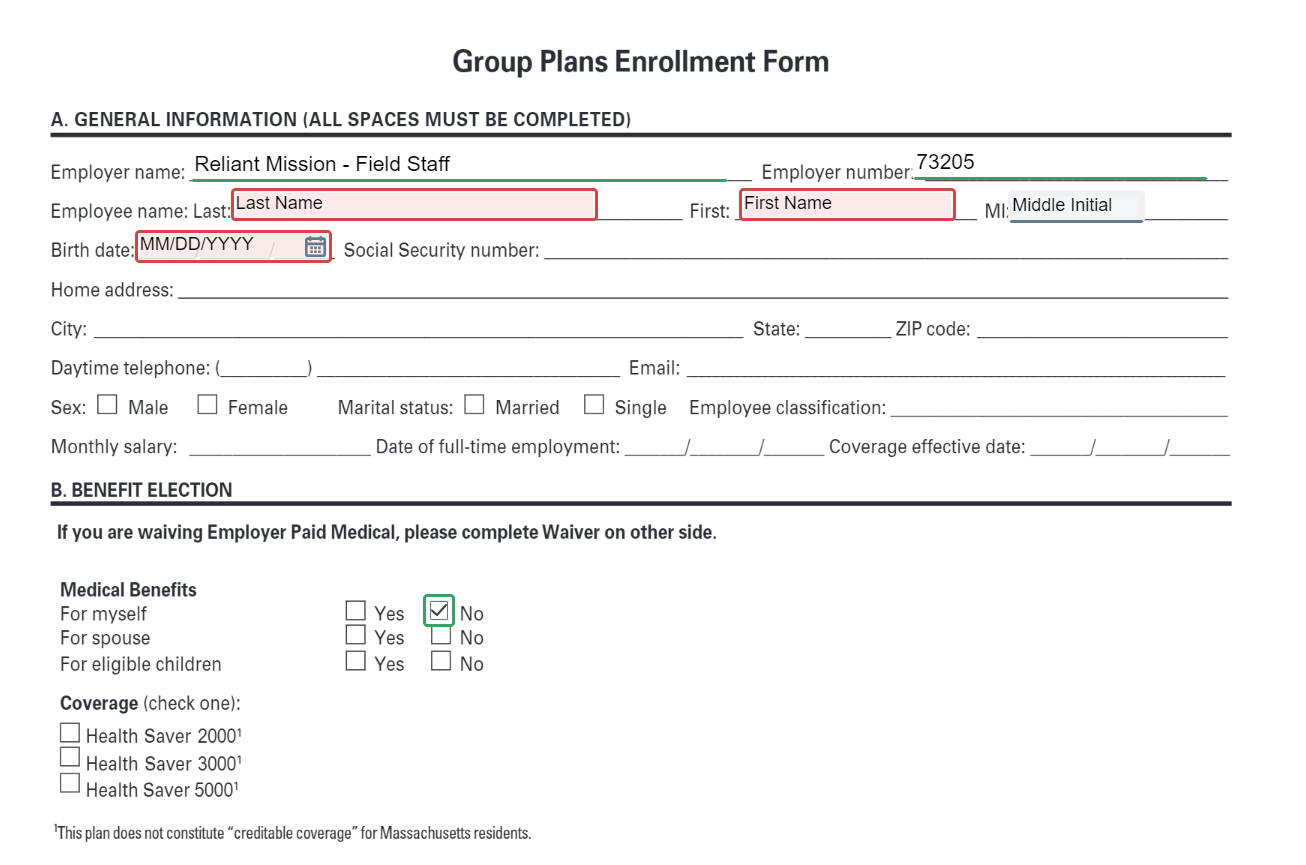
Complete the boxes outlined in red with your legal information -the form will not let them continue without the boxes outlined red completed.


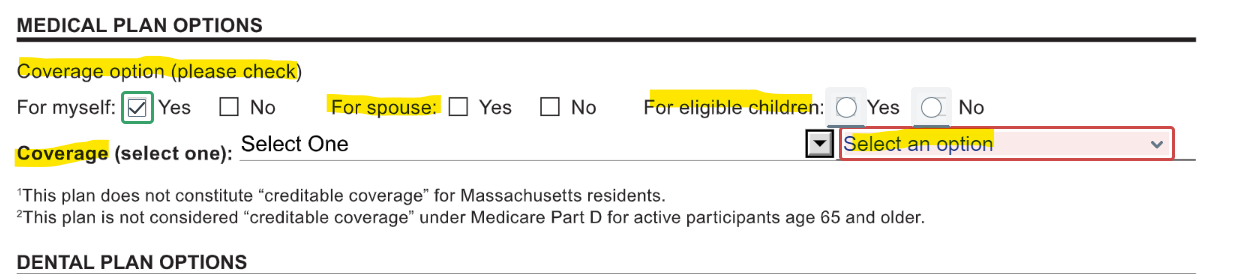
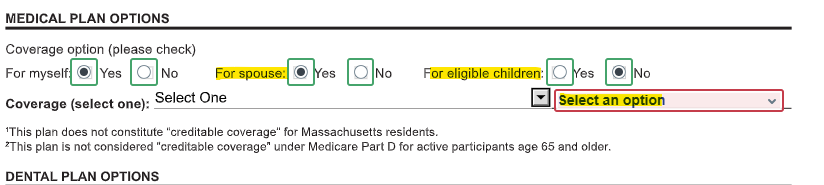
  • The form will already have 'Yes' selected for 'Myself.' If you selected 'single' for marital status, you will not have the option to add 'for spouse'. But you will have the option to add eligible children if needed. For this scenario as employee only, you will select 'No' for eligible children.
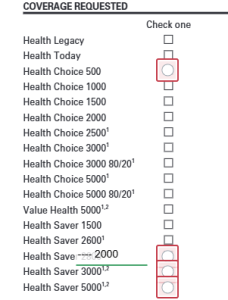
  • Then, select your coverage level from the dropdown next to 'Coverage.' Your selected coverage will begin on January 1, 2026.

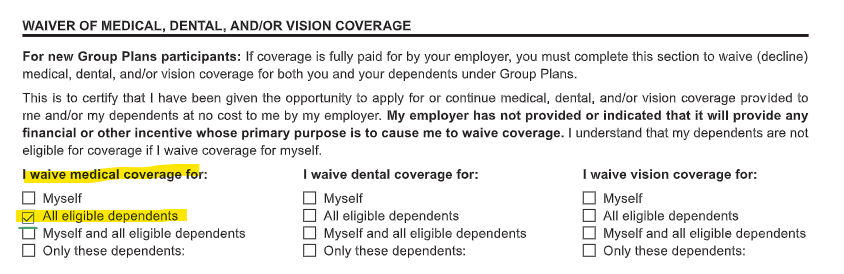
If you are married and select "no" for spouse and/or children, you will be required to complete a medical waiver for your dependents on the 2nd page of the enrollment form. See Step 4 for more information on this.

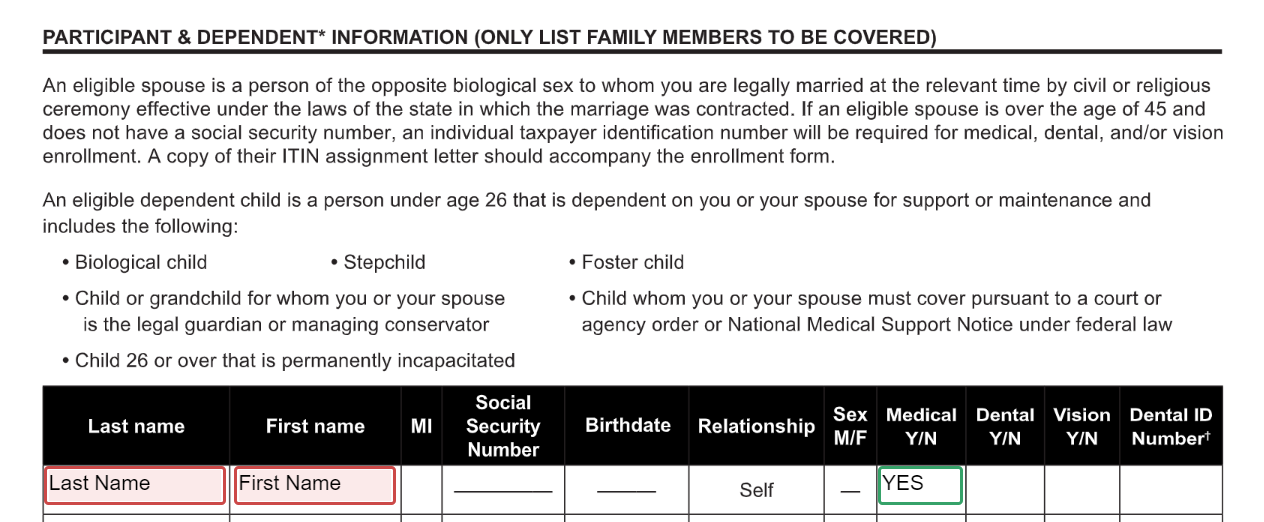
Once you select the level of coverage you would like for 2026, you will complete your last name and first name under "participant and dependents".

Note: This scenario is if the employee is enrolling in employee only coverage so the form will not let you list anyone else except yourself


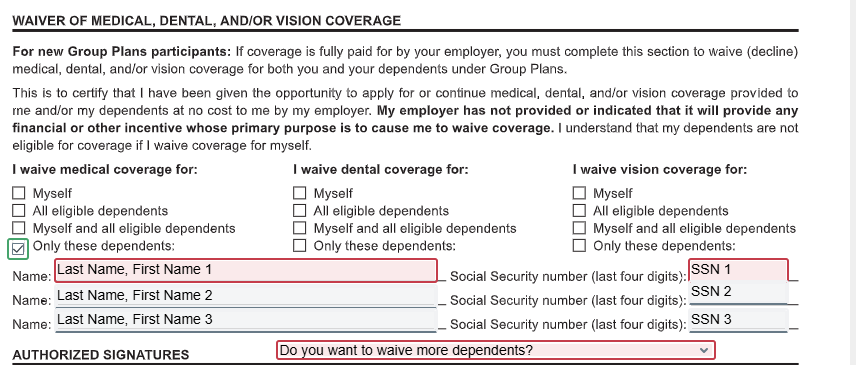
  • If you are married and selected "no" for benefits for your spouse and eligible children, the form will pre-select "all eligible dependents" under "I waive medical coverage for". Then proceed to the next step.
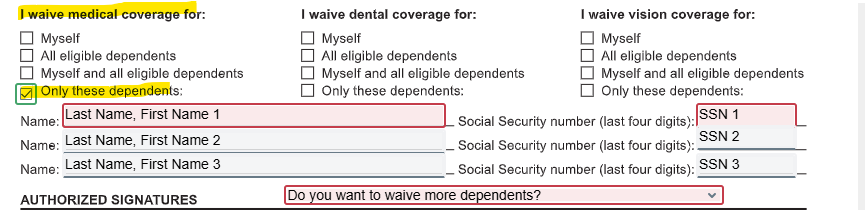
  • If you are married and selected "yes" for benefits your spouse but "no" for eligible children or vise versa, the form will pre-select "only these dependents" under "I waive medical coverage for"
    • It will then require you to input the dependent(s) last name, first name, and last 4-digits of their SSN that you are waiving coverage for
    • It will also ask if you need to list more dependents if 3 is not enough. If you need to list more dependents, select yes and it will take you the next page to finish listing dependents 


Once you have finished selecting your coverage level and/or waiving dependents, you will click "sign". When the form is signed, it will go to our benefits team for review and processing effective 1/1/26


This scenario is if you are enrolling yourself and your spouse with the option to waive dependent children (if applicable) 


Complete the boxes outlined in red with your legal information -the form will not let them continue without the boxes outlined red completed.

  • The form will already have 'Yes' selected for 'Myself.' 
  • Select "yes" for spouse
  • Select "no" for eligible children (even if you don't have any, the form will make you select yes or no)
  • Then, select your coverage level from the dropdown next to 'Coverage.' Your selected coverage will begin on January 1, 2026.


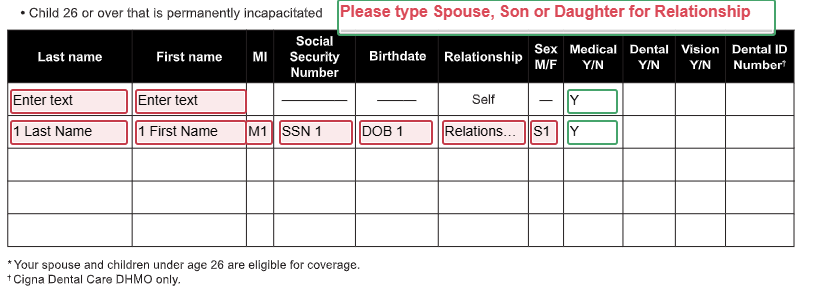
They will go to the second page of the form "Participant & Dependents" and they will type in the following information for their spouse 

  • Last name
  • First name
  • Social Security number
  • Relationship to you (spouse)
  • Birth Date 
  • Gender (Type "M" for male, "F" for female)

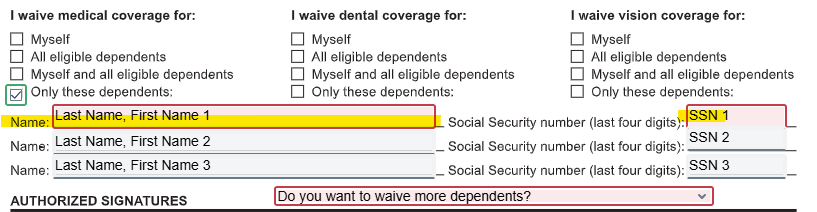
  • Since you selected no for benefit eligible children, you will need to enter the dependent(s) information that coverage is being waived for 
    • You will be asked if you want to waive more dependents - if you need to waive more than 3 dependents, click "yes" - if not, click "no"
  • If you are married but do not have children and/or don't have benefit eligible children, type NA in the boxes

Once you have finished selecting your coverage level and/or waiving dependents, you will click "sign". When the form is signed, it will go to our benefits team for review and processing effective 1/1/26


This scenario is if you are enrolling yourself and family in coverage


Complete the boxes outlined in red with your legal information -the form will not let them continue without the boxes outlined red completed.


  • The form will already have 'Yes' selected for 'Myself.' 
  • Select "yes" for spouse or "no" if you are not married
  • Select "yes" for eligible children
  • Then, select your coverage level from the dropdown next to 'Coverage.' Your selected coverage will begin on January 1, 2026.


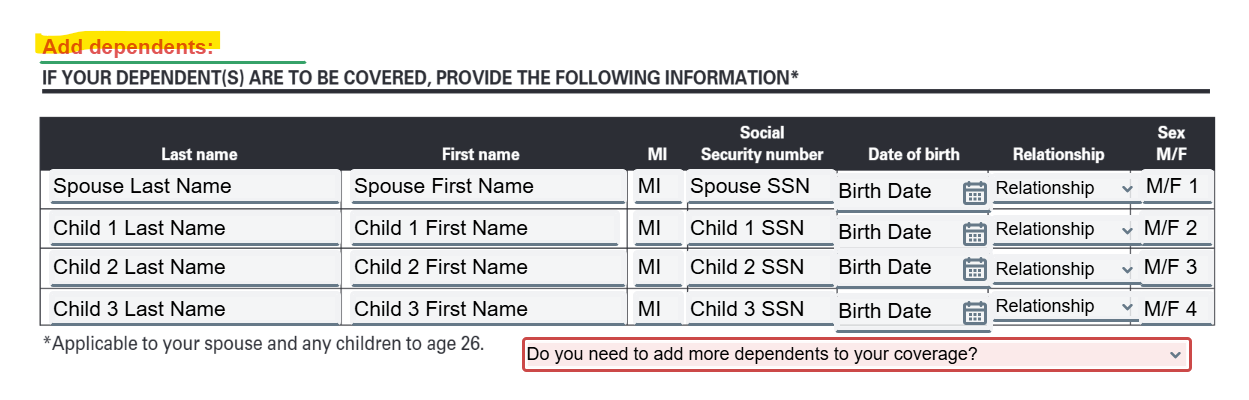
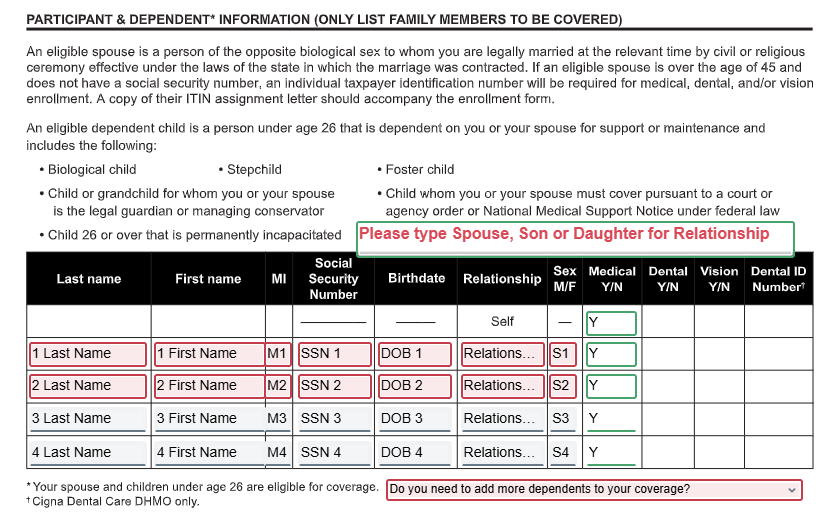
They will go to the second page of the form and in the "Participant and Dependents" section they will type in the following information for their spouse (if applicable) and children.

  • Legal Last name
  • Legal First name
  • Social Security number
  • Relationship to you (spouse)
  • Birth Date 
  • Gender (Type "M" for male, "F" for female)
  • If you need to add more than 4 dependents, please answer the question under the dependent information that says "do you need to add more dependents to your coverage?"
    • If yes, then it will take you the next page to finish adding your dependents 
    • If no, it will take you to the bottom of the form to sign & submit

If you are not married, and select "no" for spouse - type NA in the highlighted boxes below 


Once you have finished the enrollment information, you will click "sign". When the form is signed, it will go to our benefits team for review and processing effective 1/1/26


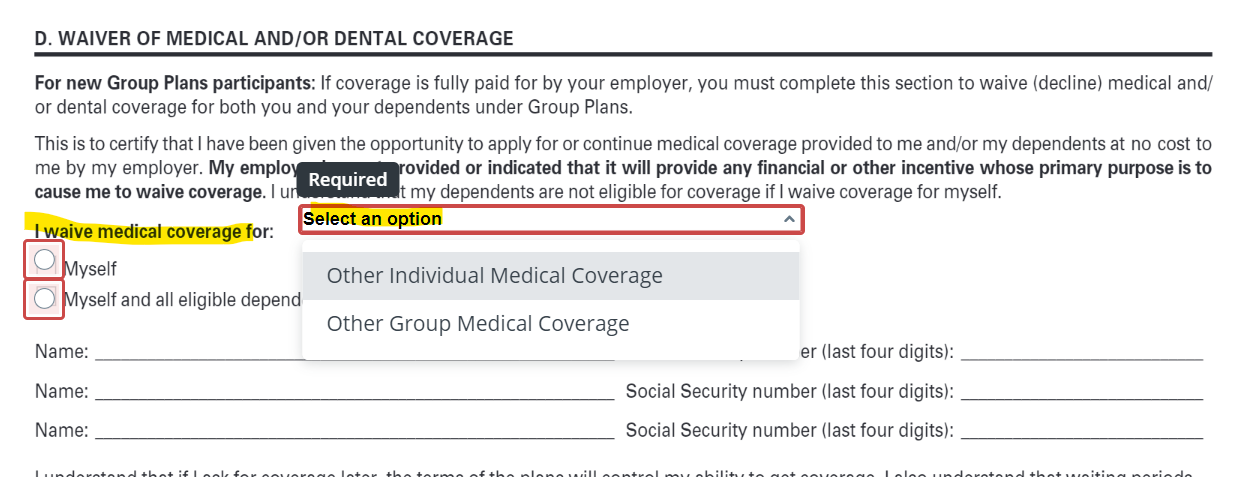
If you are terminating all your medical coverage for yourself and dependent(s) (a dependent is anyone else who is covered on their insurance plan, this includes their spouse), please complete this form via the instructions below.

Demographic Info Required

  • Legal Last Name
  • Legal First Name
  • Date of Birth


Complete all the red boxes with their demographic information. The form will not let you continue without the boxes outlined red completed.


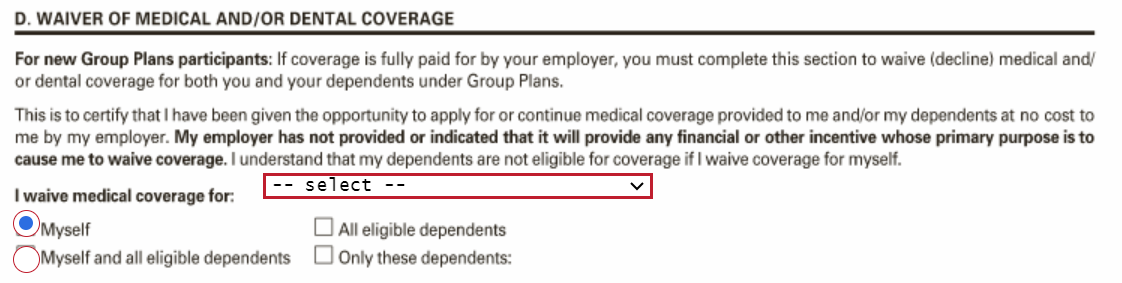
If you are terminating coverage for only yourself, you will click "myself"  under " I Waive Medical Coverage For:"


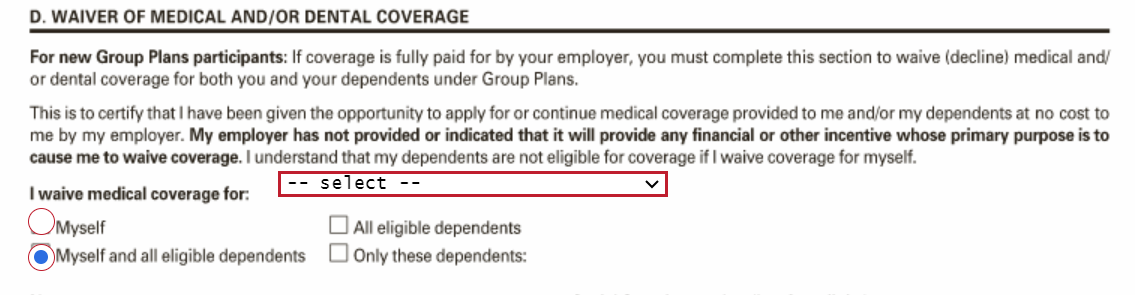
If you are terminating coverage for yourself and dependent(s), you will click "myself and all eligible dependents" under the section "I Waive Medical Coverage For: ".


Then you will need to select the reason they are waiving coverage.


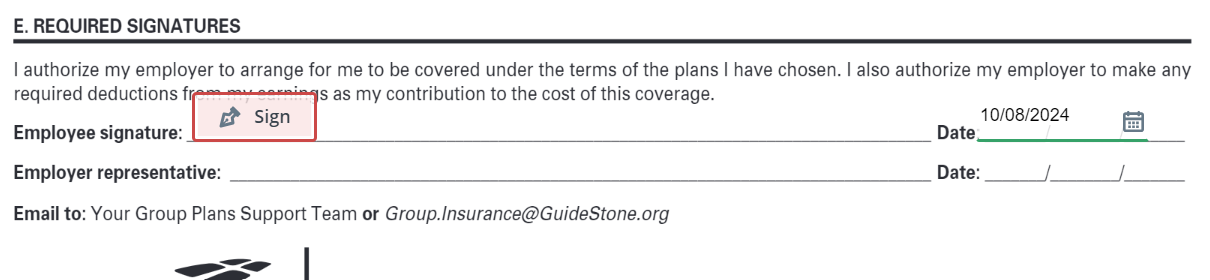
Once you have completed the waiver portion of the termination form, you will click "sign" then "finish". After you click "finish", they can choose to download a copy of their completed form for their personal record and your current medical coverage will be terminated effective 12/31/2025.


If you would like to make changes to your current medical plan, this is the form to complete. Please note the demographic information that may be required on this form depending on the change you are making. 

Demographic Info Required

  • Legal Last name
  • Legal First name
  • Date of Birth
  • If enrolling dependent(s)
    • Legal Last name
    • Legal First name
    • Social Security number
    • Relationship (spouse, son, daughter)
    • Date of Birth
    • Gender
  • If waiving dependent(s)
    • Legal Last Name
    • Legal First Name
    • Last 4 digits of Social Security Number


This form is used to make the type of changes listed below... 

  • Change plan levels only (but keep all current dependents on your coverage, if applicable)
  • Change plan levels and add dependent(s)
  • Change plan level and remove dependent(s)
  • Change plan levels, remove AND add dependent(s)
  • Keep current plan level and add dependent(s)
  • Keep current plan level and remove dependent(s)
  • Keep current plan level, remove AND add dependent(s)


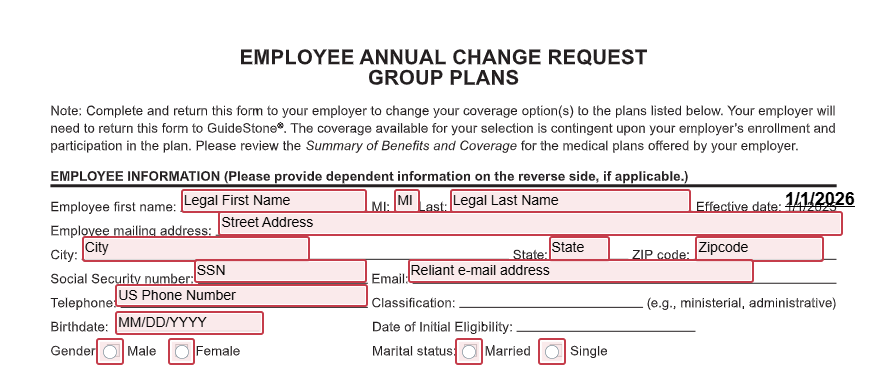
You will complete the required demographic information that is outlined in red 

  • Legal Last Name
  • Legal First Name
  • Middle Initial (if they have a middle name, this field is optional)
  • Date of Birth 
  • Reliant email address

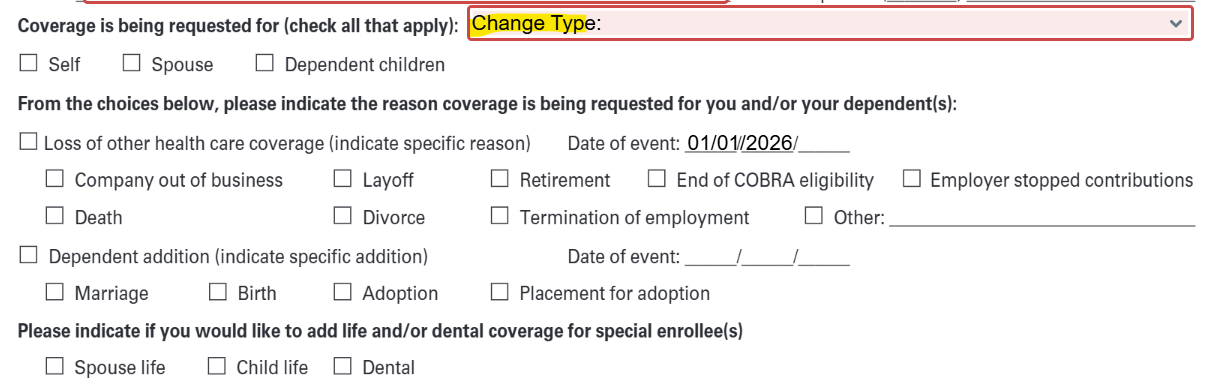
 Next, you will be prompted to choose the type of change you would like to make effective 1/1/2026 

  • Change plan levels only (but keep all current dependents on your coverage, if applicable)
    • Only change the level of plan you have 
      • ie. Switch from the HS5000 to the HS2000
  • Change plan levels and add dependent(s)
    • Change the level of plan you have and add eligible dependent(s)
      • ie. Switch from the HS5000 to the HS2000 and add your spouse to coverage
  • Change plan level and remove dependent(s)
    • Change the level of plan you have and remove dependent(s) from your coverage 
      • ie. Switch from the HS2000 to the HS5000 and remove your son from coverage
  • Change plan levels, remove AND add dependent(s)
    • Change the level of plan you have, add eligible dependent(s) and remove dependent(s)
    • ie. Switch from HS2000 to the HS5000 
    • Add your daughter 
    • Remove your son 
  • Keep current plan level and add dependent(s)
    • Keep your current plan level but add eligible dependent(s)
      • ie. Stay on the HS5000, add your son & daughter 
  • Keep current plan level and remove dependent(s)
    • Keep your current plan level but remove dependent(s) 
    • ie. Stay on the HS2000 but remove spouse from coverage 
  • Keep current plan level, remove AND add dependent(s)
    • Keep your current plan level but remove and add eligible dependents currently on coverage 
    • ie. Stay on the HS5000
    • Add your spouse 
    • Remove your son & daughter


Once you have chosen the type of change you would like to make, complete the boxes via the instructions below based on your change type

Go to page two and select the new plan level you would like effective 1/1/26
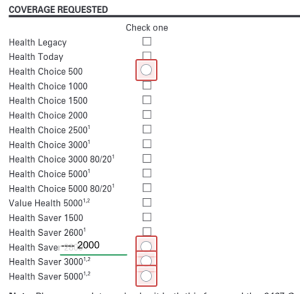
 Once you have chosen your new plan, sign the form and click FINISH at the bottom of the screen
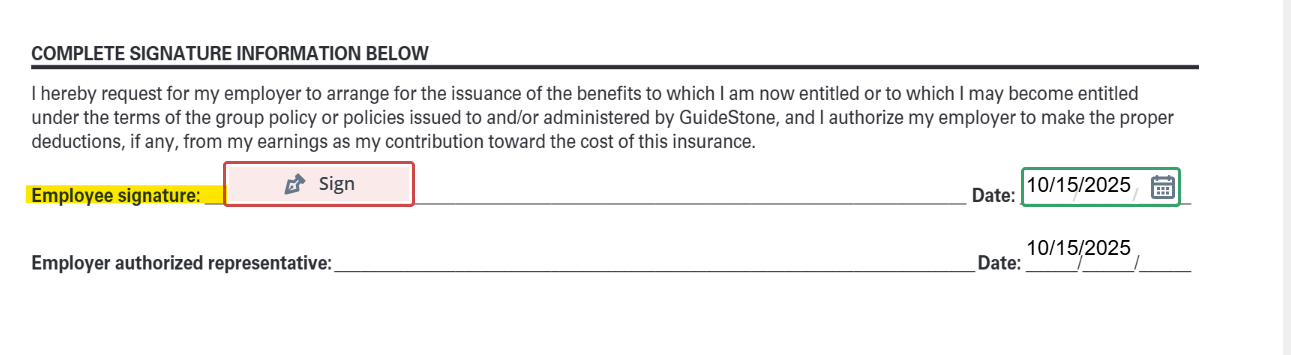
You're all set! Your new plan will be processed and go into effect on 1/1/2026


Check off the type of dependent(s) you would like to add to your coverage effective 1/1/2026 


 Select the new level of coverage you would like 
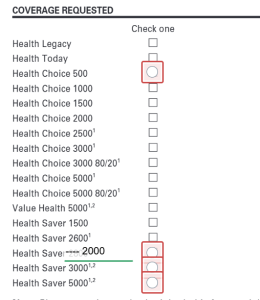
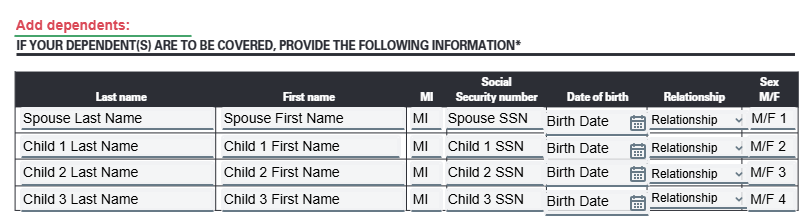
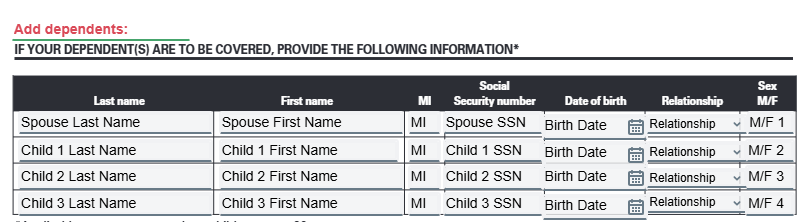
 Now you will need to enter the information below for the dependent(s) you are adding to your coverage 

  • Legal Last Name 
  • Legal First Name 
  • Middle Initial 
  • Social Security Number 
  • Date of Birth 
  • Relationship to you (Spouse, Son, Daughter
  • Gender (M - Male, F - Female)

Select if you you need to add more dependents to your coverage 

  • If yes, then you be prompted to go to the next page to enter the same information as your other dependents 
  • If no, you will be prompted to the bottom of the form to sign and submit

 Once all your dependent(s) have been added to the form, sign on employee signature 
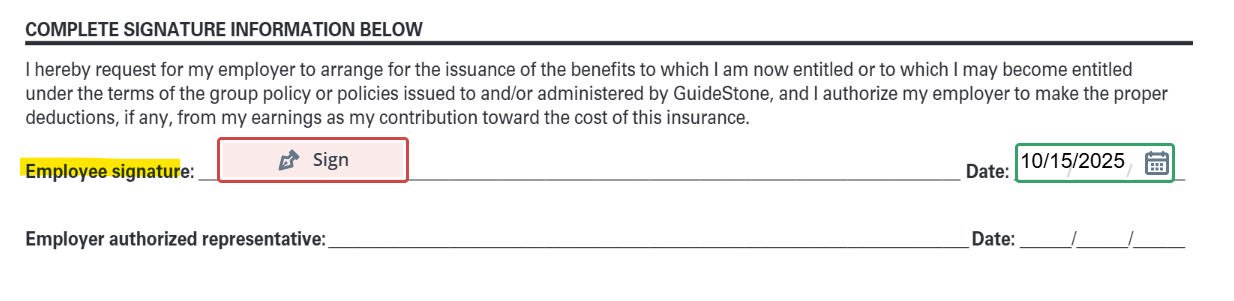
 Click FINISH at the bottom of the form and you are all set for your new coverage effective 1/1/2026!


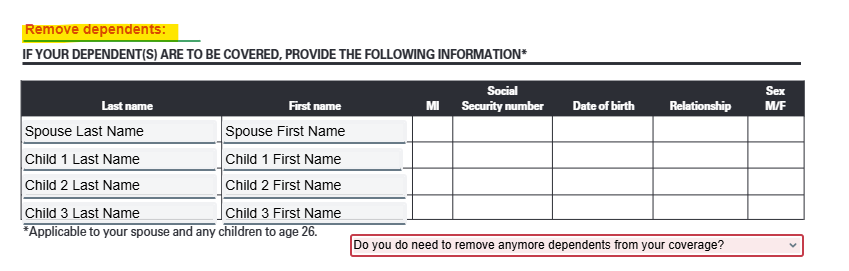
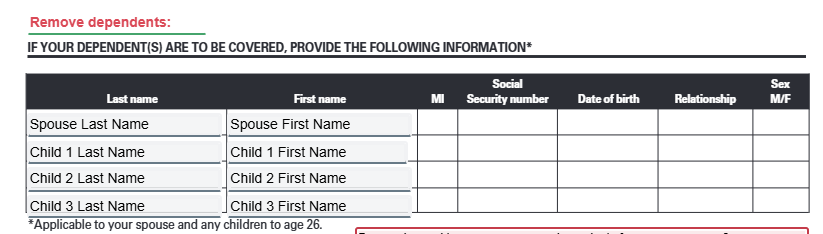
Check off the dependent(s) that you would like to remove from your coverage effective 1/1/2026

Select your new level of coverage 

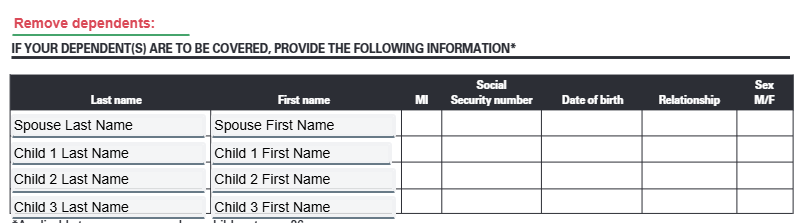
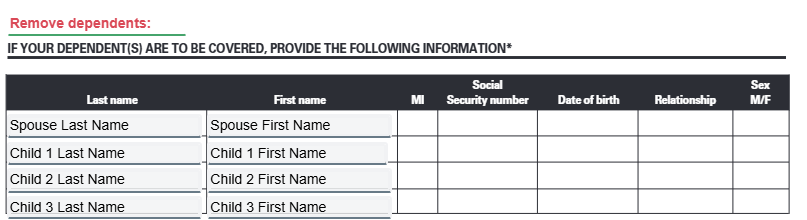
 You will go to page 4 and type in the dependent(s) you would like to remove from your coverage 

  • Legal last name 
  • Legal first name 

 Select if you need to remove more dependents from your coverage 

  • If yes, you will go to the next page to finish entering your dependents information to remove from your coverage 
  • If no, you will be prompted to the bottom of the form to sign 

 Once you have listed all the dependents that you are removing from your coverage effective 1/1/2026, you will sign the form 
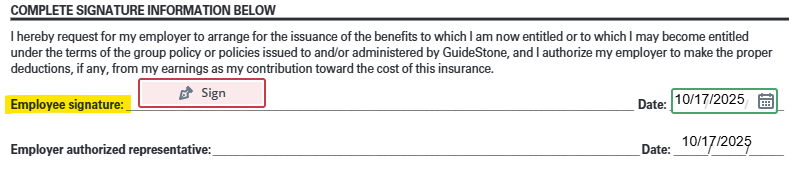
  Click FINISH at the bottom of the form and you are all set for your new coverage effective 1/1/2026!


Select the dependents that you would like to add and remove

 Select your new level of coverage effective 1/1/2026 
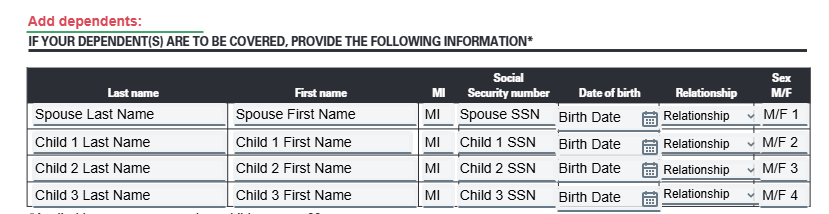
 Next, list the dependent(s) you would like to add to your coverage effective 1/1/2026 

  • Legal Last Name
  • Legal First Name 
  • Middle Initial 
  • Social Security Number 
  • Date of Birth 
  • Relationship from the dropdown 
  • Gender (M - Male, F - Female)

 Select if you need to add more dependents to your coverage 

  • If yes, go to the next page to finish adding your dependents 
  • If no, the form will prompt you to page 4 to begin listing the dependents you would like to remove from your coverage effective 1/1/2026

 Once you have added all eligible dependent(s), enter the information of the dependent(s) you would like to remove from your coverage 

  • Legal Last Name
  • Legal First Name

 Next, you will choose if you need to remove more dependents from your coverage 

  • If yes, it will prompt you to the next page to finish listing your dependents information 
  • If no, you will be prompted to the bottom of the form to sign 
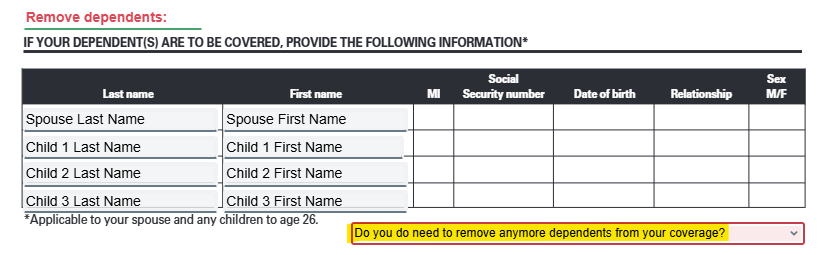
 Once you have listed all the dependents you would like to add and remove from your coverage effective 1/1/2026, you will sign the bottom of the form 
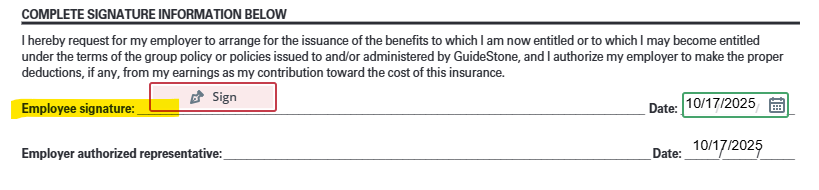
   Click FINISH at the bottom of the form and you are all set for your new coverage effective 1/1/2026!


Select the dependent(s) you would like to add to your current level of coverage effective 1/1/2026 

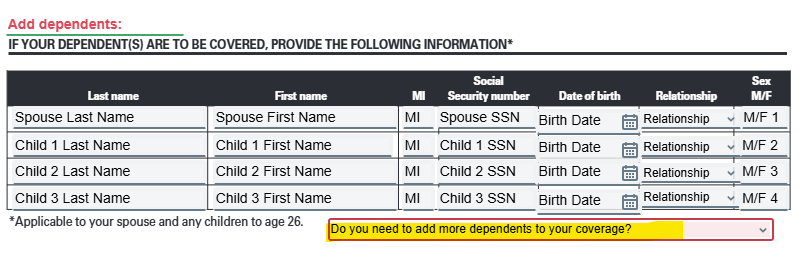
 On page 2, list the dependent(s) you would like to add to your coverage 

  • Legal Last Name 
  • Legal First Name 
  • Middle Initial 
  • Social Security Number 
  • Date of Birth 
  • Relationship from the dropdown 
  • Gender (M - Male, F - Female)

 Next, select if you would like to add more dependents to your coverage 

  • If yes, it will prompt you to the next page to finish adding your dependents information 
  • If no, you will be prompted to sign the bottom of the form 
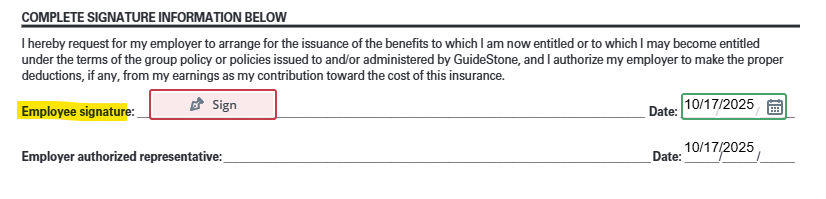
 Once you have finished add your dependent(s), you will sign the bottom of the form 
    Click FINISH at the bottom of the form then you are all set and your dependent(s) will be added to coverage effective 1/1/2026!


Select the dependent(s) you would like to remove from your current level of coverage effective 1/1/2026 

 It will prompt you to page 4 where you will list the dependent(s) you would like to remove from your coverage 

  • Legal Last Name 
  • Legal First Name 

 Next, you will select if you need to remove from dependents from your coverage 

  • If yes, it will prompt you to the next page where you can finish listing your dependents to remove from your coverage 
  • If no, it will prompt you to the bottom of the form to sign 
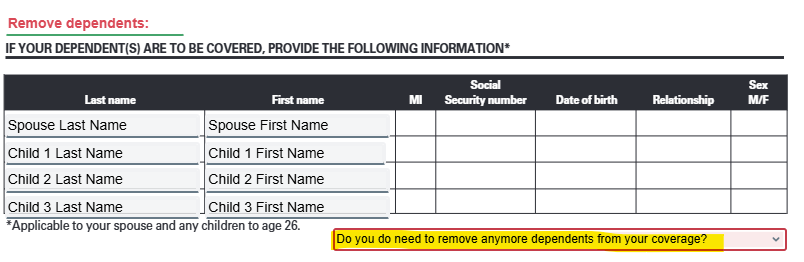
 Once you have listed all the dependents you would like to remove from your coverage, you will sign the bottom of the form 
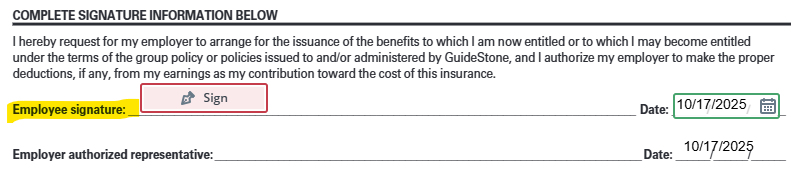
     Click FINISH at the bottom of the form then you are all set and your dependent(s) will be removed from your coverage effective 1/1/2026!


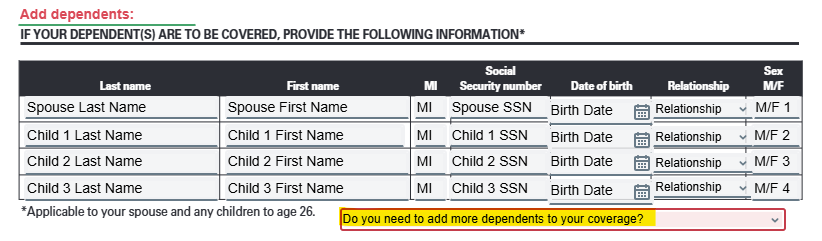
Select the dependents you would like to add and remove from your current level of coverage effective 1/1/2026 

 Next, complete the information below for the dependent(s) you are adding to your coverage 

  • Legal Last Name
  • Legal First Name 
  • Middle Initial 
  • Social Security Number
  • Date of Birth 
  • Relationship from the dropdown 
  • Gender (M - Male, F - Female)

 Then you will select if you need to add more dependents to your coverage 

  • If yes, it will prompt you to the next page to finish adding the information for your dependents to be added to coverage 
  • If no, it will take you to next section to begin listing the dependent(s) you are removing from your coverage 
 Here, you will list the dependent(s) you would like to remove from your coverage effective 1/1/2026 

  • Legal Last Name 
  • Legal First Name 

 Next, it will ask if you need to remove more dependents from your coverage 

  • If yes, you will be prompted to the next page to finish listing the dependents you need to remove form coverage 
  • If no, you will be prompted to sign the bottom of the form 
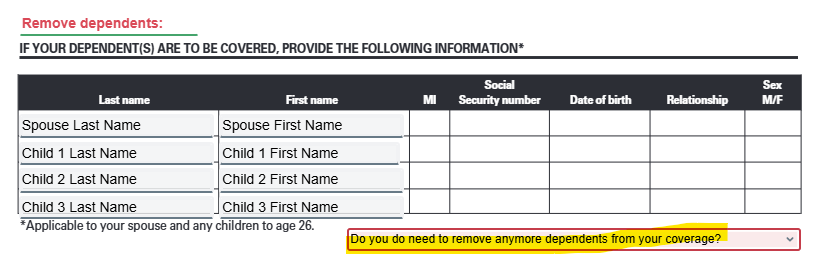
 After you entered all the necessary information to add and remove your dependents from your current level of coverage, you will sign the bottom of the form 
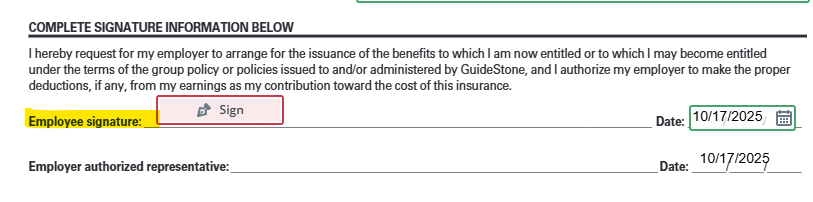
      Click FINISH at the bottom of the form then you are all set and your dependent(s) will be add and removed from your coverage effective 1/1/2026!


Once your form is submitted, the benefits team will review it and begin processing it. The changes you made to your coverage will go into effect 1/1/2026. If you have any questions, please email benefits@reliant.org


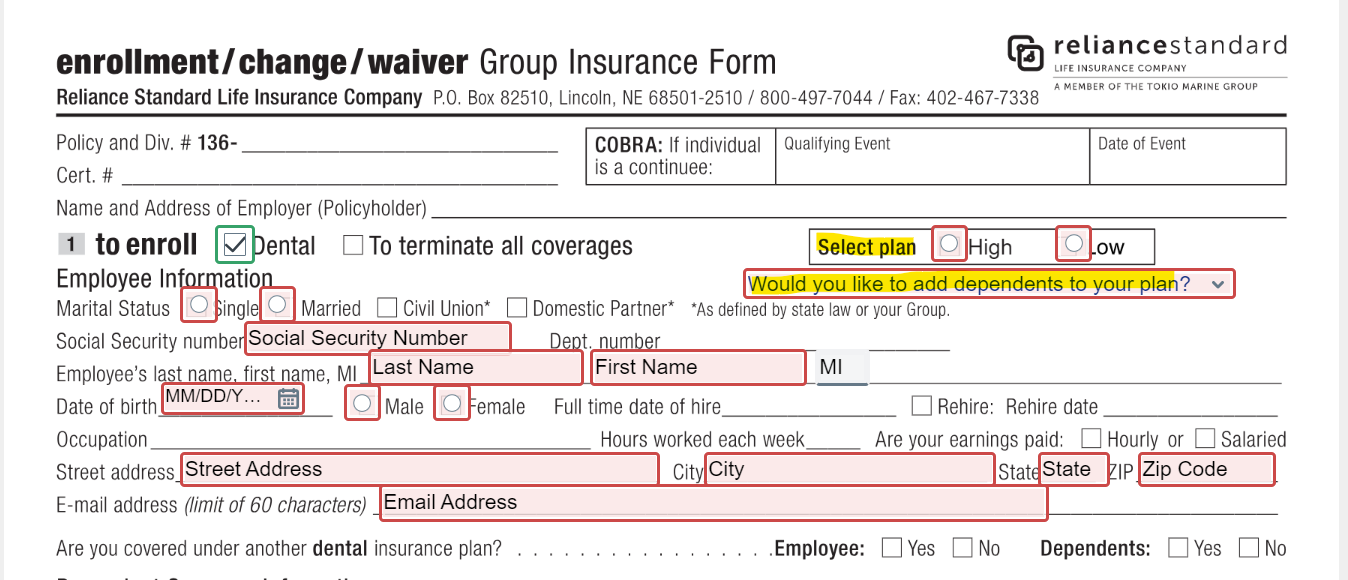
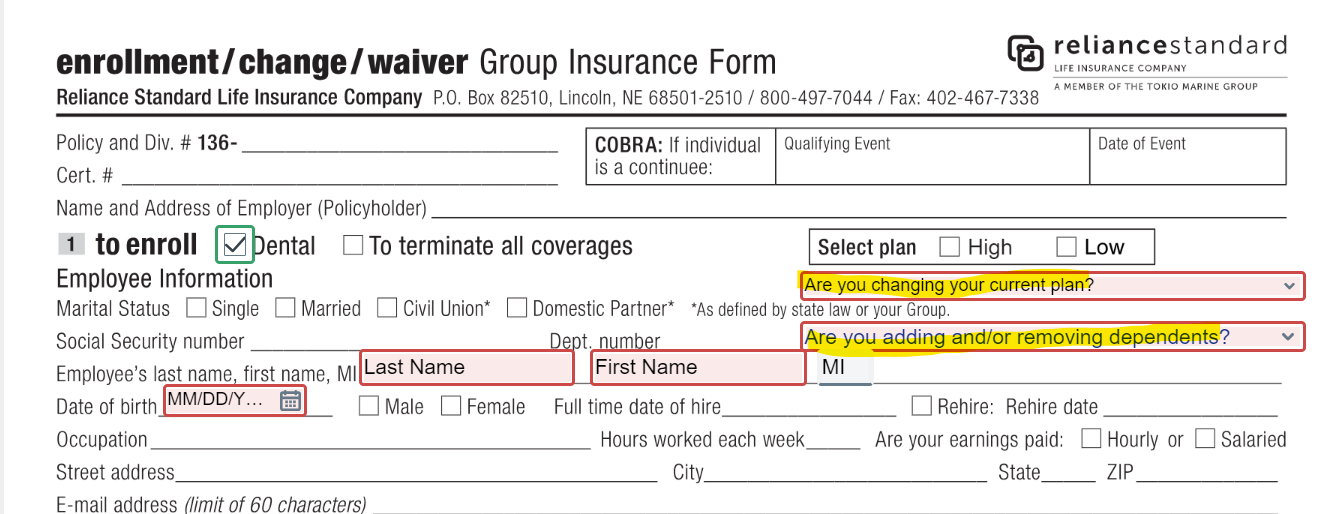
If the Field employee does not currently have dental insurance through Reliant but would like to enroll, please have them complete this form via the instructions below and their coverage will go into effect on January 1st, 2026

Demographic Info Required

  • Legal Last name, First name
  • Social Security number
  • Date of Birth 
  • Gender
  • Address
  • If enrolling dependent(s)
    • Full legal name
    • Gender


  1. They complete the red boxes with their legal name, address, Social Security number and date of birth
  2. Select the plan type they want (High or Low)
  3. If they would like to add dependent(s) to their coverage
    1. I would like to add dependent(s) 
    2. I would NOT like to add dependent(s)

The boxes outlined in red are required to be completed before moving onto the rest of the form.


If the Field Employee is only enrolling his/herself, go to Step 5. If they are enrolling dependent(s), they will complete the boxes below with their legal name, relationship (spouse, son, daughter), gender, date of birth and Social Security number.

As they type in their dependent(s) name, the remaining boxes that need to be completed will become outlined in red


They click "sign" then "finish" at the bottom of the form to sign and complete the enrollment. Once they click "finish," they will have the option to receive a copy of their completed form for their personal records.


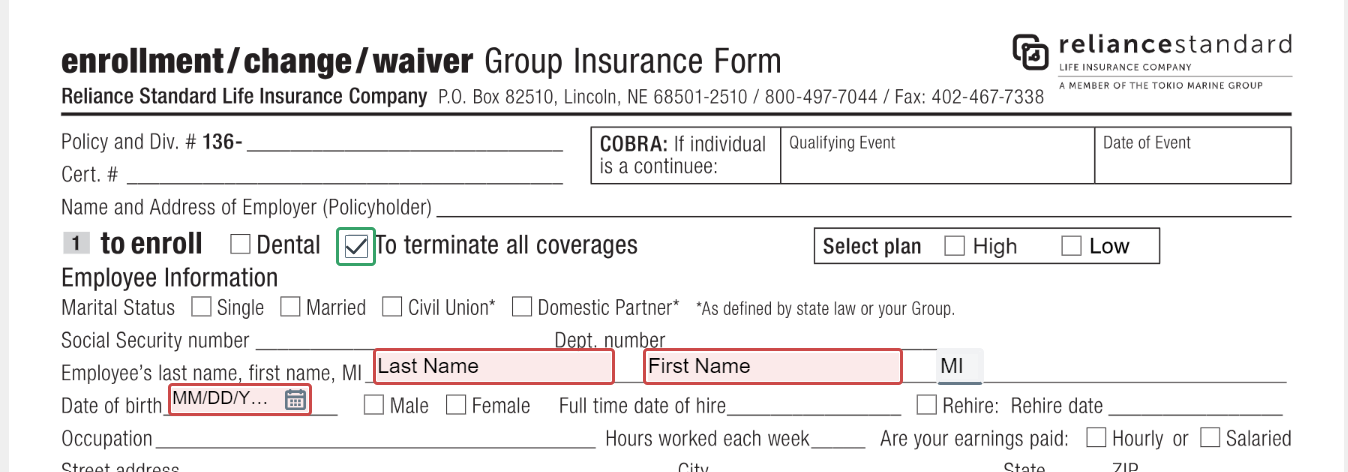
If the Field Employee is terminating all dental coverage for them and their dependent(s), please have them complete this form via the instructions below.

Demographic Info Required

  • Legal Last name
  • Legal First name
  • Date of Birth

This form will have the "To Terminate All Coverage" box pre-checked for them, so they will not need to check this off.

They complete the box outlined in red with their full legal name

We understand that they are inputting their name in the "To Enroll" section, but this is the only place to add their name on this form.


They click "sign" then "finish" at the bottom of the form to sign and complete the enrollment. Once they click "finish," they will have the option to receive a copy of their completed form for their personal records.


If the Field Employee is currently enrolled in dental insurance but would like to add dependent(s) (individuals covered on their plan), terminate coverage for their dependent(s), or change coverage levels, they will use the Change Forms and complete it with the changes they would like to make. Note, this change will go into effect on January, 1st 2026.

Demographic Info Required

  • Employee's Last name, First name
  • If enrolling dependent(s)
    • Full legal name
    • Gender
    • Date of birth
    • Social Security number


Complete the required demographic information outlined in red. The employee will also need to answer 2 questions...

Required Demographic Information:

  • Legal Last Name
  • Legal First Name
  • Middle Initial if applicable 
  • Date of Birth 

Questions to Answer on the right of form under "select plan":

  1. Are you changing your current plan?
    1. Yes, I'm changing from High to Low or Low to High.
      1. If they select they are changing their plan, the plan types above will become outlined in red & they will choose their new plan type above
    2. No, I'm keeping my current plan.
      1. No further action needed 
  2. Are you adding and/or removing dependents?
    1. Yes, I'm adding and/or removing dependents.
      1. If selected, go to step 2
    2. No, I'm not adding and/or removing dependents.
      1. No further action needed and they skip to step 3

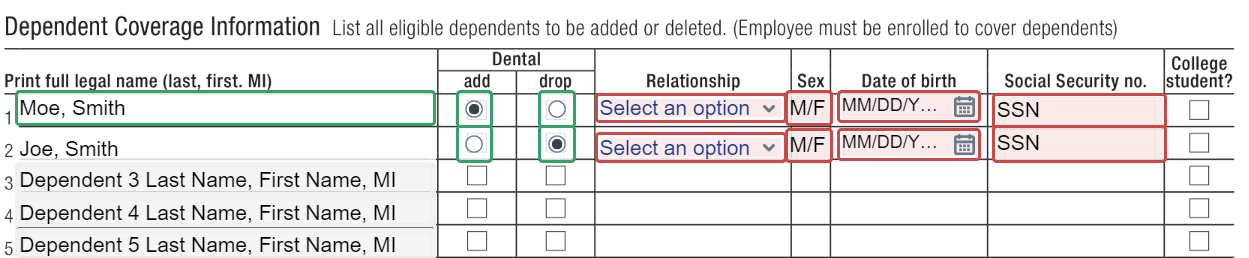
 If the employee selected "Yes, I'm adding and/or removing dependents.", the employee will fill in the required demographic for each dependents and select "add" if they adding dependent(s) to their coverage or "drop" if they are removing dependent(s) from their coverage effective 1/1/26.

The employee can do both add AND remove dependents from their coverage using this form so they.... 

  1. Add dependent(s)
  2. Remove dependent(s)
  3. Add AND remove (dependent(s)) 

 Once the form is complete with the change(s) they would like to make, they will sign the form and click "finish". 


Microsoft Forms

This is a Microsoft secured form and it is used to make the following elections for 2026:

You do not need to have Microsoft or Microsoft suite to access this form. 


  • Employee HSA Contributions - these are the pre-tax contributions made from their paycheck into their HSA account. 
  • Sign up for the childcare benefit and select the amount that they want to be deducted monthly from their paycheck pre-taxed. 
  • Sign up for Vision Coverage for themselves and/or their family. The premium charge is deducted from their paycheck monthly before taxes. 


2026 Cafeteria Plan Enrollment Form


This is a Microsoft secured form and is used to sign up for, change or terminate Voluntary Life Insurance for the Field Staffer's self, spouse, and their children. This form will give the Benefits Team the ability to determine if the enrollment or increase is over the GI (Guaranteed Issue) amount. If it does, the field staff will be sent a link to RSLI's PowerForm. 

2026 Open Enrollment Voluntary Life Form 

You do not need to have Microsoft or Microsoft suite to access this form.