For any expense over $75, a receipt must be submitted. To share/send those receipts with Reliant, we ask that you create a shared folder on Google Drive and upload the receipts to that folder. You will then share the link to the google folder in your expense submission form, allowing Reliant to easily review the submitted receipts. Please create a new shared folder for each expense submission so that Reliant knows which receipts go with which expense submission form.
Google Drive has an app you can download onto your phone so you can easily take a picture on your phone of the receipt and then upload the picture to a shared Google Drive folder using the app from your phone. The below concepts are the same for all Google Drive users, but some of the specific instructions were written with iPhone users that are using the Google Drive app in mind.
Reliant will no longer accept any receipt submissions sent via email to the reimbursement team. We are moving into the world of automated submissions and are now requiring that everyone submit all receipts (photos of printed receipts as well as PDFs and receipts embedded within emails) via a shared Google Drive folder. |
Submitting Reimbursement Receipts Require 3 Easy Steps
Create a Google Folder For instructions on how to do this click the link below that matches the device you will be completing this task on. 

|
Upload Receipts to Google Folder For instructions on how to do this click the link below that matches the device you will be completing this task on. 

|
Link Google Folder to Expense Submission Form We recommend that this be completed from a computer as you will have the best experience filling out the Expense Submission form from a computer. 
|
|
Create a New Google Folder on a Computer
You will need to create a New Google Folder for each Reimbursement Submission Form you Submit.
- Log in to your reliant email address at gmail.com.
- Once logged in, in the upper right corner find the Google Apps Icon (
 ) and select the Drive app(
 ).
). - On the left-hand side of Google Drive click the + New button and select the New Folder option.
- Name the New folder "First Name Last Name Month and Year Receipts" (i.e. Jim Halpert May 2023 Receipts) and click Create
- If you are submitting multiple reimbursement submission forms for the same month add a number to the file number (i.e. Jim Halpert May 2023 #1 Receipts)
Here is a 3 minute video on how to Create a New Google Folder on a Computer:

Add Receipts to Google Folder on a Computer
Once you have created your google folder with step #1 above, you are going to need to add any receipts for submissions over $75 to this folder.
- Find your newly created folder in your Google Drive. This folder should show under My Drive.
- Drag and Drop Files into this folder or click the + New button and select File Upload
- Once selecting your file to upload click Open
Here is a short video on how to add receipts to the newly created Google Folder:
To save a receipt as a PDF from your computer so it can be uploaded to your google folder for submission: - Open the receipt / invoice from your email or website you made a purchase
- Choose to print the receipt / invoice (this can be done by selecting Ctrl + P on a PC computer, Command + P on a Mac, or right clicking the item and selecting Print)
- In the Printer options page change the destination from a printer to Save as PDF
- Click Save
- Name the file and choose where on your device you would like to save it
Here is a short video on how to do this:
|
Link the Folder to the Expense Submission Form
After you have uploaded all of your receipts to the Google Drive folder and you have begun to fill out a new expense submission form, you will need to copy the link from the Google Drive folder and paste it onto the expense submission form. Before you grab the link, you need to make sure that you have chosen to give access to "anyone with the link" and that you have changed the access to "editor".
- Open the google drive folder that you have uploaded your receipts to
- Click the information icon (
 ) in the top right of the drive folder
 - Under Details where is says "Who has access" and click the Manage Access button
- When the Share "folder name" pop up comes up click the Restricted Drop down under General access and choose "Anyone with the link" option
- On the Viewer drop down (to the right of the Anyone with the Link) click it and select the Editor option
- Click the Copy Link button in the bottom left corner to copy the link to this drive folder and then click Done
- On the Expense Submission form that you have filled out, under the Form Submission section paste the link you just copied into the Receipt Confirmation field
Expense Receipt folder using Google Drive on a Mobile Device
Google Drive has an app you can download onto your phone so you can easily take a picture on your phone of receipts and then upload the picture to a shared Google Drive folder using the app from your phone. The below concepts are the same for all Google Drive users, but some of the specific instructions were written with iPhone users that are using the Google Drive app in mind.
You will first need to download the Google Drive app if you are using it on your phone. *MAKE SURE YOU ARE LOGGED IN TO GOOGLE DRIVE WITH YOUR @RELIANT.ORG ACCOUNT as this verifies that it is you.
 |
Create a Google Folder on a Mobile Device
- Open the google drive app ()
- Login with your reliant email address or confirm you are logged into your reliant account by clicking on the icon in the top right corner of the drive app and selecting the correct google account.
- Click the
 in the bottom right corner and choose Folder.
 - Name the New folder "First Name Last Name Month and Year Receipts" (i.e. Jim Halpert May 2023 Receipts) and click Create
- If you are submitting multiple reimbursement submission forms for the same month add a number to the file number (i.e. Jim Halpert May 2023 #1 Receipts)
Add Receipts to Google Folder on Mobile Device
Once you have created your google folder with step #1 above, you are going to need to add any receipts for submissions over $75 to this folder.
- Find your newly created folder in your Google Drive. This folder should show in the app.
- Click the in the bottom right corner and tap Upload
- You may receive a message that says "Drive" Would Like to Access Your Photos select the Allow Access to All Photos
- Find and select the photos of receipts / invoices you would like to upload and then click Upload
- Once selecting your file to upload click Open
TAKE A PHOTO OF THE RECEIPT. The easiest option would be to take a picture of the receipt with your phone and then upload the picture to Google Drive from your phone (directions below). You will not need to send Reliant the physical receipt or save the receipts, but you will need to make sure the picture is high enough quality for Reliant to be able to read the letters and numbers (and make sure the entire receipt is in the photo or PDF) before disposing of the receipt. There are also a few other ways to take photos and save multi-pages into one PDF or create a PDF from receipts embedded in emails shown in the Receipts dropdown below.
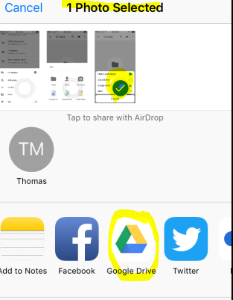
ADD PHOTO/PDF OF THE RECEIPTS TO THE FOLDER. - To add a picture of your receipt to the Google Drive folder simply open your photo gallery on your phone and select the photo. (Your phone may ask you to allow permissions for Google Drive to access your photos.) You will see Google Drive as an option to share with. Once you select Google Drive, you will choose MY DRIVE and then select the correct folder that you created and named to upload the receipt photos or PDFs.
- If you saved your receipt as a PDF or JPEG on your computer or if you have a receipt or file attached to an email, make sure that the Google Drive folder is open and simply drag and drop the PDF/JPEG/file into the folder.
- If you have a photo on your phone but you are unable to use the Google Drive app to upload it, you can email the photo to yourself and then upload the photo attached to the email straight to Google Drive on your computer (see instructions below for dragging and dropping a file) or if the photo is embedded in the email you can turn the email with the receipt information/photo into a PDF.
- If you have a receipt or photo that is embedded in the body of an email (such as a flight/rental car/hotel) you can select FILE and PRINT on the email and instead of printing to a printer, use the drop-down printer option to select MICROSOFT PRINT TO PDF. You will then have the email contents saved as a PDF that you can easily upload into the Google Drive folder.
- You can also use a Microsoft app called Microsoft Lens to take photos of individual receipts or use it to create one PDF by taking pictures of multiple printed individual receipt pages. Once you take the photo(s) and save them together as one PDF to your phone, you can follow the instructions below to add the pictures or PDFs to the Google Drive folder.
 |
If you have any questions about using Google Drive or adding receipts, please reach out to your program liaison.