Create a New Google Folder on a ComputerYou will need to create a New Google Folder for each Reimbursement Submission Form you Submit.
Here is a 3 minute video on how to Create a New Google Folder on a Computer: |
 ) and select the Drive app(
 ).
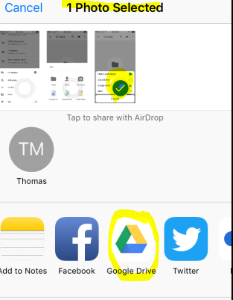
). Add Receipts to Google Folder on a ComputerOnce you have created your google folder with step #1 above, you are going to need to add any receipts for submissions over $75 to this folder.
Here is a short video on how to add receipts to the newly created Google Folder:
|
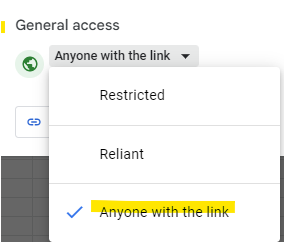
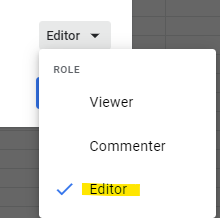
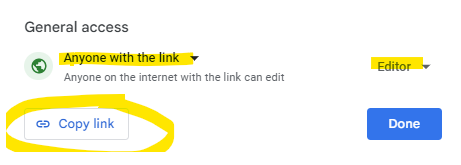
Link the Folder to the Expense Submission FormAfter you have uploaded all of your receipts to the Google Drive folder and you have begun to fill out a new expense submission form, you will need to copy the link from the Google Drive folder and paste it onto the expense submission form. Before you grab the link, you need to make sure that you have chosen to give access to "anyone with the link" and that you have changed the access to "editor".
|
 ) in the top right of the drive folder
 in the bottom right corner and choose Folder.