


Page History
You can We have brand new updated forms! Please take 5 minutes to watch this tutorial video for more details on how to submit your expense submission form. that will walk you through all the details of the form and ensure that you have no hiccups with the download and submission.
To inform Reliant that your submission is complete (and you have received any approvals that may have been needed as outlined below), you will simply add a comment to the Google sheet to say it has been submitted. Please tag reimbursements@reliant.org in your comment. After you add your submitted comment to your form this means it has now alerted reimbursements@reliant.org that your form is ready to be reviewed.
- If your form is being submitted late you will first share it with your supervisor for approval.
- If your submission is for a project fund you will first share it with an authorized signer of the fund for approval.
| Widget Connector | ||
|---|---|---|
|
| Infonote |
|---|
Remember, to fully complete the form, you will need to upload any necessary receipts to a to a shared Google Folder. (Follow the link for instructions and a tutorial video .) |
...
| UI Expand | ||
|---|---|---|
| ||
We understand that many of you already have Google email addresses, whether they are personal addresses, ones through school, or ones through your church. However, to submit reimbursement forms through our Google Drive process, it is required that you submit using your Reliant email address (which is run on Google's systems but has additional features for non-profit organizations like Reliant). Using your Reliant email address validates the email address for audit purposes (proving the email was submitted from an email address assigned exclusively to you) and replaces the need for an e-signature. |
...
CHANGES TO BE MADE
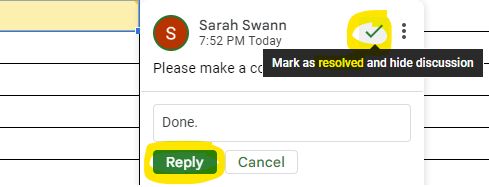
After you share your form with reimbursements@reliant.org you may receive an email back add your "submitted" comment alerting reimbursements that your submission is ready to be reviewed, you may then receive a comment back (which should also result in sending you an email saying a comment was added) saying there are changes that need to be made. At times, corrections or additions will be requested before an expense submission form can be considered received for processing. You will be notified through a google comment (you should receive a notice via email that a comment has been added to the expense submission form) that changes are being requested.
| UI Expand | ||
|---|---|---|
| ||
|

| Tip |
|---|
When it comes time to make a new submission, remember |
| Note |
Remember to never make a copy of a previously submitted form. Always go back to the Field Manual page and download a new form. Never edit and try to resubmit an already submitted form. There are many reasons, but one reason, for example, is that a copy of a completed submission will now say SUBMITTED as its status. This is that it causes confusion for the reimbursement team to know whether or not this is a duplicate submission. There is also an OFFICE USE ONLY tab that has many instructions for the Reliant reimbursement team related specifically to the expenses on this form that will need to change per each submitted form. If you need to submit a new form please go back to the Solomon page and download a new form. This Always downloading a new copy from the Field Manual page, also ensures that you always receive the most up-to-date copy of the form in case changes have been made to the template. |
...
