


Page History
| Info | ||
|---|---|---|
| ||
Tntconnect 4.x version and beyond no longer supports the datasync function. As long as long as you don’t upgrade to version 4.x or later (in other words stay at version 3.x), Tntconnect will work just fine and continue to import the datasync files. If you have already updated to a 4.x or beyond you can try to revert to the older version if possible, continue using your current version that can't do the data sync (not recommended), or switch to another database. |
Introduction
This document is aimed at staff already taking advantage of TntMPDTntconnect, and who have existing data in their local TntMPD local Tntconnect database. If you have never used TntMPDTntconnect, please refer to the New TntMPD New Tntconnect User document. If you did not download this file from GCMReliant's TntMPD s Tntconnect DataSync page close it now and go grab the latest version. You don't want to follow instructions in and old file and take a chance that we've updated something important! https://wwwtoolbox.gcmappreliant.netorg/mygcmmtd/tntmpd/datasync
Backup your
...
existing Tntconnect database!
- Backup your existing database before you start!
- Launch TntMPDTntconnect, Click on the “File” menu, and choose the “Backup…” option. (You can also go to the location of your TntMPD Tntconnect database file and simply make a copy of it)
- We can't stress this enough! Back it up. Do it now!
Getting the DataSync party started!
The GCM TntMPD The Tntconnect DataSync file is the easiest and fastest way to sync all of your donor and gift information in one easy step. One easy step, then why all the warnings and hoopla?! Well, once you've finished this inital DataSync all of your following DataSync's will be easy cheesy!
- Go to the current TntMPD current Tntconnect page on mygcmToolbox. If you aren't logged in to mygcm already in already it will take you to the login page first.
https://wwwtoolbox.gcmappreliant.netorg/mygcmmtd/tntmpd/datasync - Click on the “ TntMPD DataSync Download File” button to download your personal GCM TntMPD personal Tntconnect DataSync file. This file is created the moment you click the button and is a personalized data file for you. It will always have the most up to date data on gifts and donors that GCM Reliant has.
Before we do the import,
TntMPDTntconnect allows you to setup automatic tasks for newly inputted data. We do not recommend allowing automatic tasks for your first import. I f you do not turn this off,
TntMPDTntconnect will create tasks for all gifts you've ever received. This could create thousands of tasks related to the donors and gifts you will be importing from
GCMReliant. If you specifically want to have tasks created for all your
GCMReliant imported gifts, then skip to step 4. If however, you would not like to have tasks created for all your
GCMReliant imported gifts, you can temporarily disable automatic task creation
in TntMPDin Tntconnect as follows:
Select Tools in the top menu bar, and click on “Options” [Figure 1].
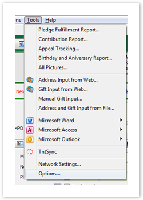
Figure 1 – Tools > OptionsIn the Options dialog, select the “Gifts” tag and uncheck the “Enable Automatic Actions for New Gifts” option [Figure
a22].
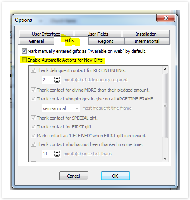
Figure a2
GiftsSection Column width 50% 
Figure 1 – Tools > Options
Column width 50% 
Figure 2 – Automatic Actions for New
Gift
- Let's import the file! If your TntMPD your Tntconnect installation was associated with .tntmpd file types, you can simply double click the downloaded file. Otherwise, in the TntMPD the Tntconnect program, click on Tools (in the top menu bar) and select “Address and Gift Import from File,” and browse to your downloaded file [Figure a33].
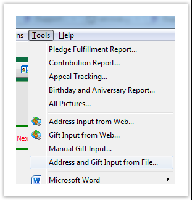

Figure a3 3 – Address and Gift Input from File - You might be prompted to find the matching country from a drop down. Select the correct option and click “OK” [Figure a44].
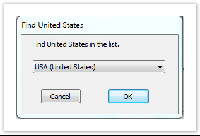

Figure a4 4 – Find Country Window - TntMPD will Tntconnect will analyze the DataSync file and present you with a summary view [Figure a55] which highlights the number of contacts that will be added to your TntMPD your Tntconnect database, the gifts associated with those contacts, the total amount of those gifts, and the dates of the oldest and most recent gifts.
To sync GCM Reliant data with your existing data, make sure you check the “Try to match new accounts with existing contacts” option. Click "Next" to dive in!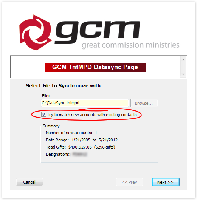

Figure a5 5 – DataSync Summary
...
Those Tricky Donors
After clicking “Next” on the previous window, TntMPD will Tntconnect will now present you with a screen to try and match the GCM Reliant contact with your existing contacts. You will be presented with the screen for each record donor in your GCM Reliant DataSync file, so this . This is a lengthy process, but you only have to do it once!
Warning 
 Now, let's pause here a minute, because this is the tricky part. The way GCM Reliant records donors is legally tied in to the name by which they donated. Here are a few different scenarios that can cause issues:
- With a married couple
- The husband might mail a check with just his name on it, and later the wife mails a check with just her name on it. These are two distinct donors according to GCMReliant.
- A wife may have checks labeled "Jane and John Doe" while a husband's checks may say "John and Jane Doe". These are two distinct donors according to GCMReliant.
- One member of the couple may have died, or the couple may not be divorced. You may see these donors as "John and Jane Doe" and "Jane Doe". These are two distinct donors according to GCMReliant.
- With a Business
- If a donor gives through their business, GCM Reliant will have their business as a donor. If they also give personally it is considered a separate donor.
The DataSync will prompt you for each donor that GCM Reliant has recorded. The point in mentioning this is that many people would have these related donors as a single contact in TntMPDTntconnect. It is up to you to decide if you want the contacts listed separately (like GCMReliant) or if you want to combine them into a single TntMPD single Tntconnect contact. You can do it either way, but you need to remember that if you combine them in TntMPD, they will not match what you see on staffnet. TntMPD will show you that their Toolbox. You might ask your MTD coach what they think you should do. Tntconnect will kindly show you when there are multiple donors associated with a single TntMPD single Tntconnect contact (you'll see this at toward the end of these instructions). If, however, you would like to have everything identical to GCMReliant's records, you should head to http://www.gcmstaff.net and go to MTD > Donors. From the donors page select "All Dates" in the "By Giving" drop down box. This will then give you a list of all donors who have ever given to the account you are responsible for. This list will match the list in the DataSync file, so you can use it as a guide when TntMPD when Tntconnect prompts you for each donor individually. Without it you may not realize that you are combining donors into a single contact until later. There is no way to reverse this process. Once you have matched a GCM donor to a TntMPD contact the effect is permanent. Again, there is no way to reverse this process, except by restoring a backup of your TntMPD database from before this initial DataSync and starting the whole process all over again. This is definitely a case of "measure twice, cut once". You might ask your MTD coach what they think you should do.Ok, moving on. After you clicked clicking "Next" a while back on the DataSync summary window a new window pops up. This will actually be one of two windows, either the "Confirm Match" window [Figure 6] or the "Find [Contact]" window . [Figure 6a and 6b7]. The "Confirm Match" window [Figure 6] will contain a list of contacts that have information (name, address, etc) similar to the new contact. If the contact already exists, then select the correct match and press the “Yes” button. Otherwise, click on “No Match,” and TntMPD and Tntconnect will add them as a new contact in the next step. If TntMPD If Tntconnect cannot find a close match, it will present you with the "Find [Contact]" window [Figure 7] showing a full list of your contacts to choose from. If there is not a match click "No Match" and TntMPD and Tntconnect will add them as a new contact in the next step.
Section Column width 50% 
Figure 6a 6 – Confirm Match Window
Column width 50% 
Figure 6b 7 - Find "DonorContact" Window
- With a married couple
- When matching donors to contacts is complete, you will have the opportunity to add the Donors you selected "No Match" to earlier as contacts in TntMPDin Tntconnect [Figure 8]. At this point, you have the option to uncheck any donors that you do not want to add to your Tntconnect database at this time. By default, all contacts in the DataSync file will be imported. Click “Next” to add all your selected donors to your contact list.
...

Figure 8 - Contacts to Add
The gifts are tricky too!
Once TntMPD Once Tntconnect has imported your donors, it will scan the gift records in the DataSync file and compare them against your local TntMPD local Tntconnect database. You will then see one of three windows popup, and in many cases, a combination of the three.
- If TntMPD If Tntconnect finds updated gift information while scanning the gift DataSync file, it will automatically adjust the information and present you with a confirmation dialog [Figure c49]. This would happen if you had previously entered a donor's gift incorrectly (or at least somehow different from how GCM Reliant has it recorded). If there are not gifts where the amount given needs to be udpatedupdated, you will not see this message.
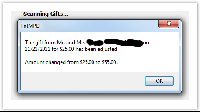

Figure c4 9 – Updated Gift Information If TntMPD If Tntconnect finds new gifts that do not exist in your TntMPD your Tntconnect database, it will present you with list of all new gifts to be imported [Figure 10]. At this point, you have the option to uncheck any gifts that you do not want to add to your TntMPD databaseyour Tntconnect database at this time; by default, all new gifts are checked and will be imported. Clicking "Next" will bring up a summary of the gifts to be added to your TntMPD your Tntconnect database. [Figure a511]. Click on “Sync” to finish adding the gifts.
Section Column width 50% 
Figure a7 10 – DataSync Gift SummaryColumn width 50% 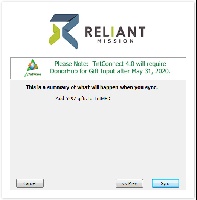
Figure 6b 11 - Gift Import Summary
- If TntMPD If Tntconnect finds no updated gifts and no new gifts, or if it has finished updating and importing from the steps above, TntMPD Tntconnect will tell you that you have successfully synchronized your gift information [Figure c312].
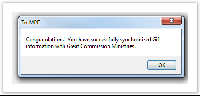

Figure c3 12 – Successful synchronization
That’s it, you’re done! well, almost... there's still a few more important things to know/do!
Let's turn
...
Tntconnect's "Actions" back on
Select Tools in the top menu bar, and click on “Options” [Figure a113]. In the Options dialog, select the “Gifts” tag and check the “Enable Automatic Actions for New Gifts” option [Figure a214].
| Section | ||||||||||
|---|---|---|---|---|---|---|---|---|---|---|
|
You mean there's more?!!
Yes, there's more.TntMPD Tntconnect will never automatically update a contact's information with donor data from GCMReliant. You have to manually go contact by contact to accept changes from the DataSync. This is not true of gifts, only of a contact's primary address and primary phone number. It does not allow for email updates either!!
Ok, so, you're sync'ed, but what does that mean exactly? Did
TntMPDTntconnect just update all of your contact's contact information with
GCMReliant's data? The
datasyncDataSync you just completed associated
your TntMPDyour Tntconnect contact with a
GCMReliant donor, and it did this using
GCMReliant's donor number (RE######). If you take a look at the top right of a contact who has not been associated with a donor, you will see "No Org Account" [Figure
#15]. If you click on "No Org Account" a blank contact information screen
with no informationwill popup [Figure
#16].
Section Column width 50% 
Figure 15 – No Org Account
Column width 50% 
Figure 16 - Blank Org Info
Once you have run the DataSync and a contact has been connected with a donor you will
thensee the
GCMReliant's donor number (RE######)
theirinstead of "No Org Account" [Figure
#a17a]. After a DataSync, IF there are updates from
GCMReliant to a Donor's data
TntMPD, Tntconnect will display the updateable data in red [Figure
#b17b & c]. Any data from
GCMReliant that has not changed will display in
TntMPDTntconnect's normal black/blue colors [Figure
#d12d]. When you click on
GCMReliant's Donor Number (RE######) [Figure
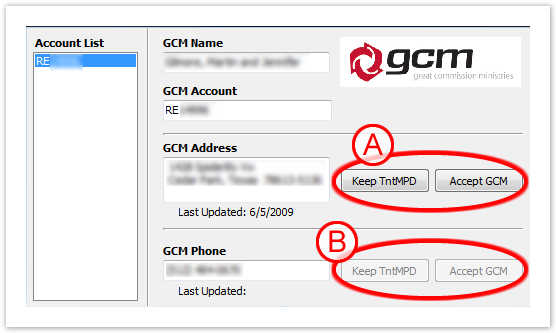
#a17a] a window will popup showing the Donor data from
GCMReliant [Figure
#18]. For new data from
GCMReliant,
TntMPDTntconnect will enable the buttons on this screen [Figure
#a18a]. If
GCMReliant's data has not changed, these buttons will be disabled [Figure
#b18b]. If you click "Accept
GCMReliant"
then TndMPDthen Tntconnect will update the contact's data with the data from
GCMReliant. If you click "Keep
TntMPDTntconnect", it will disregard the data from
GCMReliant. Once you have clicked "Keep
TntMPDTntconnect" or "Accept
GCMReliant"
TntMPDTntconnect will not show any data to update until a Donor actually updates there data with
GCMReliant. This means that after clicking one of these buttons, even if you change a donor's data
within TntMPDwithin Tntconnect and try to update it with
GCMReliant's data,
TntMPDTntconnect will not activate these buttons again until a donor updates their data with
GCMReliant.
Section 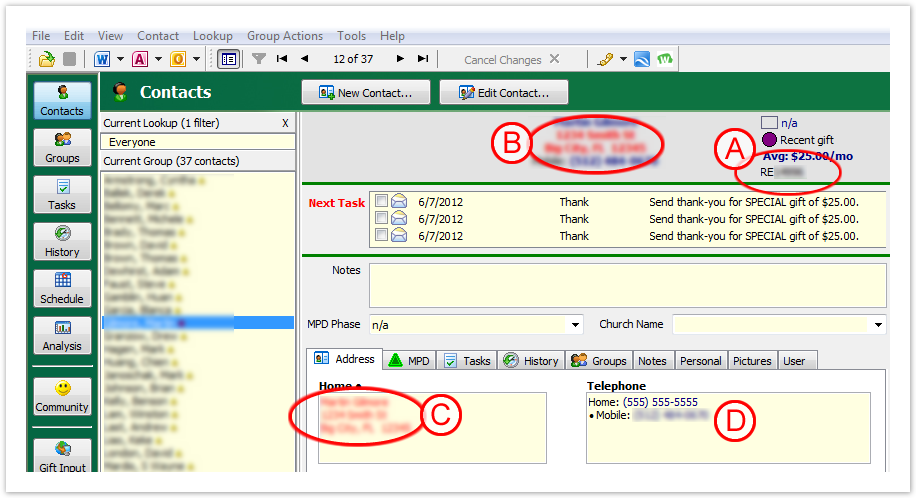
Column width 50% Figure 17 – DataSync Contact Updates
Column width 50% 
Figure 18 - Reliant Donor Info
If you happened to have had any of those extra tricky donors mentioned early on you may encounter this situation
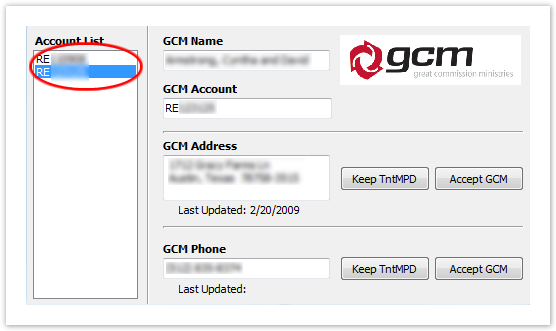
. Ifand you did decide to associate two (or more)
GCMReliant Donors with the
same TndMPDsame Tntconnect contact, you will notice that the contact will now
shoeshow all of the
GCMReliant Donor Numbers in the top right corner (RE#####, RE#####, etc.) [Figure
#19]. If you click on either of those numbers it will bring up a similar popup as with a single association, but this time you will have access to both
GCMReliant Donor's address and phone number info [Figure
#20]. You can then click on either of the
GCMReliant Donor Numbers to show and accept the corresponding
GCMReliant data.
Section Column width 
50% Figure 19 – Reliant Donor Numbers
Column width 50% 
Figure 20 - Reliant Donor Info
Problems?
- What do I do if I accidentally deleted some donor information and want to use GCMReliant's data to restore it?
Assuming you already choose to accept GCMReliant's data, you won't be able to just click the "Accept GCMReliant" button, because it will be greyed out (unless the donor has updated their information with GCMReliant). What you can do is drag the donor info off the the side a little without closing it [Figure #a21a]. Then, on TntMPDTntconnect's main window, 1) click the "Address" tab if it's not already open, 2) click on the address itself to bring up the edit button (pencil), and 3) click the edit button [Figure #b21b]. This will bring up TntMPDTntconnect's address edit window [Figure 21c]. From here you can manually edit the address to match GCMReliant's address.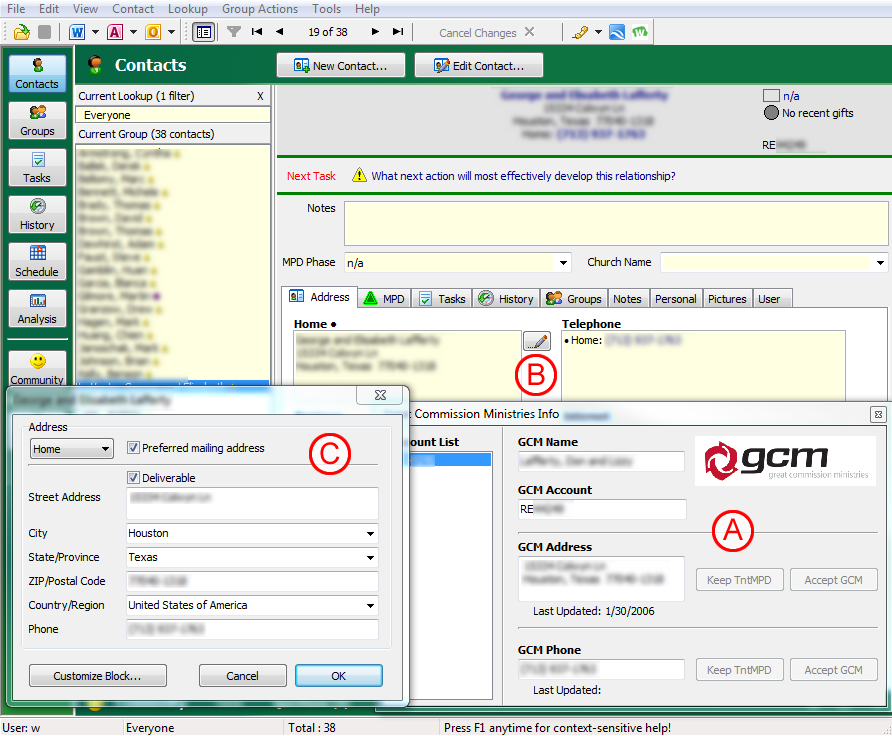
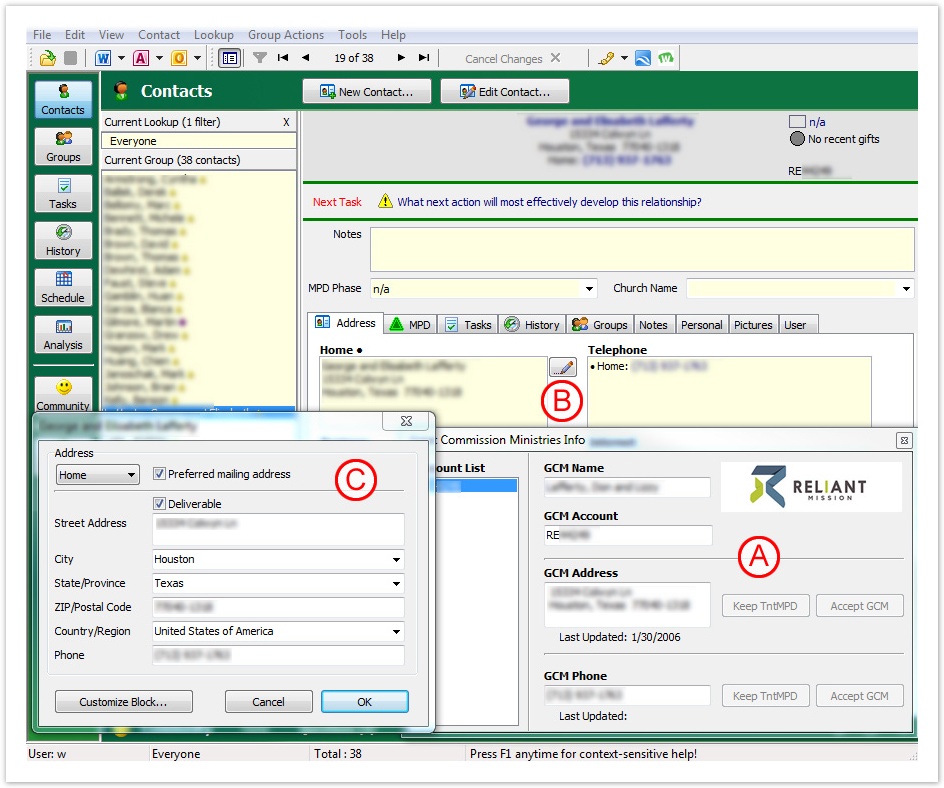
Figure 21 What do I do if I accidentally linked a donor to an account incorrectly?
TntMPD
Thankfully,Tntconnect makes this fairly painless to change. Simply click on a contact's
GCMReliant Donor Number to bring up the
popupDonor Information Window. Then you can right click their
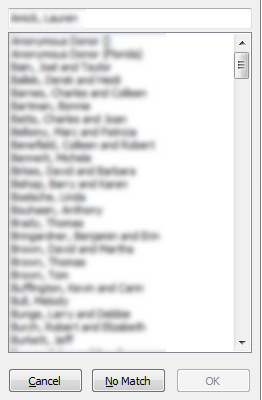
GCMReliant Donor Number in the popup to bring up the option to link the account to a different contact [Figure 22]. If you choose "Link Account to Different Contact..." it will bring up a "Select a Contact..."
windowwindow [Figure 23] where you can link the
GCMReliant donor to a
different TntMPD contact.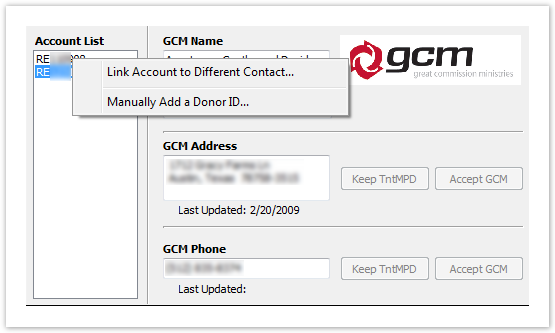
Figuredifferent Tntconnect contact.
Section Column width 50% 
Figure 22 – Link Account to Different Contact
Column width 50% Figure 23 - Select Contact
Whew... The End.
