Receive your digital paperwork in an email and click "view document" to open the forms in a web browser
Note
This email contains 2 additional links to forms that you will need to complete on Solomon including the Release of Personal Information/Emergency Contact Form.; Release of Personal Information . Please make sure this form is completed & submitted when you do your New Hire Paperwork.
UI Step
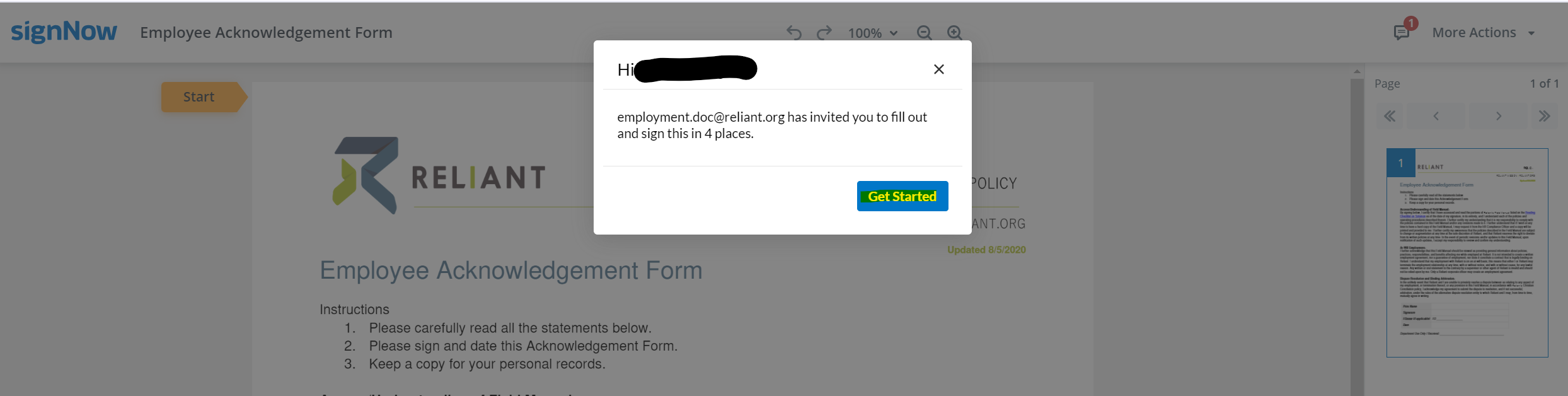
SignNow will open your web browser & tell you how many places you will need to sign on the forms. Here you will click "get started" to start completing the required forms.
UI Step
The first time you select "Sign" on the form, you will need to select a signature design. You can choose one of their fonts or draw your own.
UI Step
Fill out each form included in your link. Here is a list of possible forms. Click on the form title below for details and tips on filling out that form. Please follow these guidelines for filling out all forms:
Red text boxes are required fields and must be completed before submitting
Once you have completed each box, it will turn green to know it has been completed
Other text boxes may not be required but you may need to complete them for your hire to be correctly processed
Read each text box carefully to ensure you type in the correct information
Manually type into the text boxes as auto-fill features usually cannot determine the correct fields and do so incorrectly
Use your full legal name as it appears on your Social Security Card
By signing and submitting these forms, you are verifying that all information is correct to the best of your knowledge according to your current situation and allowing Reliant to process your hire according to the information on these forms.
Some changes can be made after these forms are submitted. Please see the details on each individual form for when and how to make changes.
UI Expand
title
Form W-4
Info
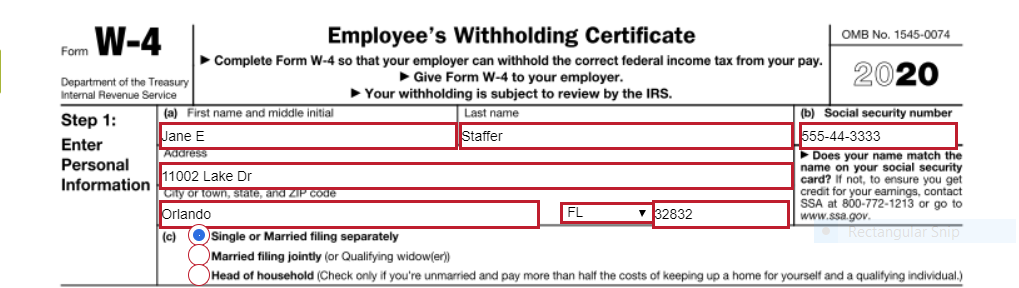
This federal tax form directs Reliant on how to handle Federal tax withholding on your paychecks. Below Below is an example of a filled-out Federal W4 form with instructions.
Please remember to open your PAYSTUB emailed to you each month and review the amount being withheld for your taxes so that you can make adjustments to your chosen W4 options as needed. A A new W-4 can be submitted at any time by following the directions on this page: Tax Info & Forms (Link to Federal W4)
Step 1: Enter Personal Information
Image Removed
Section (a) - please fill in the appropriate information requested for each box. Be sure to double check your data entry for accuracy.
First name and Middle Initial
Last Name
Address
City
State
Zip Code
Section (b)
Social Security Number
Section (c)
Select ONE box that best describes your Federal tax filing status
Single or Married filing jointly
Married filing jointly
Head of Household (see instructions before selecting this box)
Tip
Steps 2, 3, and 4 are optional. Select only items that are applicable to your tax situation to help us better estimate your withholding. Otherwise proceed to Step 5: Signature
Step 2: Multiple Jobs or Spouse Works
Image Removed
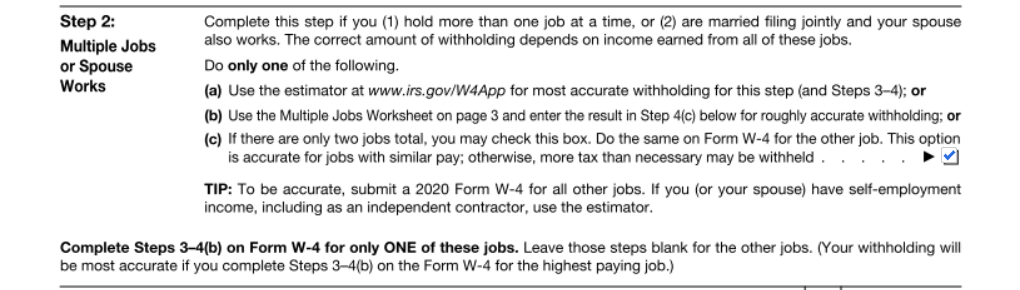
If you (1) hold more than one job at a time, or (2) are married filing jointly and your spouse also works, you may choose to check box (c) if there are two jobs total for your household and if those jobs are similar in pay. Otherwise, you may elect to leave this box unchecked.
Note: Reliant cannot advise you on this selection so please make sure you read the instructions carefully and seek outside professional tax assistance if needed.
Step 3: Claim Dependents:
Image Removed
Multiply the Number of qualifying children under age 17 by $2,000
See example above, 1 child = $2,000
Multiply the number of other dependents by $500
See example, enter $500 for a spouse that you claim (spouse doesn't work outside of the home) or for an older dependent like a special needs adult living in your household
Add the amounts from both boxes above and enter the total on line 3
Step 4: Other Adjustments
Image Removed
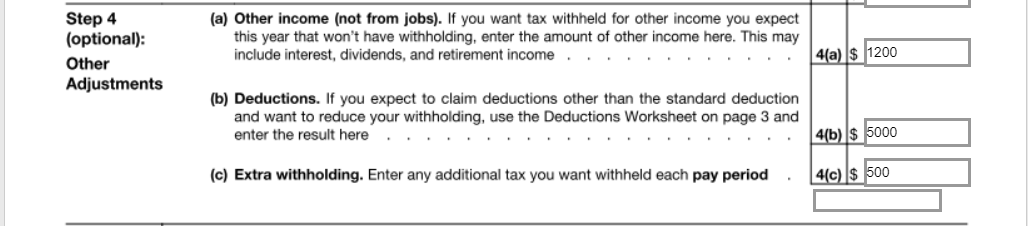
4(a) Other Income (not from jobs)
This box may be used to indicate additional withholding you want withheld annually to cover other sources of income on which you will pay taxes, such as retirement income or investment income.
See example above, if I expect to have $1200 in Capital Gains on which I'll owe taxes for the year, I'd enter that amount in this 4(a) box.
4(b) Deductions
This box may be used to indicate deductions that you anticipate in excess of the standard deduction amount.
See example above, if I expect to have itemized deductions that exceed the standard deduction amount by $5,000, I would enter $5,000 in this 4(b) box.
Note: If you anticipate taking the standard deduction when filing your taxes, leave this box blank.
4(c)Extra Withholding
This box may be used to enter additional tax you want withheld each pay period
Note: Reliant pays monthly so these extra withholding taxes would be withheld every month, in addition to your normal taxes for that paycheck.
Commissioned/Ordained Ministers may choose to utilize this box to indicate an amount they want withheld as extra Federal taxes that they will use to cover their 15.3% SECA (Social Security/Medicare) obligation, since Reliant does not withhold FICA taxes for these employees. See Paying SECA Taxes.
Requesting EXEMPTION from Federal Tax Withholding
Image Removed
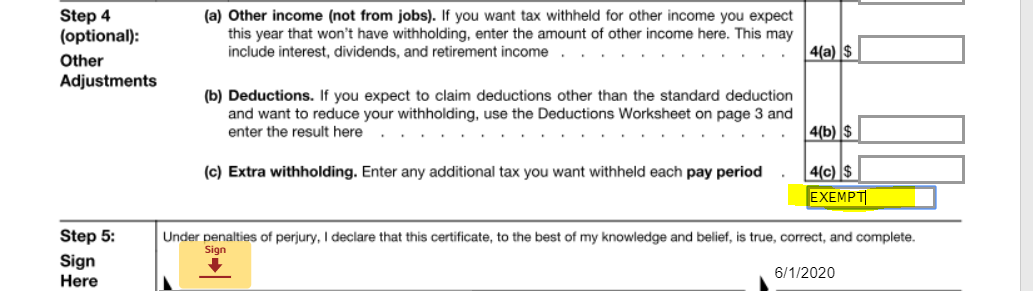
To claim exemption from federal tax withholding due to Foreign Earned Income Exclusionor other qualified reasons, the W-4 instructions say write “Exempt” in the space below Step 4(c). Then, ensure you have completed Steps 1a, 1b, and 5. There is an "Optional" Box on the Docusign form for you to indicate this EXEMPT selection.
See example above, please Type in "EXEMPT" to elect this tax setting.
Do not complete Steps 2-4 on the form if claiming exemption.
Step 5: Sign Here
Image Removed
See example above, by selecting "sign" and entering a digital signature this will complete your acknowledgement/submission of this form.
UI Expand
title
Direct Deposit
Info
This form gives Reliant permission to deposit payroll and reimbursement funds directly into your checking or savings account(s). A new direct deposit form can be submitted at any time by following the instructions on this page: Direct Deposit.
Section I. Missionary Information
Image Removed
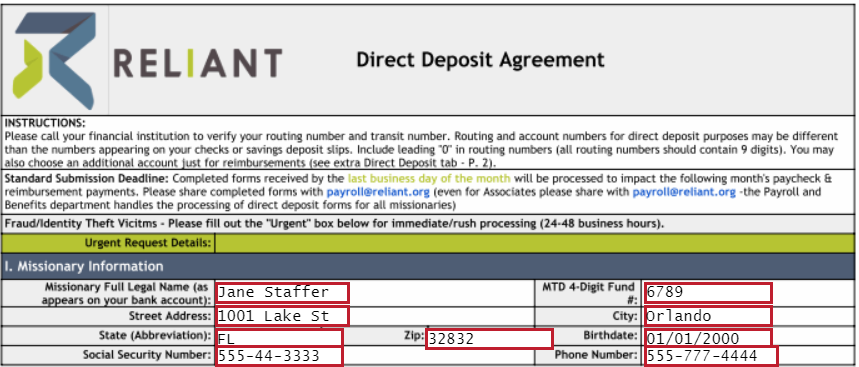
Please fill in the appropriate information requested for each box. Be sure to double check your data entry for accuracy.
Missionary Full Legal Name (as appears on your bank account) in format: First name Last name
MTD 4-digit Fund#
Street Address
City
State
Zip Code
Birthdate
Social Security Number
Phone Number
Section II. Your Account Information
Option A: Deposit my entire NET payroll in this "primary" account
Image Removed
Select this option if you only have one bank account into which you want your full paycheck deposited.
Enter the 9 digit ACH routing number for the bank account that will either be the "Primary" or Remainder" bank account, based on what you selected for Option A& B above.
Note: The routing number is the first set of numbers printed on the bottom of your checks, on the left side.
This information is also available online on your bank's website or through the bank's phone app
Enter the Account Number for the bank account that will either be the "Primary" or Remainder" bank account, based on per what you selected for Option A& B above.
Note: The account number is usually between eight and 12 digits. This number is listed at the bottom of a printed check, after the routing number.
This information is also available online on your bank's website or through the bank's phone app
Indicate if this bank account is classified as a Checking or Savings account
This information is available online on your bank's website or through the bank's phone app
Option B: Deposit the remaining payroll amount (after other deposits listed on this form) in this Primary bank account
Image Removed
Select this option if you would like to divide your payroll deposit up to be deposited into multiple bank accounts.
This option is commonly used if an employee prefers to deposit a specific amount from each paycheck into another Checking/ Savings account, and then the remainder into their Checking account.
Primary Routing & Account Information
Image Removed
Enter the 9 digit ACH routing number for the bank account that will either be the "Primary" or Remainder" bank account, based on what you selected for Option A& B above.
Note: The routing number is the first set of numbers printed on the bottom of your checks, on the left side.
This information is also available online on your bank's website or through the bank's phone app
Enter the Account Number for the bank account that will either be the "Primary" or Remainder" bank account, based on per what you selected for Option A& B above.
Note: The account number is usually between eight and 12 digits. This number is listed at the bottom of a printed check, after the routing number.
This information is also available online on your bank's website or through the bank's phone app
Indicate if this bank account is classified as a Checking or Savings account
This information is available online on your bank's website or through the bank's phone app
Additional Payroll Account Routing & Account Information
Image Removed
See the example above, if an employee wanted to deposit $500 into an additional Checking account, they would indicate the deposit amount in this section.
The remaining portion of their paycheck, after this designated $500 deposit, would then be deposited into the "Remainder" bank account listed under Section 11. Option B above
Section IV. Additional Bank Info P.2 (for a Third Payroll Deposit Bank Account or Special Reimbursement Bank Account)
Image Removed
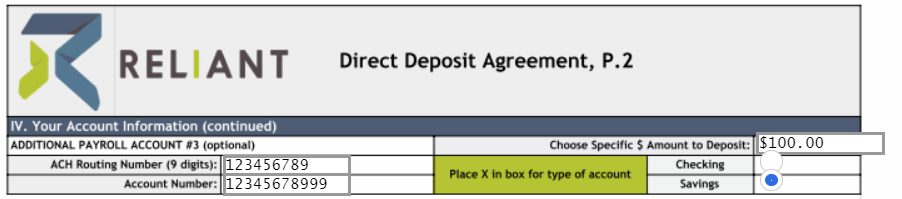
If you selected Option B. under Section II. Account Information and have an additional third account you'd like to divide your paycheck deposit into, scroll to P.2 of the Direct Deposit form and enter the additional bank account in Section IV. using the provided cells.
See the example above, if an employee wanted to deposit $100 into a Savings account, they would indicate the deposit amount in this IV Section.
The remaining portion of their paycheck, after the designated deposits for additional bank accounts #2 and #3 would then be deposited into the "Remainder" bank account listed under Section 11. Option B above
Section V. - For Reimbursements ONLY
Image Removed
See example above, if an employee wants all their Reimbursements from Reliant to be deposited into a different bank account other than their "Primary" or "Remainder" bank account specified under Section II. they can complete this section of the Direct Deposit form specifying their Routing and Account number for the bank account they designate for their reimbursements to be deposited.
Signature
Image Removed
See example above, by selecting "sign" and entering a digital signature this will complete your submission of this form.
UI Expand
title
Associate Waiver
Info
This form is a standard liability release for when you are working with Reliant at an associate/volunteer status. This is a required form for all Reliant Missionaries to complete, even if you will be starting out as an employee.
Signature
Image Removed
Please read through the entire text
By selecting "sign" and entering a digital signature this will complete your acknowledgement/submission of this form.
UI Expand
title
Employee Acknowledgement Form
Info
This form contains detailed information about the terms of employment with Reliant.
Signature
Image Removed
Please read the entire text
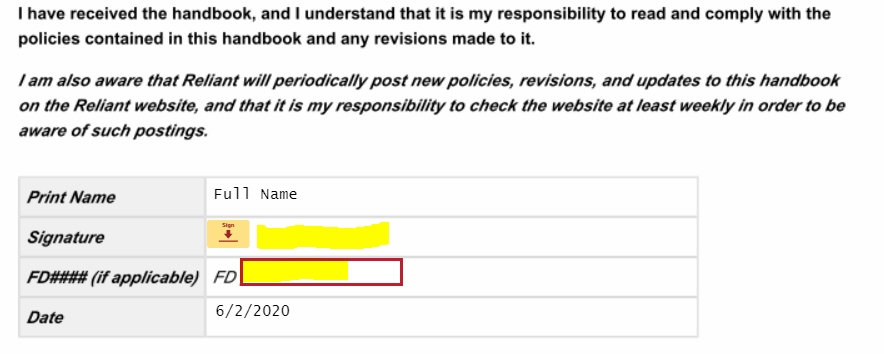
By selecting "sign" and entering a digital signature along with typing in your 4-digit MTD FD# this will complete your acknowledgement/submission of this form.
UI Expand
title
Guidestone Medical Enrollment Form
. There is also an option to request a one-time tax adjustment (which may be the case when receiving a bonus where the additional income could cause the tax withholding percentage on your paycheck to be higher than normal.
STATE TAXES:
If you live in a state with income taxes, you will also receive a state tax form to complete. Reliant will default to using the home address of the employee as the working address for state and local income tax withholding. However, in the case of those in a fixed term residency/internship, it is assumed that the employee will spend most of their time at the church/ministry partner location (rather than working from home), so the city and state of that church/ministry partner will be used for tax withholding purposes.
Some states also have local taxes for municipalities and school districts as well as other types of state taxes such as transit taxes, paid leave, or unemployment taxes. Reliant only withholds local taxes when the local jurisdiction or state requires employers to withhold. Local taxes that are optional for the employer to withhold will not be withheld by Reliant and are the responsibility of the employee to report and file on their own behalf.
If an employee moves to a new state or plans to work in another state for more than a month, the employee bears full responsibility to notify Reliant of a move or change in tax withholding location within 2 weeks of the move. If the employee does not report their address change within 2 weeks, causing an incorrect tax location to be used with payroll, the employee will be personally responsible to correct and file their reported wages and taxes to the proper states/local areas on their annual tax filing and pay all associated taxes, penalties, and fees for the corrections. See Tax Info & Forms (Link to Federal W4) for more information.
Multiexcerpt include
MultiExcerptName
tip
PageWithExcerpt
Tax Info & Forms (Link to Federal W4)
Step 1: Enter Personal Information
Image Added
Section (a) - please fill in the appropriate information requested for each box. Be sure to double check your data entry for accuracy.
First name and Middle Initial
Last Name
Address
City
State
Zip Code
Section (b)
Social Security Number
Section (c)
Select ONE box that best describes your Federal tax filing status
Single or Married filing jointly
Married filing jointly (please read info box above, additional steps may apply)
Head of Household (see instructions before selecting this box)
Steps 2, 3, and 4 below are optional but may be helpful depending on your tax situation. Select items that apply to you to help our system better estimate your federal tax withholding amount. If the below additional options do not apply, proceed to Step 5: Signature
Step 2: Multiple Jobs or Spouse Works
Image Added
If you (1) hold more than one job at a time, or (2) are married filing jointly and your spouse also works, you may choose to check box (c) if there are two jobs total for your household and if those jobs are similar in pay. Otherwise, you may elect to leave this box unchecked.
Note: Reliant cannot advise you on this selection so please make sure you read the instructions carefully and seek outside professional tax assistance if needed.
Step 3: Claim Dependents:
Note
If claiming dependents, the W4 deducts a $2000 credit from your total tax withholding for each child. Therefore, if the desired outcome is to have your paychecks withhold federal taxes, you may choose not to elect this dependent credit on your W4 form as it could result in little to no federal taxes withheld. Not claiming dependents on your W4 does not affect your ability to claim your dependents and receive those credits on your yearly tax filing.
Image Added
Multiply the Number of qualifying children under age 17 by $2,000
See example above, 1 child = $2,000
Multiply the number of other dependents by $500
See example, enter $500 for a spouse that you claim (spouse doesn't work outside of the home) or for an older dependent like a special needs adult living in your household
Add the amounts from both boxes above and enter the total on line 3
Step 4: Other Adjustments
Image Added
4(a) Other Income (not from jobs)
This box may be used to indicate additional withholding you want withheld annually to cover other sources of income on which you will pay taxes, such as retirement income or investment income.
See example above, if I expect to have $1200 in Capital Gains on which I'll owe taxes for the year, you may want to enter that amount in this 4(a) box.
4(b) Deductions
This box may be used to indicate deductions that you anticipate in excess of the standard deduction amount.
See example above, if I expect to have itemized deductions that exceed the standard deduction amount by $5,000, I would enter $5,000 in this 4(b) box.
Note: If you anticipate taking the standard deduction when filing your taxes, leave this box blank.
4(c)Extra Withholding
This box may be used to enter additional tax you want withheld each pay period
Note: Reliant pays monthly so these extra withholding taxes would be withheld every month, in addition to your normal taxes for that paycheck.
Commissioned/Ordained Ministers may choose to utilize this box to indicate an amount they want withheld as extra Federal taxes that they will use to cover their 15.3% SECA (Social Security/Medicare) obligation, since Reliant does not withhold FICA taxes for these employees. See Paying SECA Taxes.
Requesting EXEMPTION from Federal Tax Withholding
Image Added
To claim exemption from federal tax withholding due to Foreign Earned Income Exclusionor other qualified reasons, the W-4 instructions say write “Exempt” in the space below Step 4(c). Then, ensure you have completed Steps 1a, 1b, and 5. There is an "Optional" Box on the form for you to indicate this EXEMPT selection.
See example above, please Type in "EXEMPT" to elect this tax setting.
Do not complete Steps 2-4 on the form if claiming exemption.
Step 5: Sign Here
Image Added
See example above, by selecting "sign" and entering a digital signature this will complete your acknowledgement/submission of this form.
UI Expand
title
Employee Acknowledgement Form
Info
This form contains detailed information about the terms of employment with Reliant.
Signature
Image Added
Please read the entire text
By selecting "sign" and entering a digital signature along with typing in your 4-digit MTD FD# this will complete your acknowledgement/submission of this form.
UI Expand
title
Guidestone Medical Enrollment Form
Info
This form may be included for Reliant employees serving in the United States who are benefits eligible. If you need to make any benefits selections before your hire, please email benefits@reliant.org.
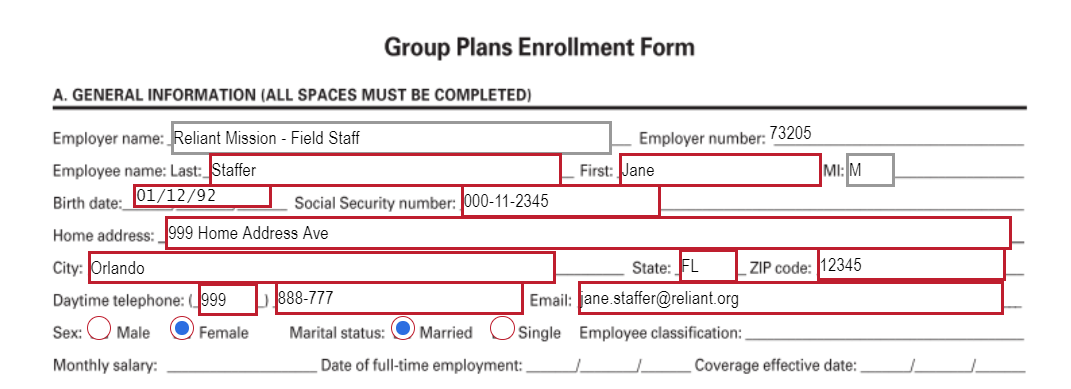
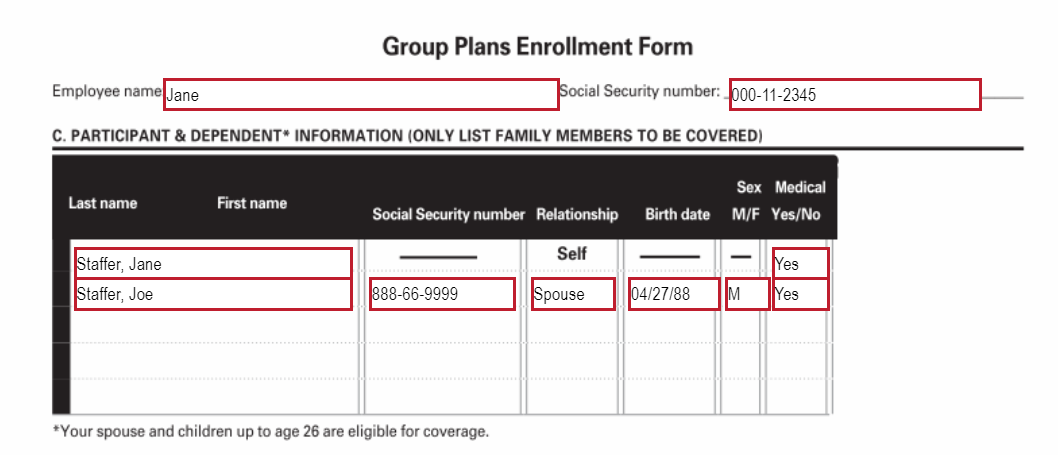
Section A: Complete with general information about yourself in the red boxes.
Image Added
Section B:
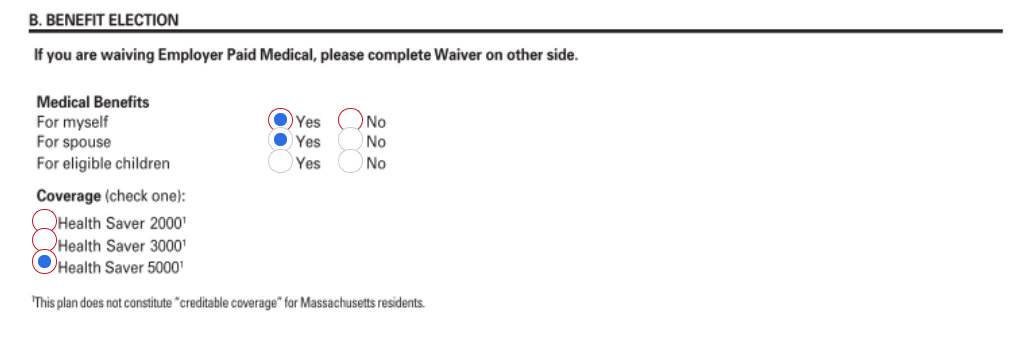
If you are enrolling in coverage, you will select " yes " then select who you are enrolling in coverage and what plan you would like.
Image Added
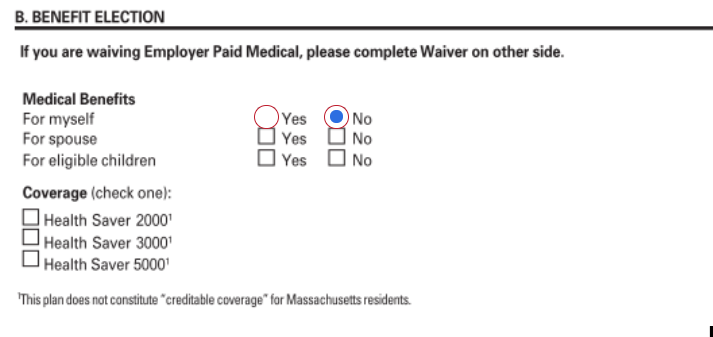
If you are waiving coverage because you are covered under another insurance policy (see Medical Insurance Waiver Options ),you will select "no" and it will take you to Section D
Image Added
Section C : If are enrolling in coverage, complete this box with who will be on your plan. Then it will take you to Section E to sign and submit.
Note
If you are waiving coverage DocuSign will take you to Section D
Image Added
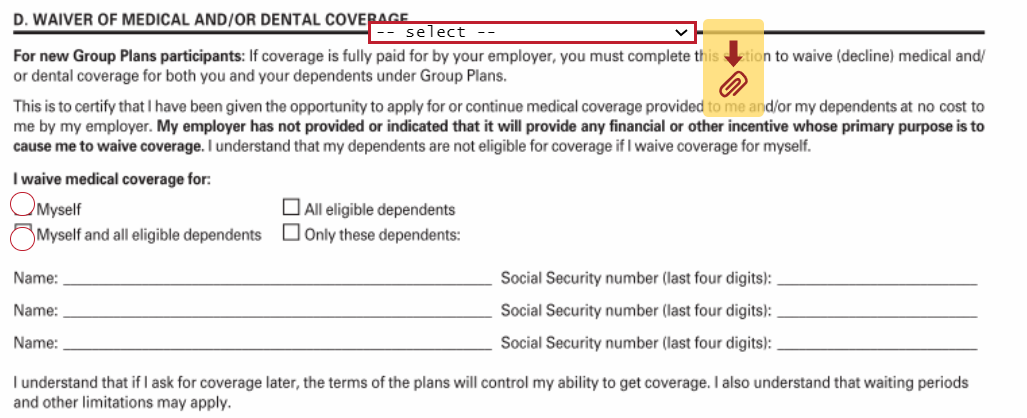
Section D : If you are waiving medical coverage
Select the waivable reason from the drop down menu below.
Other Individual Coverage
Other Group Coverage
Image Added
Select who you are waiving coverage for Image Added
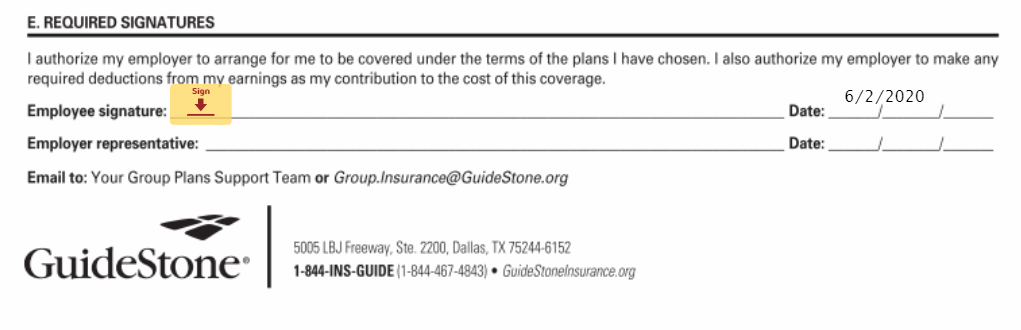
Section E : Sign the form.
Image Added
UI Expand
title
RSLI Dental Enrollment Form
Info
This form may be included for benefits-eligible Reliant employees serving in the United States. Dental coverage is an optional coverage that employees may choose to enroll in or decline coverage. See Dental Insurance - Coverage and Rates for additional information about this coverage. If you need to make any benefits selections before your hire, please email benefits@reliant.org.
Enrolling in/Declining Voluntary Dental Coverage:
Image Added
Select from the Drop Down menu options:
"I want to enroll in dental coverage."
"I DO NOT want to enroll in dental coverage."
The drop down box will remain blank but your selection will allow you to skip completion of the form (if declining coverage) or additional red text boxes will appear (if enrolling in coverage)
Enrolling in Dental Coverage
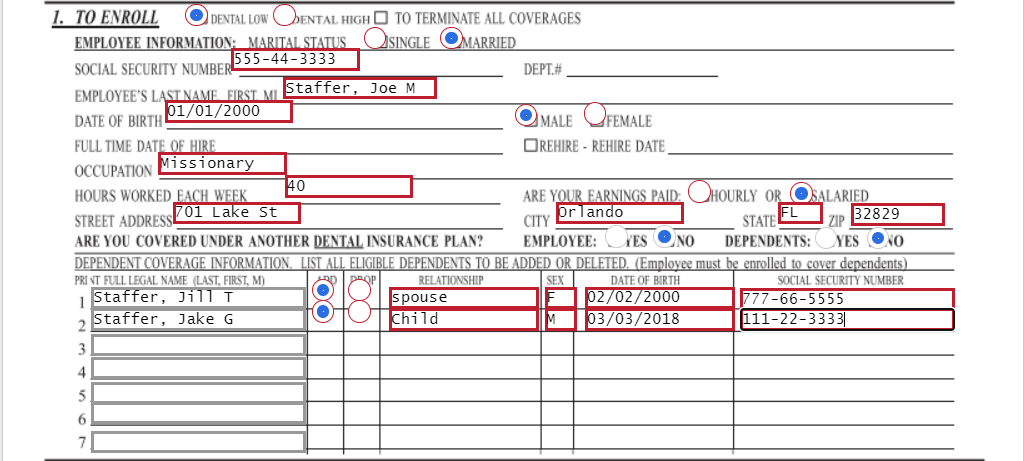
Image Added
Select the plan you want to enroll in:
DENTAL LOW (Tier One "Low" Plan, Dental 1250)
DENTAL HIGH (Tier Two "High" Plan, Dental 1500)
Marital Status
Social Security Number
Employee's Last Name, First, MI (Middle Initial)
Date of Birth
Male/Female
Occupation: Use Missionary or Pastor etc.
Hours worked per week
Are your earnings paid Hourly/Salaried
Street Address
City
State
Zip
Question: Are you covered under another Dental Insurance Plan? Yes/No
Question: Dependents (Are they covered under another Dental Insurance Plan?) Yes/No
Dependent Coverage information: Fill in Required fields for all dependents being covered on this dental plan
Full Legal Name (Last, First, MI)
Select: ADD
Relationship: Type Spouse or Child
Sex: M/F
Date of Birth
Social Security Number
Signature
Image Added
By selecting "sign" and entering a digital signature this will complete your submission of this form.
Note
You will still need to sign the document even if you select not to enroll in coverage.
UI Expand
title
Aetna International Enrollment Form
Info
This form may be included for Reliant employees serving overseas. If you need to make any benefits selections before your hire, please email benefits@reliant.org.
Include Page
international:AETNA Enrollment Form Guide - Docusign
international:AETNA Enrollment Form Guide - Docusign
UI Expand
title
RSLI Life Insurance Beneficiary Form
Info
This form may be included for Reliant missionaries serving in the United States who are benefits eligible. If you need to make any benefits selections before your hire, please email benefits@reliant.org.
Section A: Complete with general information about yourself in the red boxes.
Image Removed
Section B:
If you are enrolling in coverage, you will select " yes " then select who you are enrolling in coverage and what plan you would like.
Image Removed
If you are waiving coverage because you are covered under another insurance policy (see Insurance Waiver Options ),you will select "no" and it will take you to Section D
Image Removed
Section C : If are enrolling in coverage, complete this box with who will be on your plan. Then it will take you to Section E to sign and submit.
Note
If you are waiving coverage DocuSign will take you to Section D
Image Removed
Section D : If you are waiving medical coverage
Select the waivable reason from the drop down menu below.
Other Individual Coverage
Other Group Coverage
Image Removed
Select who you are waiving coverage for Image Removed
Section E : Sign the form.
Image Removed
UI Expand
title
RSLI Dental Enrollment Form
Info
This form may be included for benefits-eligible Reliant missionaries employees serving in the United States . Dental coverage is an optional coverage that employees may choose to enroll in or decline coverage. See Dental Insurance - Coverage and Rates for additional information about this coverage. If you need to make any benefits selections before your hire, please email benefits@reliant.org.
Enrolling in/Declining Voluntary Dental Coverage:
Image Removed
Select from the Drop Down menu options:
"no deny dental coverage"
"yes enroll in dental coverage"
The drop down box will remain blank but your selection will allow you to skip completion of the form (if declining coverage) or additional red text boxes will appear (if enrolling in coverage)
Enrolling in Dental Coverage
Image Removed
Select the plan you want to enroll in:
DENTAL LOW (Tier One "Low" Plan, Dental 1250)
DENTAL HIGH (Tier Two "High" Plan, Dental 1500)
Marital Status
Social Security Number
Employee's Last Name, First, MI (Middle Initial)
Date of Birth
Male/Female
Occupation: Use Missionary or Pastor etc.
Hours worked per week
Are your earnings paid Hourly/Salaried
Street Address
City
State
Zip
Question: Are you covered under another Dental Insurance Plan? Yes/No
Question: Dependents (Are they covered under another Dental Insurance Plan?) Yes/No
Dependent Coverage information: Fill in Required fields for all dependents being covered on this dental plan
Full Legal Name (Last, First, MI)
Select: ADD
Relationship: Type Spouse or Child
Sex: M/F
Date of Birth
Social Security Number
Signature
or overseas. The purpose of this form is to designate beneficiaries for required life insurance coverage with Reliant. See Group Life and Voluntary Life Insurance for more details on this coverage. Beneficiary changes can be mad at any time by submitting a new form according to the information on the previously linked page.
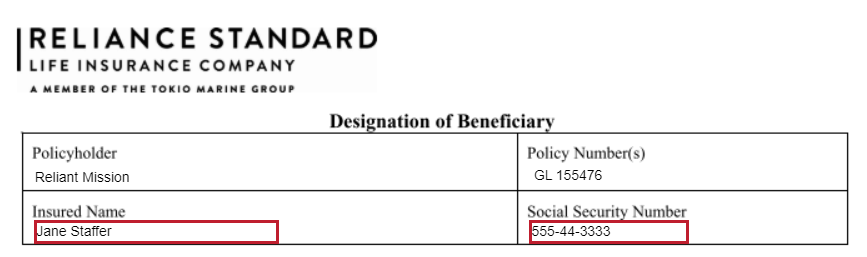
Top Section: Enter your Information
Image Added
Insured name: (Your Name) First Name Last Name
Social Security Number: Your Social Security Number
Middle Section: Enter the Information of your Beneficiaries
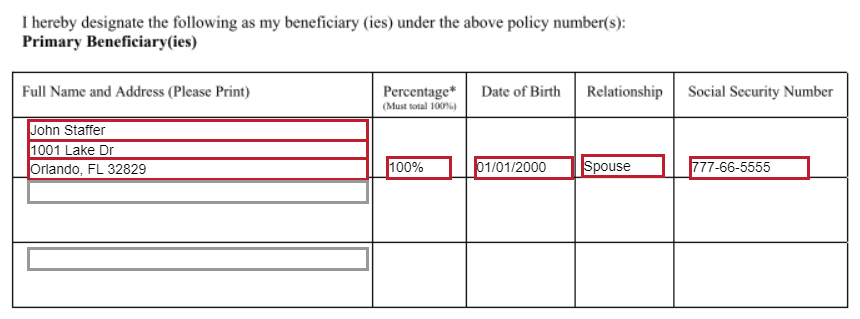
Primary Beneficiary
Image Added
Info
title
Primary/Contingent Beneficiary
If you want to elect more than one Primary or Contingent Beneficiary, enter their name in the optional box, and the remaining required cells will populate. Remember that the divided percentage must total 100%.
Full Name and Address: Enter the Full Name (First Name Last name) and Address of the person you are selecting as your Primary Beneficiary
Percentage: Enter 100% (*see details above if you'd like to name more than one Primary Beneficiary)
Date of birth: Enter your Primary Beneficiary's date of birth
Relationship: Enter your Primary Beneficiary's relationship to you - Ex. Spouse, Child, Parent, Friend Etc.
Social Security Number: Enter your Primary Beneficiary's Social Security Number (if choosing a church/charity, enter the organization's Tax ID Number)
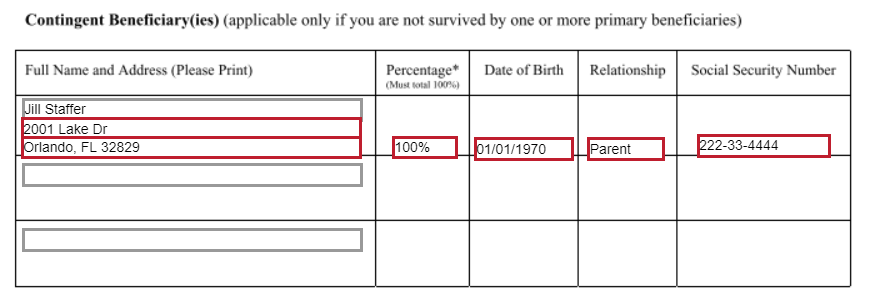
Contingent Beneficiary - This is the alternate beneficiary, used only if the Primary Beneficiary is unable to claim the life insurance payout
Image Added
Full Name and Address: Enter the Full Name (First Name Last name) and Address of the person you are selecting as your Contingent Beneficiary
Percentage: Enter 100% (*see details above if you'd like to name more than one Contingent Beneficiary)
Date of birth: Enter your Contingent Beneficiary's date of birth
Relationship: Enter your Contingent Beneficiary's relationship to you - Ex. Spouse, Child, Parent, Friend Etc.
Social Security Number: Enter your Contingent Beneficiary's Social Security Number
Signature
Image AddedImage Removed
By selecting "sign" and entering a digital signature this will complete your submission of this form.
Excerpt
UI Expand
title
Aetna International
RSLI Voluntary Life Enrollment Form
Info
This form may be included for Reliant
missionaries
employees serving in the United States or overseas.
If you need to make any benefits selections before your hire, please email benefits@reliant.org.
Include Page
international:AETNA Enrollment Form Guide - Docusign
international:AETNA Enrollment Form Guide - Docusign
UI Expand
title
RSLI Life Insurance Beneficiary Form
Info
This form may be included for benefits-eligible Reliant missionaries serving in the United States or overseas. The purpose of this form is to designate beneficiaries for required life insurance coverage with Reliant. See Group Life and Voluntary Life Insurance for more details on this coverage. Beneficiary changes can be mad at any time by submitting a new form according to the information on the previously linked page.
Top Section: Enter your Information
Image Removed
Insured name: (Your Name) First Name Last Name
Social Security Number: Your Social Security Number
Middle Section: Enter the Information of your Beneficiaries
Primary Beneficiary
Image Removed
Info
title
Primary/Contingent Beneficiary
If you want to elect more than one Primary or Contingent Beneficiary, enter their name in the optional box, and the remaining required cells will populate. Remember that the divided percentage must total 100%.
Full Name and Address: Enter the Full Name (First Name Last name) and Address of the person you are selecting as your Primary Beneficiary
Percentage: Enter 100% (*see details above if you'd like to name more than one Primary Beneficiary)
Date of birth: Enter your Primary Beneficiary's date of birth
Relationship: Enter your Primary Beneficiary's relationship to you - Ex. Spouse, Child, Parent, Friend Etc.
Social Security Number: Enter your Primary Beneficiary's Social Security Number
Contingent Beneficiary - This is the alternate beneficiary, used only if the Primary Beneficiary is unable to claim the life insurance payout
Image Removed
Full Name and Address: Enter the Full Name (First Name Last name) and Address of the person you are selecting as your Contingent Beneficiary
Percentage: Enter 100% (*see details above if you'd like to name more than one Contingent Beneficiary)
Date of birth: Enter your Contingent Beneficiary's date of birth
Relationship: Enter your Contingent Beneficiary's relationship to you - Ex. Spouse, Child, Parent, Friend Etc.
Social Security Number: Enter your Contingent Beneficiary's Social Security Number
Signature
Image Removed
By selecting "sign" and entering a digital signature this will complete your submission of this form.
This form is ONLY to be filled out if you are electing OPTIONAL voluntary life insurance coverage - See Group Life and Voluntary Life Insurance for premium rates and more details on this benefit. Please note monthly premiums for this elected coverage will be deducted from the employee's paycheck. If you need to make any benefits selections before your hire, please email benefits@reliant.org.
Declining Voluntary Life Coverage:
Image Added
Select from the Drop Down menu: "I do not want to purchase additional voluntary life insurance coverage."
Electing Voluntary Life Coverage:
Image Added
Select from the Drop Down menu: "I am electing to purchase additional voluntary life insurance coverage."
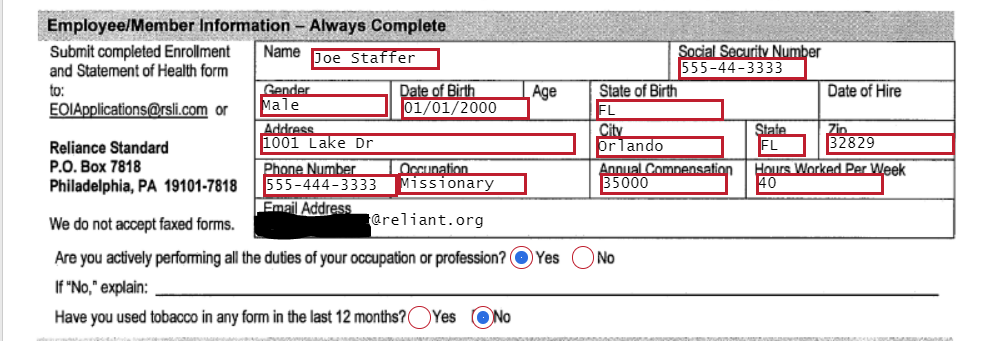
Employee/Member Information: Complete these fields with YOUR Personal Information
Image Added
Name: (Your Name) First Name Last Name
Social Security Number
Gender: Male/Female
Date of Birth
State of Birth
Address
City
State
Zip
Phone Number
Occupation: Use Missionary or Pastor etc.
Annual Compensation: Use the annual salary you are accepting from Reliant
Hours worked per week
Email address: This should auto-fill
Question: Are you actively performing the duties of your occupation or profession? Select "Yes"
Question: Have you used tobacco in any form in the last 12 months? Select the appropriate answer - Yes/No
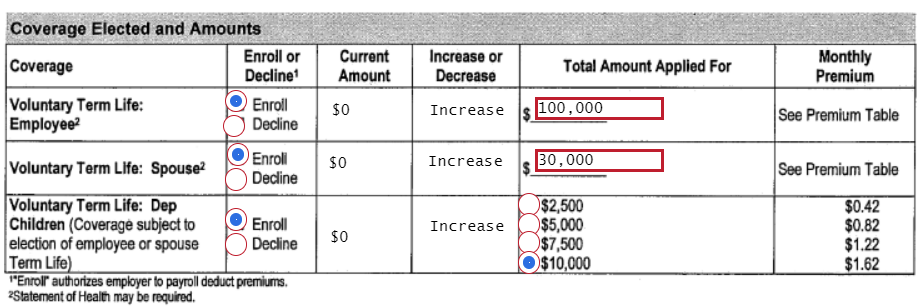
Coverage Elected and Amounts: Select the Amounts and Types of Coverage from the options provided
Image Added
Voluntary Term Life Coverage Employee
This is additional Life insurance to cover you, the employee.
Select Enroll/Decline per your preference
Note: you may elect up to $100,000 in guaranteed coverage. For greater amounts of coverage RSLI may seek evidence of insurability. Contact Employment Services for information about this benefit.
Voluntary Term Life Spouse
Image Added
This is additional Life insurance to cover your spouse
Select Enroll/Decline per your preference
Note: you may elect up to $30,000 in guaranteed coverage. For greater amounts of coverage RSLI may seek evidence of insurability. Contact Employment Services for information about this benefit.
Once you Select "enroll" for this coverage you will then need to go back and complete the section above titled: Spouse Information (it will appear with red text boxes when you select "Enroll")
Spouse Name
Gender
Date of Birth
State of Birth
Address
City
State
Zip
Question: Has your spouse used tobacco in any form in the last 12 months? Select the appropriate answer - Yes/No
Voluntary Term Life Dependents
This is additional Life insurance to cover your dependents (children 26 years of age and younger).
Select Enroll/Decline per your preference
Note: you may elect up to $10,000 in guaranteed coverage.
Excerpt
UI Expand
title
RSLI Voluntary Life Enrollment Form
Info
This form may be included for Reliant missionaries serving in the United States or overseas. This form is ONLY to be filled out if you are electing OPTIONAL voluntary life insurance coverage - See Group Life and Voluntary Life Insurance for premium rates and more details on this benefit. Please note monthly premiums for this elected coverage will be deducted from the employee's paycheck. If you need to make any benefits selections before your hire, please email benefits@reliant.org.
Declining Voluntary Life Coverage:
Image Removed
Select from the Drop Down menu: "I do not want to purchase additional voluntary life insurance coverage."
Electing Voluntary Life Coverage:
Image Removed
Select from the Drop Down menu: "I am electing to purchase additional voluntary life insurance coverage."
Employee/Member Information: Complete these fields with YOUR Personal Information
Image Removed
Name: (Your Name) First Name Last Name
Social Security Number
Gender: Male/Female
Date of Birth
State of Birth
Address
City
State
Zip
Phone Number
Occupation: Use Missionary or Pastor etc.
Annual Compensation: Use the annual salary you are accepting from Reliant
Hours worked per week
Email address: This should auto-fill
Question: Are you actively performing the duties of your occupation or profession? Select "Yes"
Question: Have you used tobacco in any form in the last 12 months? Select the appropriate answer - Yes/No
Coverage Elected and Amounts: Select the Amounts and Types of Coverage from the options provided
Image Removed
Voluntary Term Life Coverage Employee
This is additional Life insurance to cover you, the employee.
Select Enroll/Decline per your preference
Note: you may elect up to $100,000 in guaranteed coverage. For greater amounts of coverage RSLI may seek evidence of insurability. Contact Employment Services for information about this benefit.
Voluntary Term Life Spouse
Image Removed
This is additional Life insurance to cover your spouse
Select Enroll/Decline per your preference
Note: you may elect up to $30,000 in guaranteed coverage. For greater amounts of coverage RSLI may seek evidence of insurability. Contact Employment Services for information about this benefit.
Once you Select "enroll" for this coverage you will then need to go back and complete the section above titled: Spouse Information (it will appear with red text boxes when you select "Enroll")
Spouse Name
Gender
Date of Birth
State of Birth
Address
City
State
Zip
Question: Has your spouse used tobacco in any form in the last 12 months? Select the appropriate answer - Yes/No
Voluntary Term Life Dependents
This is additional Life insurance to cover your dependents (children 26 years of age and younger).
Select Enroll/Decline per your preference
Note: you may elect up to $10,000 in guaranteed coverage.
UI Expand
title
Emergency Contact and Release of Information Form
Info
This form may be included for Reliant missionaries serving in the United States or overseas. RPI and emergency contact changes can be made at any time using the directions on this page: Release of Personal Information.
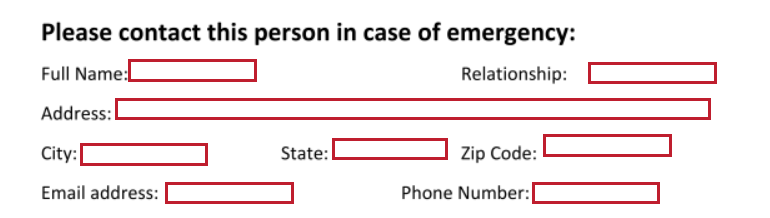
Indicate who you would like Reliant to contact in case of an emergency
Select if you would to allow us to release any information related to your Reliant employment. See Release of Personal Information for more details.
If you want to elect for your Release of Personal Information Designee to only have access to specific types of information, excluding some items on this list, you may elect to fill out this form - see Release of Personal Information. For the purposes of this Docusign form we have only allowed release of ALL information types, as that is the most common Release of Personal Information Designation.
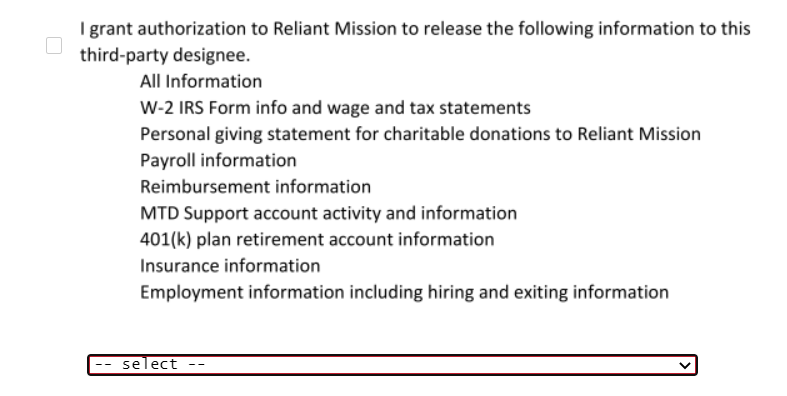
Declining To Submit a Release of Personal Information Designee:
Image Removed
If you do NOT want to designate someone to have access to these types of information on your behalf, skip these options and leave the check box and drop downs blank.
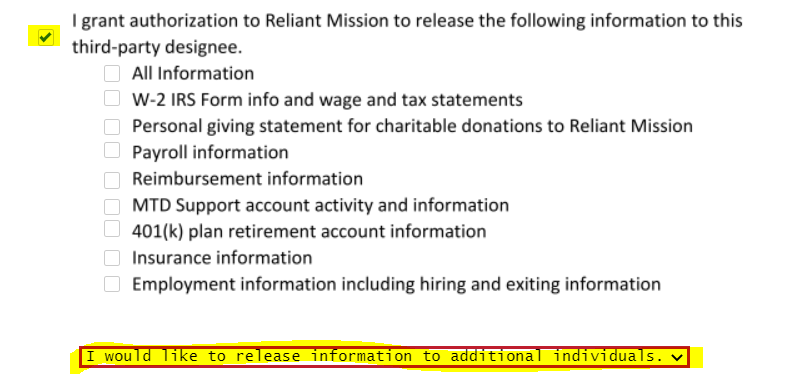
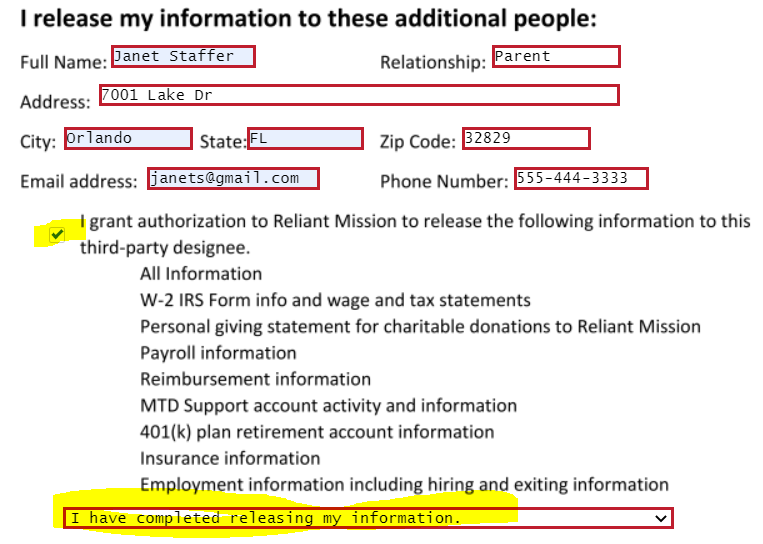
Electing to authorize your Emergency Contact as a Release of Personal Information Designee:
Image Removed
Check the box "I grant authorization to Reliant Mission to release the following information to this third-party designee"
Select what information you would like to release. Check either "All Information" or which individual types of information you would like to release.
Select from the Drop Down menu Options:
"I have completed releasing my information"
"I would like to release information to additional individuals"
Electing to authorize an Additional Contact(s) as Release of Personal Information Designee(s):




















 8.5.4, themed by Refined