


Page History
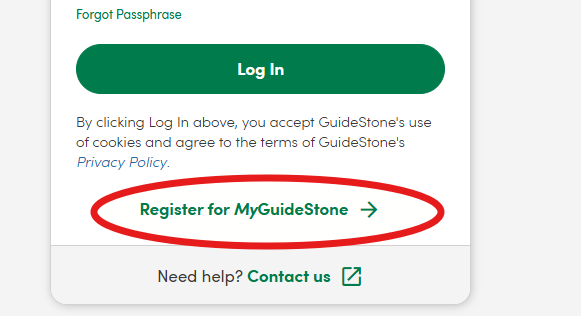
If you already have a login for GuidestoneGuideStone insurance, you may use your existing login to access your the retirement account information with GuideStone once you have reached eligibility status and Reliant has enrolled you in the retirement plan. If you have not registered with Guidestone, you must register first, then follow the steps below to make a change to your contributions. If you are newly eligible for enrollment in Reliant's 403(b) (9) plan, you will need to wait until you receive your enrollment welcome email from Guidestone before you can register or make changes to your account.
| UI Expand | ||||||||
|---|---|---|---|---|---|---|---|---|
| ||||||||
Once you receive the enrollment welcome email from GuideStone you can follow the steps below to register. To Register With Guidestone: |
| Note | ||
|---|---|---|
| ||
Reliant encourages all international employees to seek tax counsel regarding IRS ruling 70-491 when determining if the Roth option is something they should utilize for their retirement savings. There may be tax implications of selecting Roth for your retirement funds while filing under the Foreign Earned Income Exclusion . to consider and discuss with your tax counsel. |
403(b)
...
Employee Contribution Changes
| Tip |
|---|
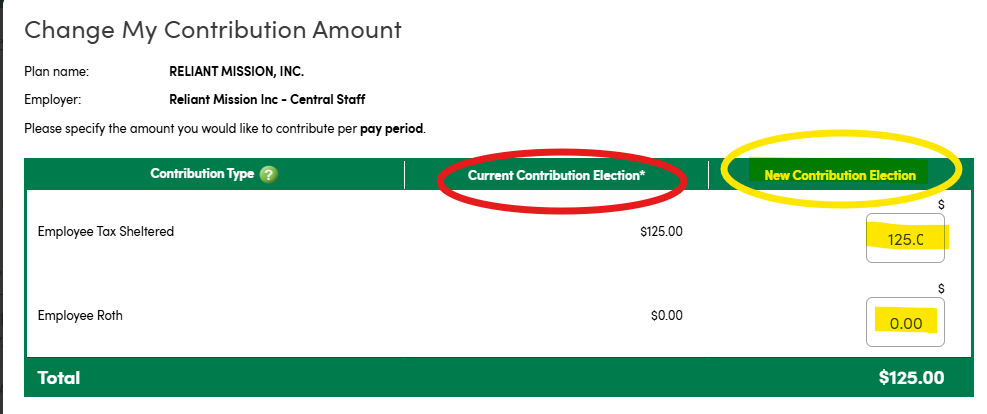
When making a change to your 403(b) (9) contribution amount, please also submit an updated support goal in Toolbox. However, changing your support goal does not change the amount deducted from your paycheck, you have to make the change on the Guidestone site to affect your paycheck. The process below is used for changing the amount deducted from your paycheck- the employee contribution amount. (See Traditional vs. Roth Contributions for more details on the two types of employee contributions.) All changes must be submitted on the Guidestone site by the 19th of the month to be effective on the following month's paycheck. For the employer contribution, Reliant will calculate the 403(b) match (9) match (See Employer Matching Contributions - Class 1, Career Employees and non-match Employer Contributions - Class 2, Fixed Term Employees) based on your employee contributions as noted on the GuideStone site and payroll earnings. After payroll, Reliant will add that transfer the employer contribution amount to your 403(b)(9) GuideStone account using the funds from the MTD account for which you are responsible during payroll. Fund you are responsible for. |
| Note |
|---|
At any point, you may request a one-time change by emailing payroll@reliant.org to request that a specific one-time amount be withheld from a certain month's payroll. Any recurring change (more than a one-time, one-month change) should be changed using the GuideStone website. Your view of contributions on GuideStone will reflect the previous month's employee contribution amount. So, even one-time changes will show as the new employee monthly contribution amount on the GuideStone website for one month and will not change until after the next month's payroll contribution is uploaded to the website. |
| UI Steps | ||||||||||||||
|---|---|---|---|---|---|---|---|---|---|---|---|---|---|---|
|
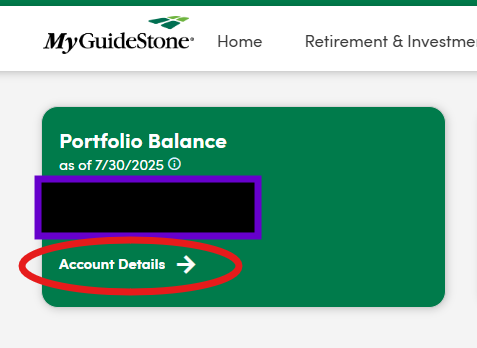
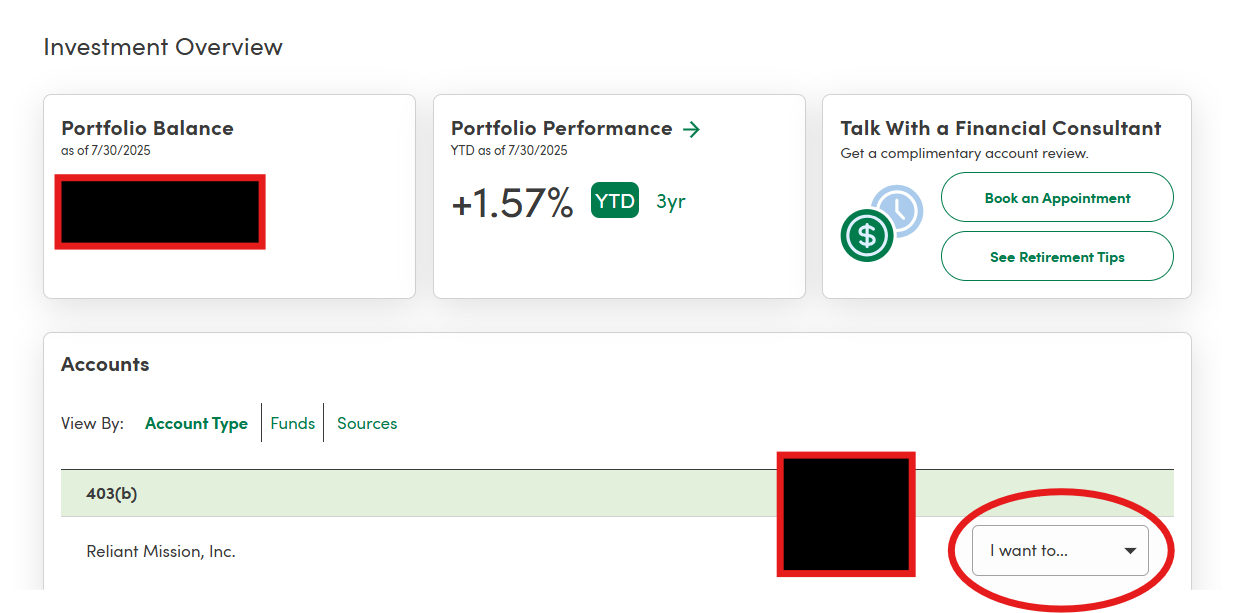
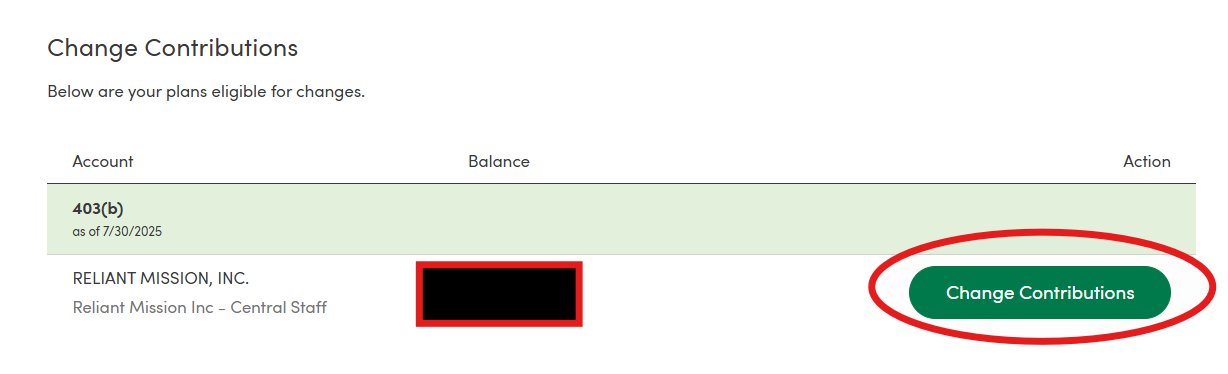
Timing of Change
GuideStone will submit your changes to Reliant to be reflected on your next paystub. All changes must be submitted on the Guidestone site by the 19th of the month to be effective on the next month's paycheck. Changes made on the GuidStone website after the 19th of the month may not be reflected until the following month after that. If you have missed the 19th deadline but you want to request that your change be reflected on the next paystub, email payroll@reliant.org to ask if they can manually make the late change request on the next paycheck.
...
