


Page History
...
| Section | ||||||||||
|---|---|---|---|---|---|---|---|---|---|---|
|


Figure 11 - Enable Automatic Actions
You mean there's more?!!
Yes, there's more. TntMPD will never automatically update a contact's information with donor data from GCM. You have to manually go contact by contact to accept changes from the DataSync. This is not true of gifts, only of a contact's primary address and primary phone number. It does not allow for email updates either!!
Ok, so, you're sync'ed, but what does that mean exactly? Did TntMPD just update all of your contact's contact information with GCM's data? The datasync you just completed associated your TntMPD contact with a GCM donor, and it did this using GCM's donor number (RE######). If you take a look at the top right of a contact who has not been associated with a donor, you will see "No Org Account" [Figure 15a15]. If you click on "No Org Account" a screen with no information will popup [Figure 16].
Section Column width 50% 
Figure 12a 15 – No Org Account
Column width 50% 
Figure 12b 16 - Blank Org Info
Once you have run the DataSync and a contact has been connected with a donor you will then see the GCM's donor number (RE######) their instead of "No Org Account" [Figure 17a]. After a DataSync IF there are updates from GCM to a Donor's data TntMPD will display the updateable data in red [Figure 17b & c]. Any data from GCM that has not changed will display in TntMPD's normal black/blue colors [Figure 12d]. When you click on GCM's Donor Number (RE######) [Figure 17a] a window will popup showing the Donor data from GCM [Figure 18]. For new data from GCM, TntMPD will enable the buttons on this screen [Figure 18a]. If GCM's data has not changed, these buttons will be disabled [Figure 18b]. If you click "Accept GCM" then TndMPD will update the contact's data with the data from GCM. If you click "Keep TntMPD", it will disregard the data from GCM. Once you have clicked "Keep TntMPD" or "Accept GCM" TntMPD will not show any data to update until a Donor actually updates there data with GCM. This means that after clicking one of these buttons, even if you change a donor's data within TntMPD and try to update it with GCM's data, TntMPD will not activate these buttons again until a donor updates their data with GCM.
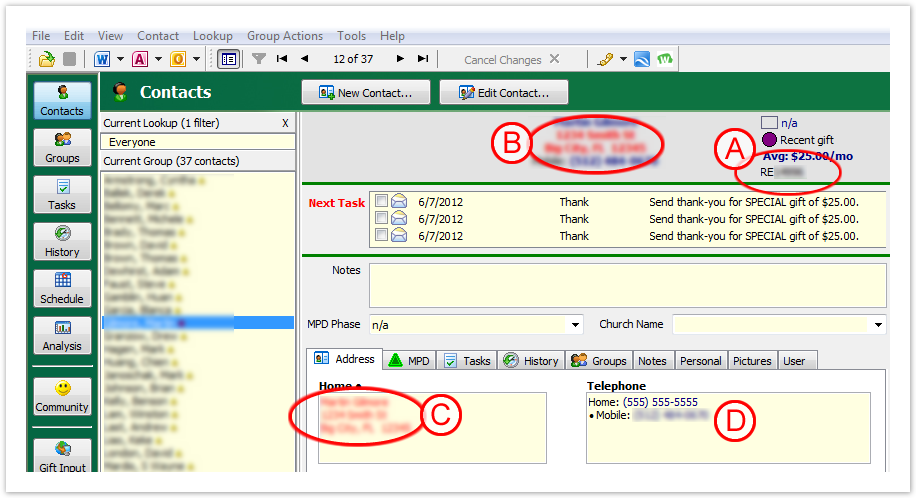
-Section Column width 50% 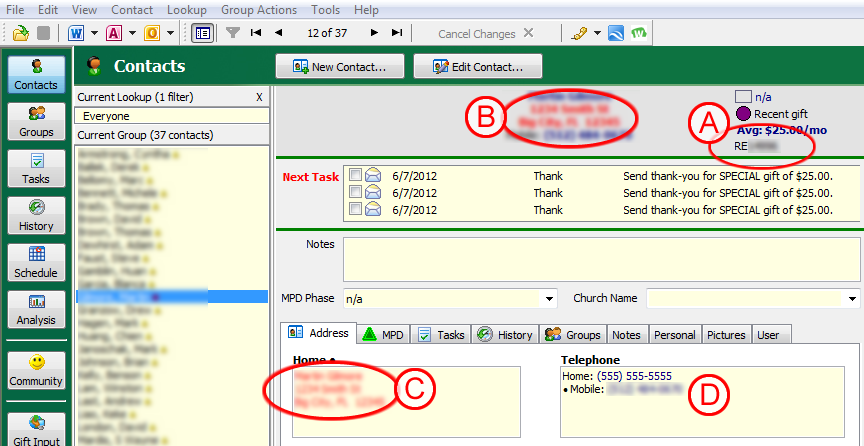
Figure 17
– DataSync Contact Updates
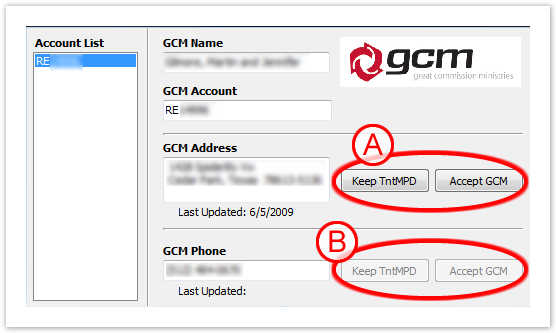
13 - Contact Data UpdateColumn width 50% 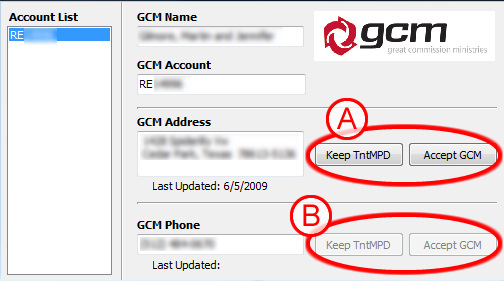
Figure
18 - GCM Donor Info
If you happened to have had any of those extra tricky donors mentioned early on you may encounter this situation and you did decide to associate two (or more) GCM Donors with the same TndMPD contact, you will notice that the contact will now show all of the GCM Donor Numbers in the top right corner (RE#####, RE#####, etc.) [Figure 1419]. If you click on either of those numbers it will bring up a similar popup as with a single association, but this time you will have access to both GCM Donor's address and phone number info [Figure #20]. You can then click on either of the GCM Donor Numbers to show and accept the corresponding GCM data.
Section Column width 50% 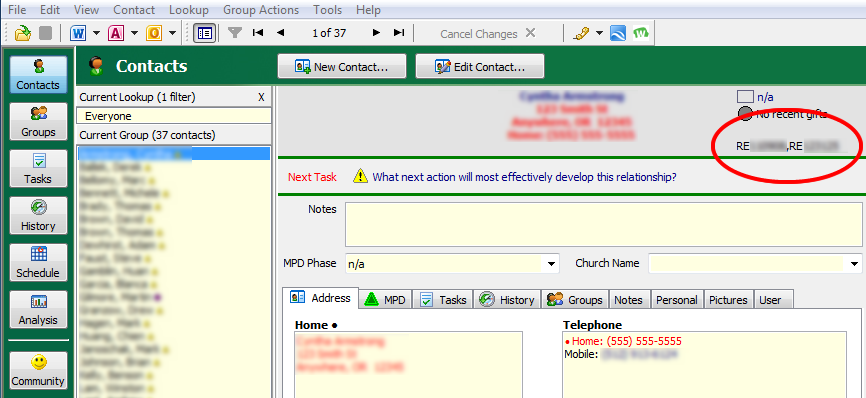
Figure 11a – No Org Account19 – GCM Donor Numbers
Column width 50% 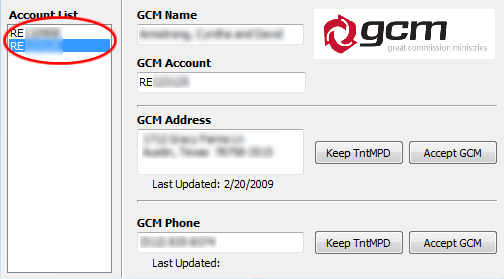
Figure 11b 20 - Blank Org GCM Donor Info
Problems?
- What do I do if I accidentally deleted some donor information and want to use GCM's data to restore it?
Assuming you already choose to accept GCM's data, you won't be able to just click the "Accept GCM" button (unless the donor has updated their information with GCM). What you can do is drag the donor info off the the side a little without closing it [Figure #a21a]. Then, on TntMPD's main window, 1) click the "Address" tab if it's not already open, 2) click on the address itself to bring up the edit button (pencil), and 3) click the edit button [Figure #b21b]. This will bring up TntMPD's address edit window. From here you can manually edit the address to match GCM's address.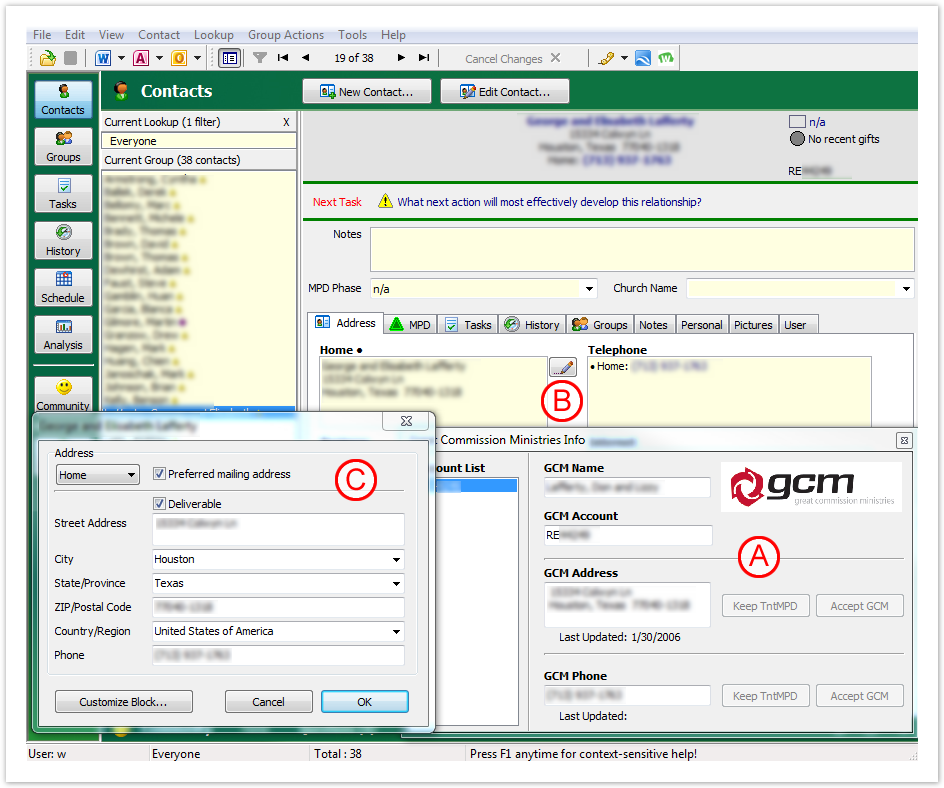
Figure 21 What do I do if I accidentally linked a donor to an account incorrectly?
Thankfully, TntMPD makes this fairly painless to change. Simply click on a contact's GCM Donor Number to bring up the popup. Then you can right click their GCM Donor Number in the popup to bring up the option to link the account to a different contact. If you choose "Link Account to Different Contact..." it will bring up a "Select a Contact..." window where you can link the GCM donor to a different TntMPD contact.Section Column width 50% 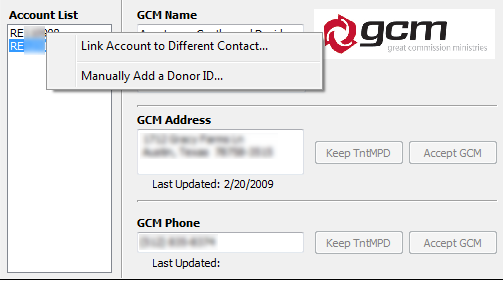
Figure 11a – No Org Account
Column width 50% 
Figure 11b - Blank Org Inf
