


Page History
...
After clicking “Next” on the previous window, TntMPD will present you with a screen to try and match the GCM contact with your existing contacts. You will be presented with the screen for each record in your GCM DataSync file, so this is a lengthy process, but you only have to do it once!
Warning  Now, let's pause here a minute, because this is the tricky part. The way GCM records donors is legally tied in to the name by which they donated. Here are a few different scenarios that can cause issues:
- With a married couple
- The husband might mail a check with just his name on it, and later the wife mails a check with just her name on it. These are two distinct donors according to GCM.
- A wife may have checks labeled "Jane and John Doe" while a husband's checks may say "John and Jane Doe". These are two distinct donors according to GCM.
- One member of the couple may have died, or the couple may not be divorced. You may see these donors as "John and Jane Doe" and "Jane Doe". These are two distinct donors according to GCM.
- With a Business
- If a donor gives through their business, GCM will have their business as a donor. If they also give personally it is considered a separate donor.
The DataSync will prompt you for each donor that GCM has recorded. The point in mentioning this is that many people would have these related donors as a single contact in TntMPD. It is up to you to decide if you want the contacts listed separately (like GCM) or if you want to combine them into a single TntMPD contact. You can do it either way, but you need to remember that if you combine them in TntMPD, they will not match what you see on staffnet. You might ask your MTD coach what they think you should do. TntMPD will kindly show you that their when there are multiple donors associated with a single TntMPD contact (you'll see this toward the end of these instructions). If, however, you would like to have everything identical to GCM's records, you should head to http://www.gcmstaff.net and go to MTD > Donors. From the donors page select "All Dates" in the "By Giving" drop down box. This will then give you a list of all donors who have ever given to the account you are responsible for. This list will match the list in the DataSync file, so you can use it as a guide when TntMPD prompts you for each donor individually. Without it you may not realize that you are combining donors into a single contact until later.Ok, moving on. After you clicked clicking "Next" a while back on the DataSync summary window a new window pops up. This will actually be one of two windows, either the "Confirm Match" window or the "Find [Contact]" window. [Figure 6a and 6b]. The "Confirm Match" window will contain a list of contacts that have information (name, address, etc) similar to the new contact. If the contact already exists, then select the correct match and press the “Yes” button. Otherwise, click on “No Match,” and TntMPD will add them as a new contact in the next step. If TntMPD cannot find a close match, it will present you with the "Find [Contact]" window showing a full list of your contacts to choose from. If there is not a match click "No Match" and TntMPD will add them as a new contact in the next step.
Section Column width 50% 
Figure 6a – Confirm Match Window
Column width 50% 
Figure 6b - Find "Donor" Window
- With a married couple
- When matching donors to contacts is complete, you will have the opportunity to add the Donors you selected "No Match" to earlier as contacts in TntMPD [Figure 7]. By default, all contacts in the DataSync file will be imported. Click “Next” to add all your selected donors to your contact list.
...
- If TntMPD finds updated gift information while scanning the gift DataSync file, it will automatically adjust the information and present you with a confirmation dialog [Figure c48]. This would happen if you had previously entered a donor's gift incorrectly (or at least somehow different from how GCM has it recorded). If there are not gifts where the amount given needs to be udpated, you will not see this message.
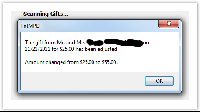
Figure c4 8 – Updated Gift Information If TntMPD finds new gifts that do not exist in your TntMPD database, it will present you with list of all new gifts to be imported [Figure 9a]. At this point, you have the option to uncheck any gifts that you do not want to add to your TntMPD database; by default, all new gifts are checked and will be imported. Clicking "Next" will bring up a summary of the gifts to be added to your TntMPD database. [Figure a59b]. Click on “Sync” to finish adding the gifts.
Section Column width 50%
Figure a7 – DataSync Gift SummaryColumn width 50% Figure 6b - Gift Import Summary
- If TntMPD finds no updated gifts and no new gifts, or if it has finished updating and importing from the steps above, TntMPD will tell you that you have successfully synchronized your gift information [Figure c3].
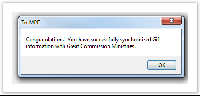
Figure c3 – Successful synchronization
That’s it, you’re done! well, almost... there's still a few more important things to know/do!
...
