


Page History
...
- Once TntMPD has imported your donors, it will scan the gift records in the DataSync file and compare them against your local TntMPD database. You will then see one of three windows popup, and in many cases, a combination of the three.
- If TntMPD finds updated gift information while scanning the gift DataSync file, it will automatically adjust the information and present you with a confirmation dialog [Figure c4]. This would happen if you had previously entered a donor's gift incorrectly (or at least somehow different from how GCM has it recorded). If there are not gifts where the amount given needs to be udpated, you will not see this message.
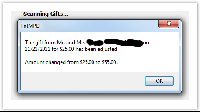
Figure c4 – Updated Gift Information If TntMPD finds new gifts that do not exist in your TntMPD database, it will present you with list of all new gifts to be imported. At this point, you have the option to uncheck any gifts that you do not want to add to your TntMPD database; by default, all new gifts are checked and will be imported. Clicking "Next" will bring up a summary of the gifts to be added to your TntMPD database. [Figure a5]. Click on “Sync” to finish adding the gifts.
Section Column width 50%
Figure a7 – DataSync Gift SummaryColumn width 50% Figure 6b - Gift Import Summary
- If TntMPD finds no updated gifts and no new gifts, or if it has finished updating and importing from the steps above, TntMPD will tell you that you have successfully synchronized your gift information [Figure c3].
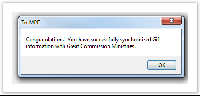
Figure c3 – Successful synchronization
That’s it, you’re done! well, almost... there's still a few more important things to know/do!
- If TntMPD finds updated gift information while scanning the gift DataSync file, it will automatically adjust the information and present you with a confirmation dialog [Figure c4]. This would happen if you had previously entered a donor's gift incorrectly (or at least somehow different from how GCM has it recorded). If there are not gifts where the amount given needs to be udpated, you will not see this message.
...
