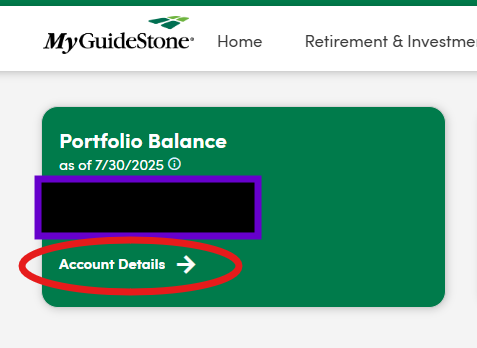
On your dashboard, click on "Account Details" in the Portfolio Balance box.
UI Step
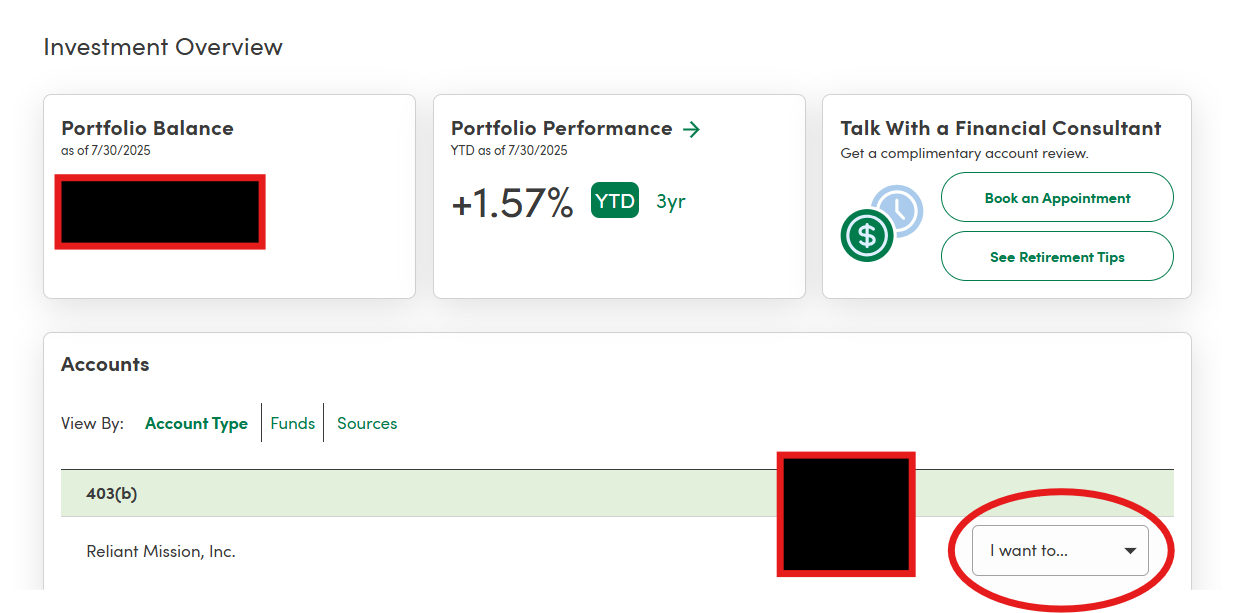
In the "Accounts" section, click on the dropdown that says "I want to..." and choose "change my contributions."
UI Step
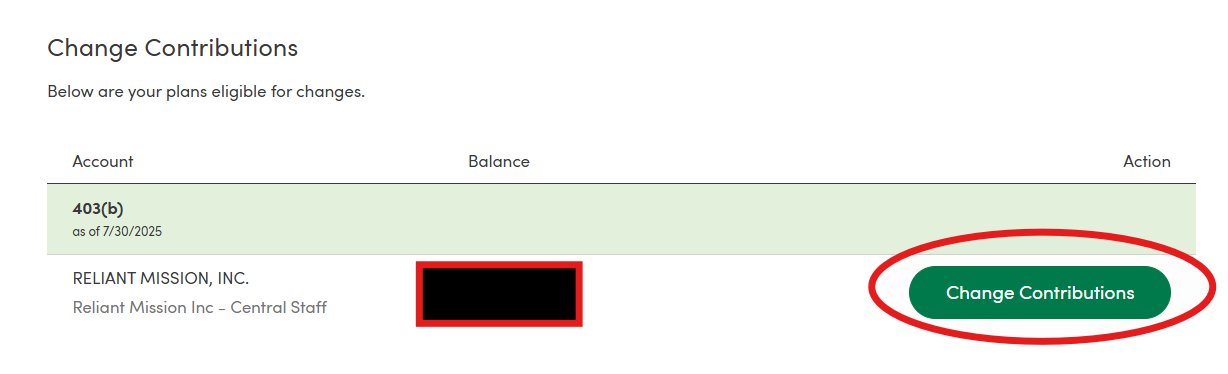
Click on "Change Contributions."
UI Step
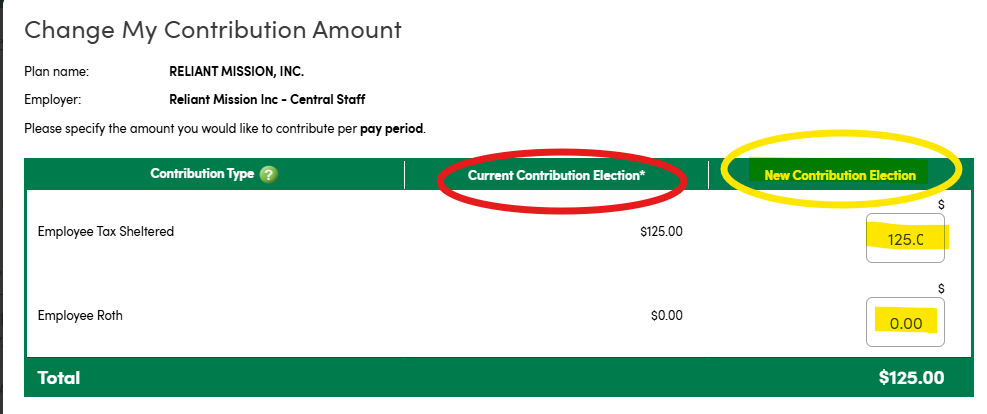
From here, you can see your current contribution amounts listed under "Current Contribution Election." Type in the new contribution amounts you wish to change to, for either the tax sheltered Traditional or Roth plans (you can contribute to one or both of these- see Traditional vs. Roth Contributions)
IMPORTANT: If you are trying toswitch your contributions from a Tax Sheltered plan to a Roth (or vice versa), make sure to not only list the new contribution amount next to the account type that you want to contribute to, but to ALSO list $0 (as the "new contribution" amount for the account type that you want to stop contributing to. Employees have the option to contribute toward both types of accounts, so if you do not zero one of them out, then the system will assume you want to continue with the prior contribution amount for the other type of contribution, and add the new one on top as a second contribution. Double check the amount listed for the overall "Total" so you can confirm that is the amount you want deducted from your paycheck.
UI Step
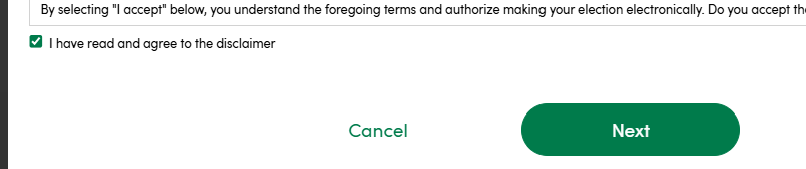
Mark the checkbox to indicate you "agree," and the click "Next."
UI Step
On the next screen, review the change to make sure it is correct and click "Confirm."



 8.5.4, themed by Refined