


Page History
...
| Tip |
|---|
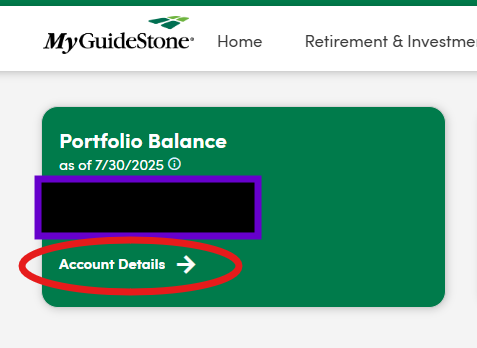
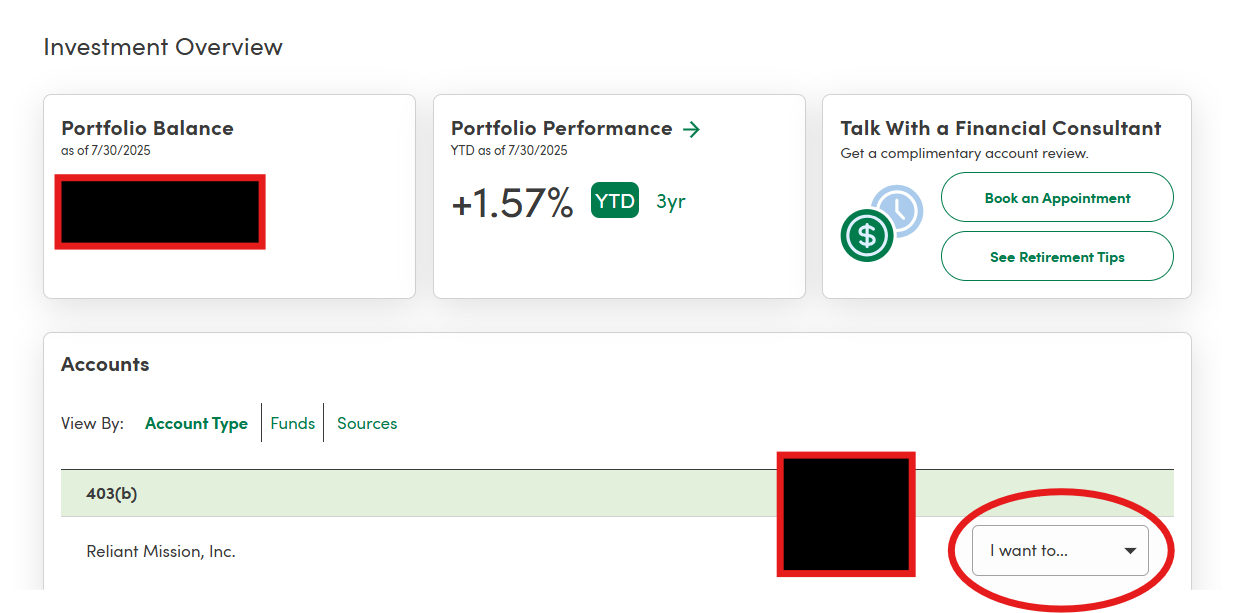
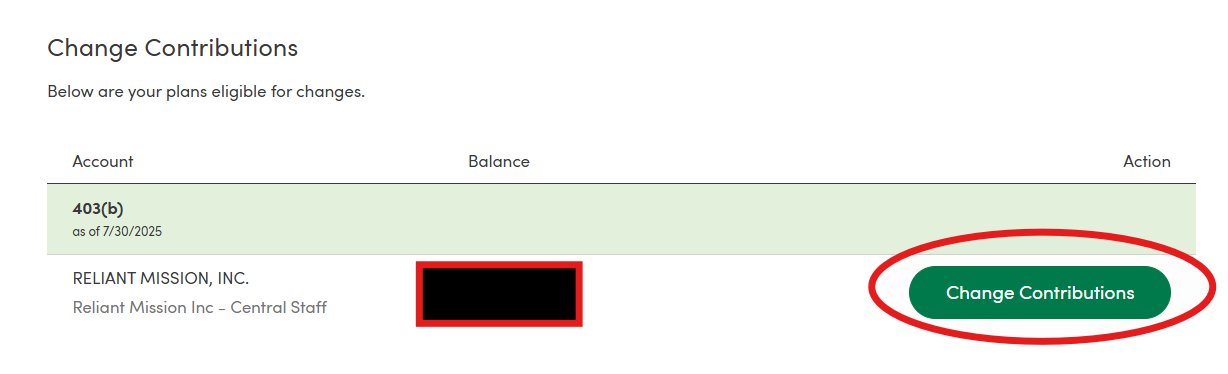
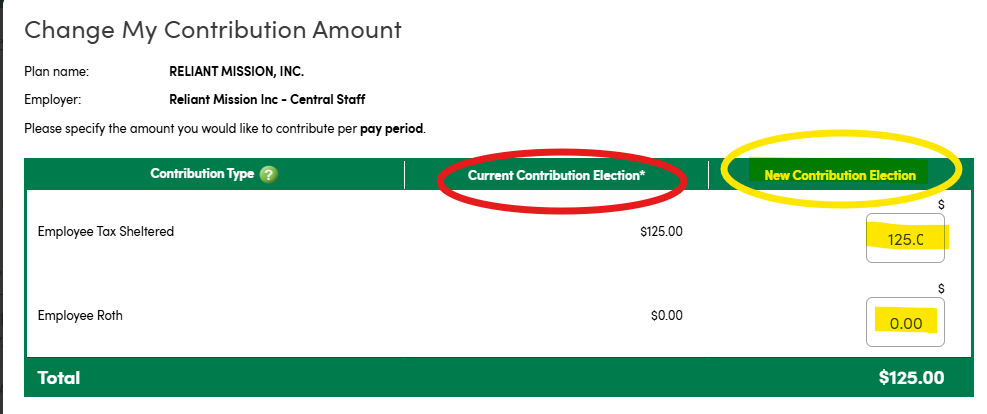
When making a change to your 403(b)(9) contribution amount, please also submit an updated support goal in Toolbox. However, changing your support goal does not change the amount deducted from your paycheck, you have to make the change on the Guidestone site to affect your paycheck. The process below is used for changing the amount deducted from your paycheck- the employee contribution amount. (See Traditional vs. Roth Contributions for more details on the two types of employee contributions.) All changes must be submitted on the Guidestone site by the 19th of the month to be effective on the following month's paycheck. For the employer contribution, Reliant will calculate the 403(b)(9) match (See Employer Matching Contributions - Class 1, Career Employees and non-match Employer Contributions - Class 2, Fixed Term Employees) based on your employee contributions as noted on the GuideStone site and payroll earnings. During payroll, Reliant will add that transfer the employer contribution amount to your 403(b)(9) GuideStone account using the funds from the your MTD account for which you are responsible during payroll. |
| UI Steps | ||||||||||||||
|---|---|---|---|---|---|---|---|---|---|---|---|---|---|---|
|
...
