Welcome to Solomon!

Enter the Access Code below

Access code is invalid

Solomon Logo

Versions Compared

Key

  • This line was added.
  • This line was removed.
  • Formatting was changed.

...

UI Steps
UI Step

Login to the Guidestone website. 


UI Step

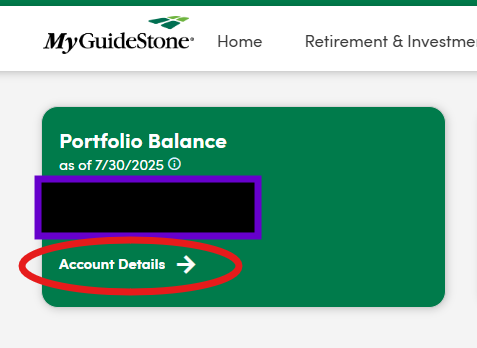
On your dashboard, click on "Account Details" in the Portfolio Balance box.

UI Step

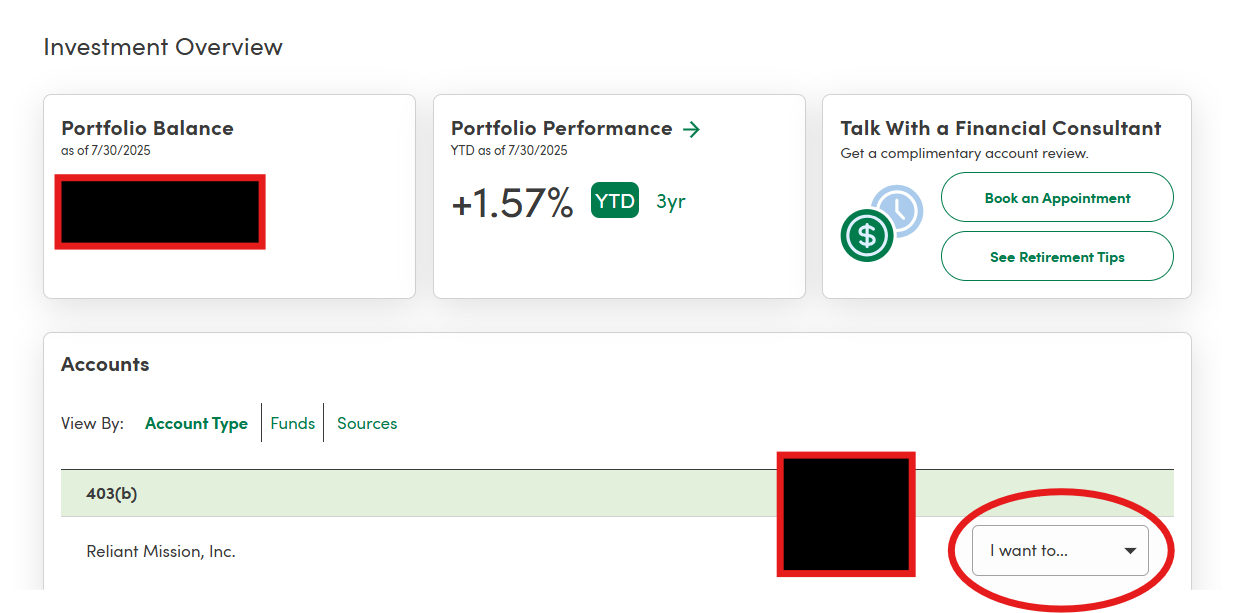
In the "Accounts" section, click on the dropdown that says "I want to..." and choose "change my contributions."

UI Step

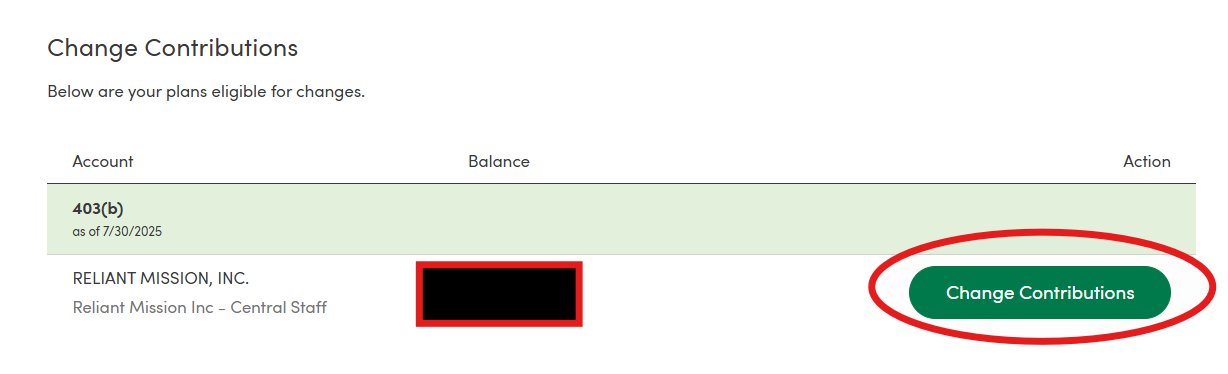
Click on "Change Contributions."

UI Step

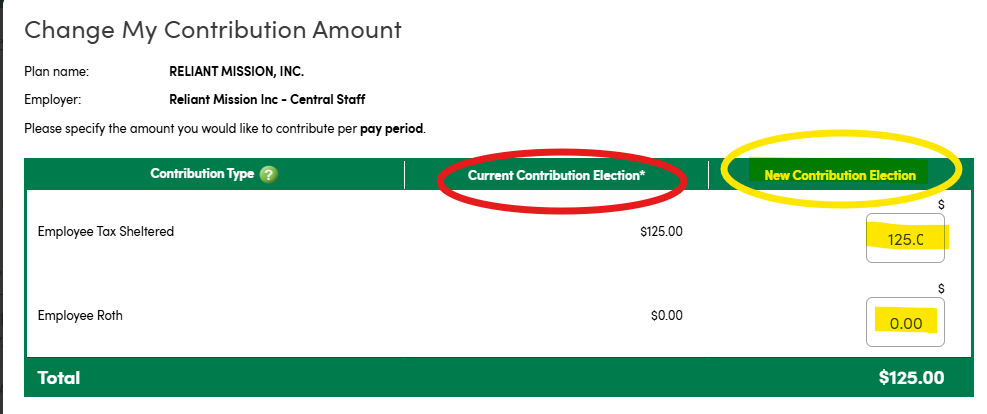
From here, you can see your current contribution amounts listed under "Current Contribution Election." Type in the new contribution amounts you wish to change to, for either the tax sheltered Traditional or Roth plans (you can contribute to one or both of these-  see Traditional vs. Roth Contributions)

UI Step

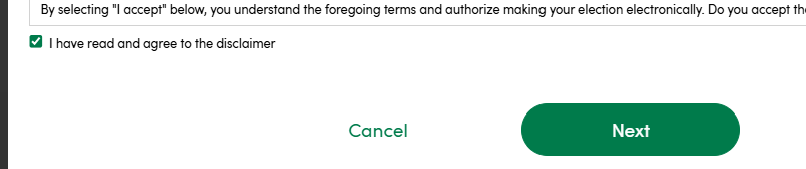
Mark the checkbox to indicate you "agree," and the click "Next."

UI Step

On the next screen, review the change to make sure it is correct and click "Confirm."


Timing of Change

GuideStone will submit your changes to Reliant to be reflected on your next paystub. All changes must be submitted on the Guidestone site by the 19th of the month to be effective on the next month's paycheck. Changes made on the GuidStone website after the 19th of the month may not be reflected on the next paystub, depending on timing. it may take until the following month after that. If you have missed the 19th deadline but you want to request that your change be reflected on the next paystub, email email payroll@reliant.org to ask if they can manually make the late change request on the next paycheck.  

...