


Page History
...
| UI Steps | ||||||||||||||
|---|---|---|---|---|---|---|---|---|---|---|---|---|---|---|
|
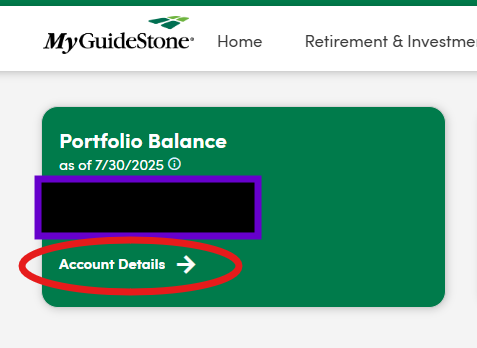
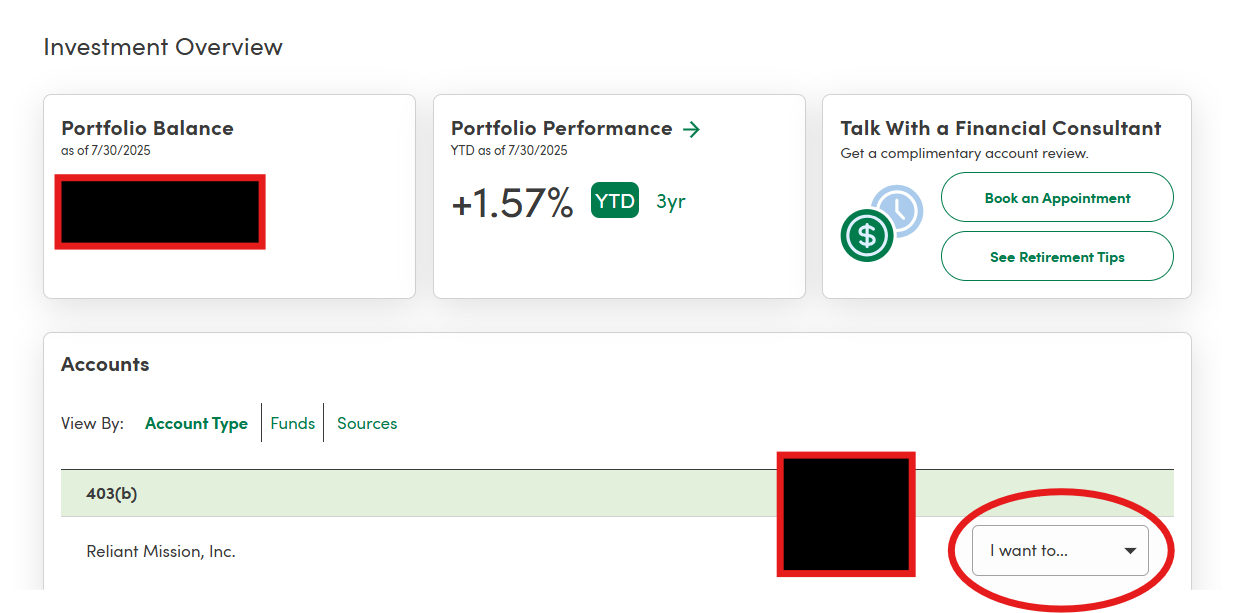
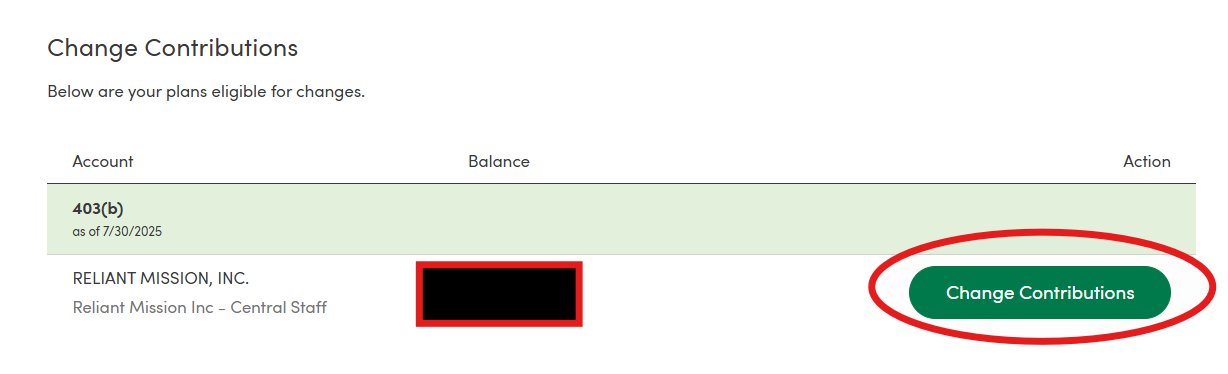
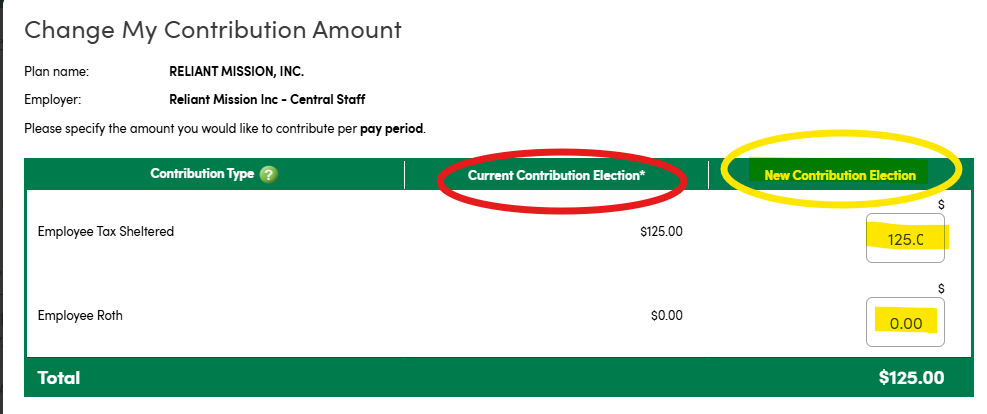
GuideStone will submit your changes to Reliant to be reflected on your paystub. Changes made on the GuidStone website after the 19th of the month may not be reflected on the next paystub, depending on timing. it may take until the following month. If you have missed the 19th deadline but you want to request that your change be reflected on the next paystub, email email payroll@reliant.org to ask if they can manually make the late change request on the next paycheck.
GuideStone employee website will not immediately update your contribution amount change request on the website view. (See website view below.) The changes requested will be reflected on the GuideStone website after the future payroll contribution changes have been paid out on the following month's paycheck and those paycheck contribution amounts have been sent back to GuildeStone (typically the week after paydate).
...
