


Page History
...
- Login to the Guidestone website.
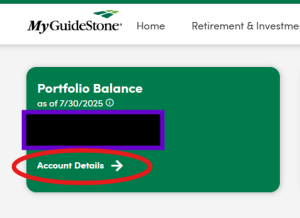
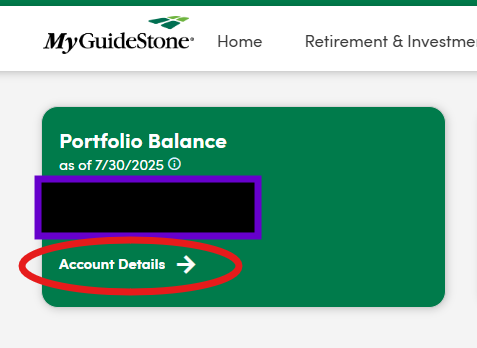
- On your dashboard, click on "Account Details" in the Portfolio Balance box.
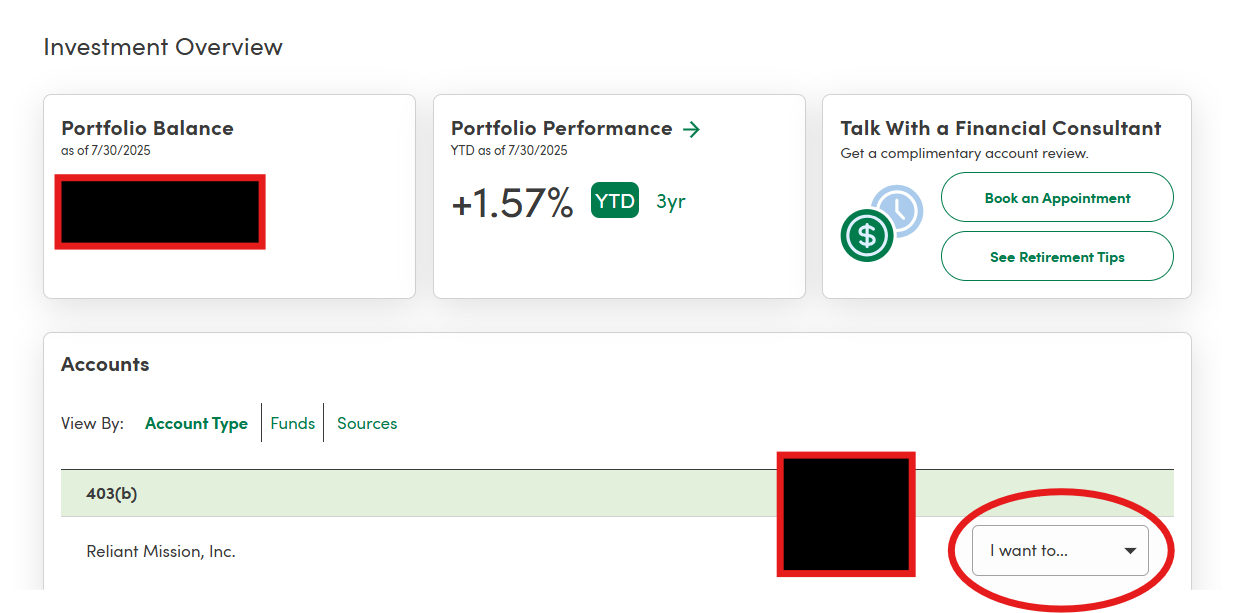
- In the "Accounts" section, click on the dropdown that says "I want to..." and choose "change my contributions."
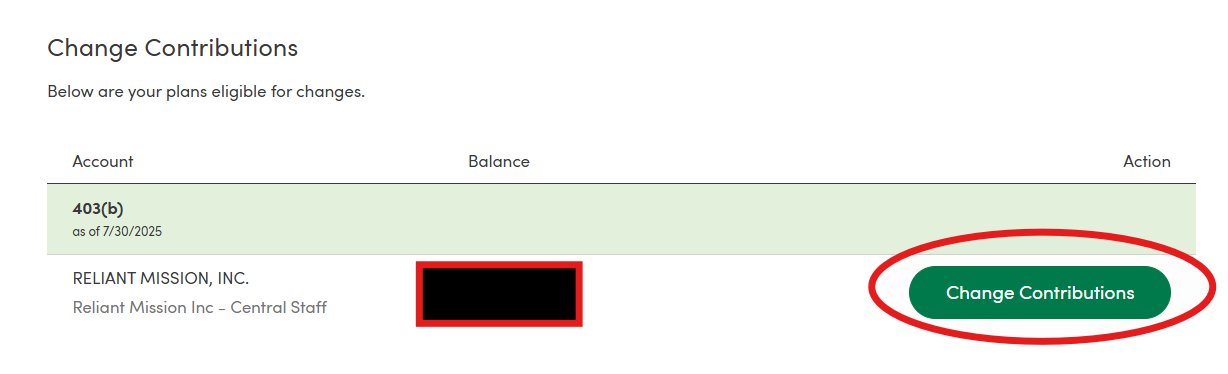
- Click on "Change Contributions."
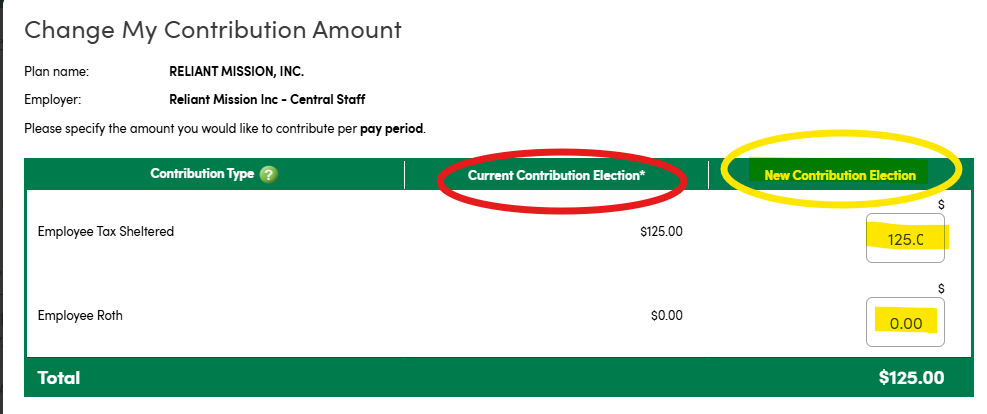
- From here, you can see your current contribtion amounts listed under "Current Contribution Election." Type in the new contribution amounts you wish to change to, for either the tax sheltered or Roth plans (you can contribute to one or both of these).
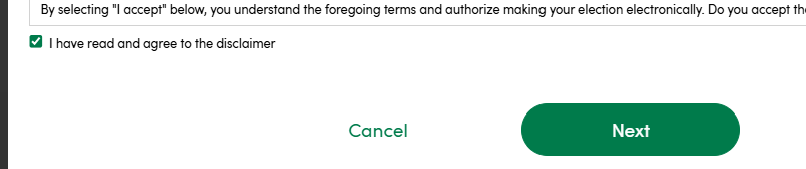
- Mark the checkbox to indicate you "agree," and the click "Next."
- On the next screen, review the change to make sure it is correct and click "Confirm."
...
