Page History
| Section | ||||||||||||
|---|---|---|---|---|---|---|---|---|---|---|---|---|
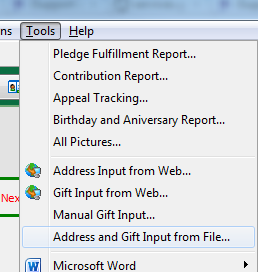
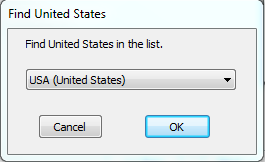
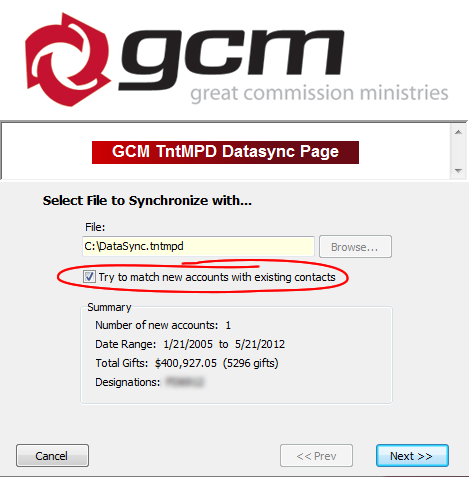
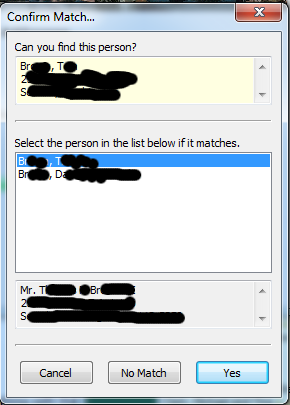
The donor information sync file is used to update your donor contact information with the most up-to-date information on our database. This file will sync your donor information only; gift information will not be updated! For the most part, the process of importing Donor information is identical to importing a DataSync file. Begin by logging into your GCM Staff account athttps://www.gcmstaff.netClick on the “Download Donor Data” button to download your personal GCM TntMPD Donor information sync file. This file is created the moment you click the button, so it will always have the most up to date data. If your TntMPD installation was associated with .tntmpd file types, you can simply double click the downloaded file. Otherwise, in the TntMPD program, click on Tools (in the top menu bar) and select “Address and Gift Import from File,” and browse to your downloaded file [Figure b1]. 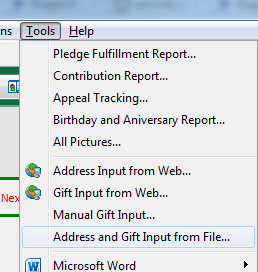 Figure b1 – Address and Gift Input from File You might be prompted to find the matching country from a drop down. Select the correct option [Figure b2]. 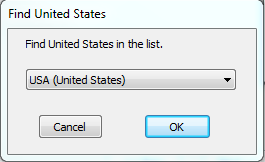 Figure b2 – Find Country Window TntMPD will analyze the Donor sync file and compare it against the existing contacts in your TntMPD database. You will be presented with a summary screen that shows you the number of new contacts to be imported [figure b3]. Please note that this does not indicate the number of modified accounts, if the number of new accounts is 0, the sync file may still contain updated data for your existing contacts! If you already have GCM donor information in your TntMPD database, please check the “Try to match new accounts with existing contacts” box [Figure b2] to insure no duplicate contacts are created. 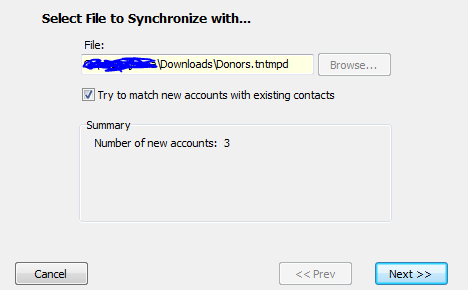 Figure b3 – Sync File Summary Pressing “Next,” you will be prompted with a “Confirm Match” window for each new contact [Figure b4]. This window will contain a list of contacts that have information (name, address, etc) similar to the new contact. If the contact already exists, then select the correct match and press the “Yes” button.
Otherwise, click on “No Match,” and a new record will be created. If TntMPD cannot find a close match, it will present you with the full list of your contacts to choose from. 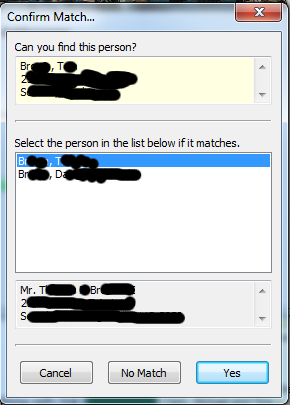 Figure b4 – Confirm Match Window Figure b4 – Confirm Match WindowThat’s it, you’re done!
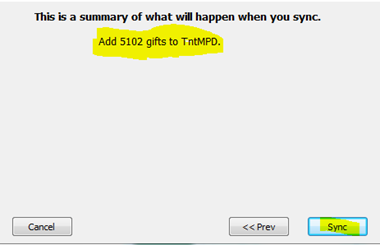
Importing GCM TntMPD Gift information The gift information sync file is used to update your MPD data with the most up-to-date information on our database. This file will sync your gift information only; donor information will not be updated! For the most part, the process of importing gift information is identical to importing a DataSync file. Begin by logging into your GCM Staff account athttps://www.gcmstaff.net Click on the “Download Gift Data” button to download your personal GCM TntMPD gift information sync file. This file is created the moment you click the button, so it will always have the most up to date data. If your TntMPD installation was associated with .tntmpd file types, you can simply double click the downloaded file. Otherwise, in the TntMPD program, click on Tools (in the top menu bar) and select “Address and Gift Import from File,” and browse to your downloaded file [Figure c1]. 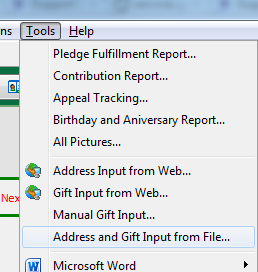 Figure c1 – Address and Gift Input from File TntMPD will analyze the Gift sync file and compare it against the existing gifts in your TntMPD database. You will be presented with a summary screen [Figure c2] that shows you the number of gift records in the sync file. Please note that this does not indicate the number of new or modified gifts, but a total number of all gifts in the sync file. 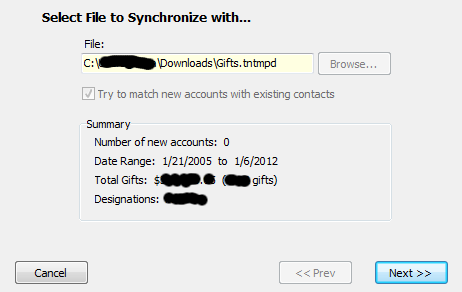 Figure c2 – Gift Import Data Summary Screen TntMPD will automatically associate the gifts with the donor who gave them. Clicking “Next,” TntMPD will scan all the gift records in the sync file and compare them against your local TntMPD database. If it finds no updated gifts and no new gifts, TntMPD will tell you that you have successfully synchronized your gift information [Figure c3]. 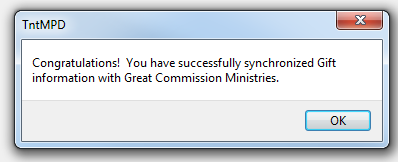 Figure c3 – Successful synchronization If TntMPD finds updated gift information while scanning the gift sync file, it will automatically adjust the information and present you with a confirmation dialog [Figure c4]. 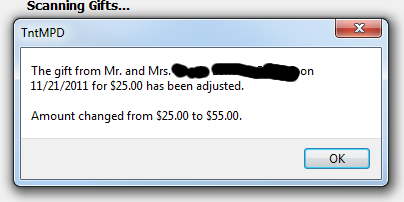 Figure c4 – Updated Gift Information And finally, if TntMPD finds new gifts that do not exist in your TntMPD database, it will present you with list of all new gifts to be imported. At this point, you have the option to uncheck any gifts that you do not want to add to your TntMPD database; by default, all new gifts are checked and will be imported. Pressing “Next” will give you a summary of what TntMPD is ready to do. It should simply state the number of new gifts it is going to add to your local database [Figure c5]. 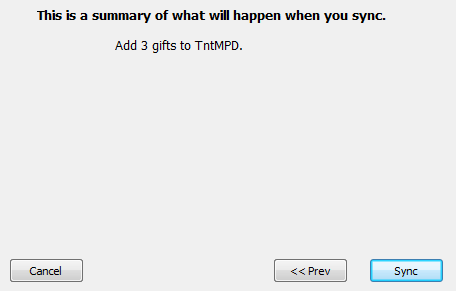 Figure c5 – Gift Import Sync Summary Screen Now all you have to do is click on the “Sync” button. TntMPD will add the selected gifts to your local database, and you will be presented with the successful synchronization confirmation box [Figure c3]. That’s it, you’re done! |