


Page History
We have brand new updated forms! Please take a minute If this is your first time submitting an expense on the new forms or replying to a change request, please take a moment (or 4 minutes) to watch this tutorial video that will walk you through all the details of the form and ensure that you have no hiccups with the download and submission. submission. The video begins with how to share the form.
You will share your filled-out form with reimbursements@reliant.org after all approvals have been received (if approvals are applicable). To inform Reliant that your submission is complete (and you have received any approvals that may have been needed as outlined below), you will simply add a comment to the Google sheet to say it has been submitted. After you add your submitted comment to your form this means it has now alerted reimbursements@reliant.org that your form is ready to be reviewed.
- If your form is being submitted late you will first share it with your supervisor for approval.
- If your submission is for a project fund you will first share it with an authorized signer of the fund for approval.
...
| Widget Connector | ||
|---|---|---|
|
| Info |
|---|
Remember, to fully complete the form, you will need to upload any necessary receipts to a shared Google Folder. Follow the link for instructions and a tutorial video on uploading receipts. |
...
CHANGES TO BE MADE
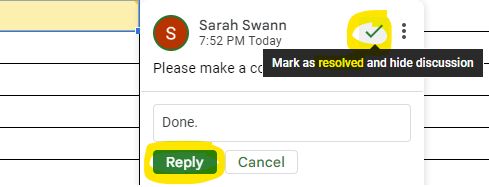
After you add your "submitted" comment alerting reimbursements that your submission is ready to be reviewed, you may then receive a comment back (which should also result in sending you an email saying a comment was added) saying share your form with reimbursements@reliant.org you may receive an email back saying there are changes that need to be made. At times, corrections or additions will be requested before an expense submission form can be considered received for processing. You will be notified through a google comment (you should receive a notice via email that a comment has been added to the expense submission form) that changes are being requested. The video above outlines how to respond to these changes, but the steps are also outlined below.
| UI Expand | ||
|---|---|---|
| ||
|

...
