How do I setup my Reliant email alongside other email addresses? This page provides tech help and links to detailed instructions.
Nearly all email programs and smartphones like iPhone and Android allow you to use several email addresses in the same inbox. This is helpful for Reliant missionaries using their @reliant.org email address for verified communication with Reliant, but wanting to also use a local church email and possibly also a personal email address.
I want to setup using...
These are instructions for common platforms. A quick Google search online will find instructions for additional cases and even video demonstrations.
Add your Reliant.org account as a Google account. See Add an email account on your iPhone, iPad, or iPod touch
Varys depending on email program.
https://support.google.com/mail/answer/4570255?hl=en
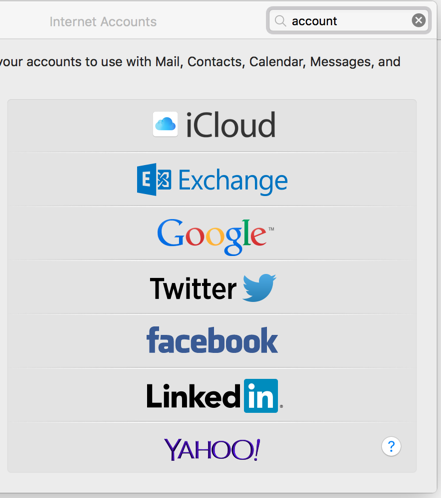
Add your Reliant.org account under Settings > Internet Accounts. Use the Google option.
See Mail (El Capitan): Set up Mail with your email accounts
If you have a Google account through your church or a personal gmail account, the best option is their "Multiple Sign In"
This won't show your email in the same inbox, but allows you to switch between your @reliant.org and @gmail.com account with one click.
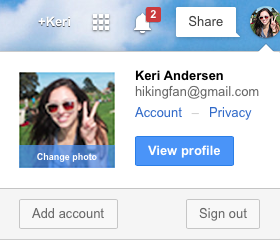
You'll use Add Account to connect your Reliant account.
See Sign in to multiple accounts at once
For more see Help for Setting Up Multiple Accounts in Gmail
It's not the best solution on the web version of Gmail. Google recommends the Multiple Sign-In solution above. However, it can be done, and it works by configuring email forwarding and then configuring a "Send Mail As" solution. You will need the Advanced Manual Settings.
See specifically: Send mail from a different address or alias
Add your Reliant.org account as an IMAP account.
See Outlook: Add or remove an e-mail account
Source: Set up Gmail with Outlook, Apple Mail, or other mail clients
For custom configurations, contact helpdesk@reliant.org Mail is provided by Google for Nonprofits program. Google Apps Service is usually IMAP. Configuration troubleshooter for IMAP Incoming settings Outgoing settings |
Configuring a unified / shared inbox is the best option for most cases.
This is easiest to configure on iPhone, Android, or a mail program like Outlook.
This allows you to send and receive at your first.last@reliant.org email address effortlessly, while also sending and receiving from other email accounts.
For Google email on the web, use the next solution.
Access your Reliant account anywhere at mail.reliant.org.
This works fine but may be less convenient if you need to check multiple accounts.
If you want to combine a @reliant.org account with another google account (Gmail or a Local church google account), this is the best solution because Google does let you switch back and forth pretty easily.
This option can work but not preferred.
You must complete an additional steps to configure Send Mail As... with your Reliant.org account. This does not work in all email programs. But because this can be more technically tricky, and some servers may see this as spam, it's often easiest to use the Shared Inbox above. For more information, see Google's help article Send mail from a different address or alias. We can't provide instructions for all email programs.
