
This page will show you how to review the elements of your support goal. Your support goal is a combination of your salary, ministry expenses, administrative fees, attrition buffer, taxes, and your 401k.

How to Create a NEW Support Goal (for the first time)

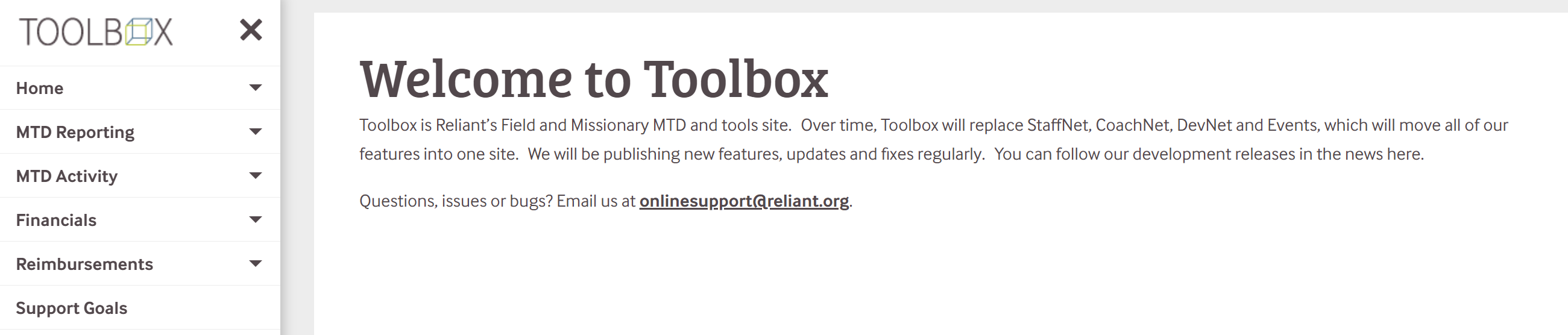
Log into toolbox.Reliant.org using your Reliant email and password used to log into other Reliant sites. 


Select Support Goals from the menu (bottom left)


Click the Create New Goal button on the Support Goals page.


You have options to choose from when building out your support goal. Career Ministry workers should be able to select:

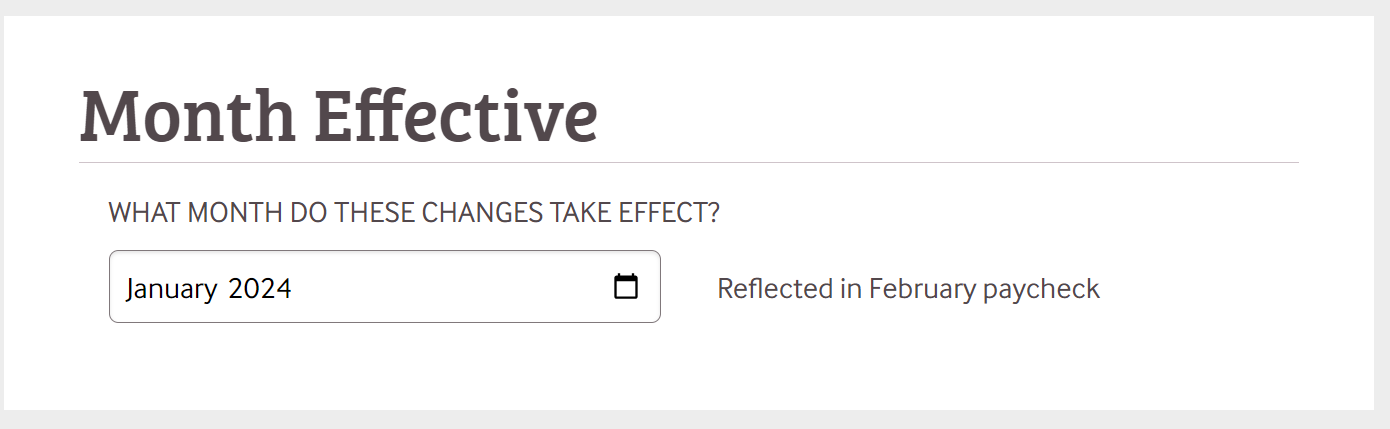
  • Month Effective

    • Please select the month that you wish for this support goal to take effect.


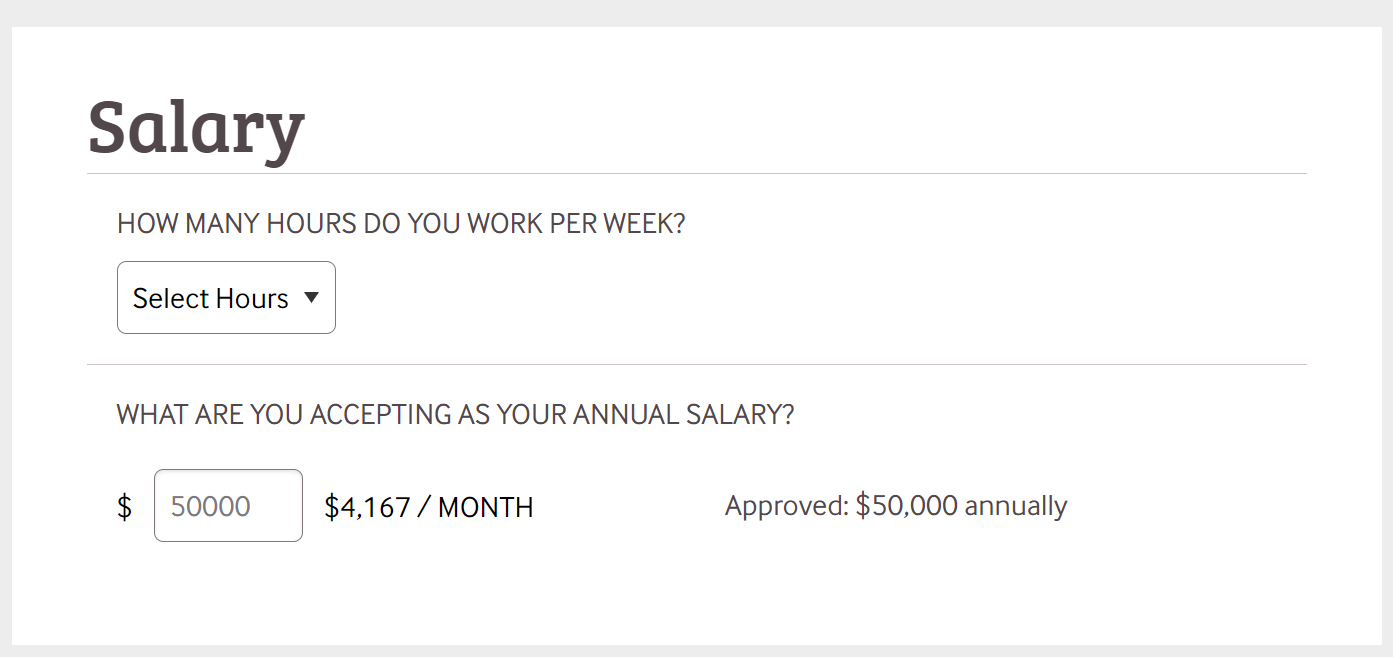
  • Salary

    • First, select how many hours you intend to work and input that in the first box.
      • (If you are changing hours, please submit a change form at this time.)
    • Next, select the annual salary you want to approve (you can see your max approval to the right)
    • Note: You can accept a lower salary than offered, but not one that is higher
    • If you have a FICA bonus, your offered salary has been cleaned up in Toolbox and works slightly differently.
      • Toolbox will add your FICA bonus to your salary in your final goal. 
      • In the past, in Staffnet, we would offer you a salary that had salary and FICA combined, and Staffnet would subtract out FICA.
      • Now we offer you a salary before the FICA bonus, and we add the bonus on top of that, which is more logical and mirrors how FICA should work.
      • Please reach out to your liaison if you run into questions.


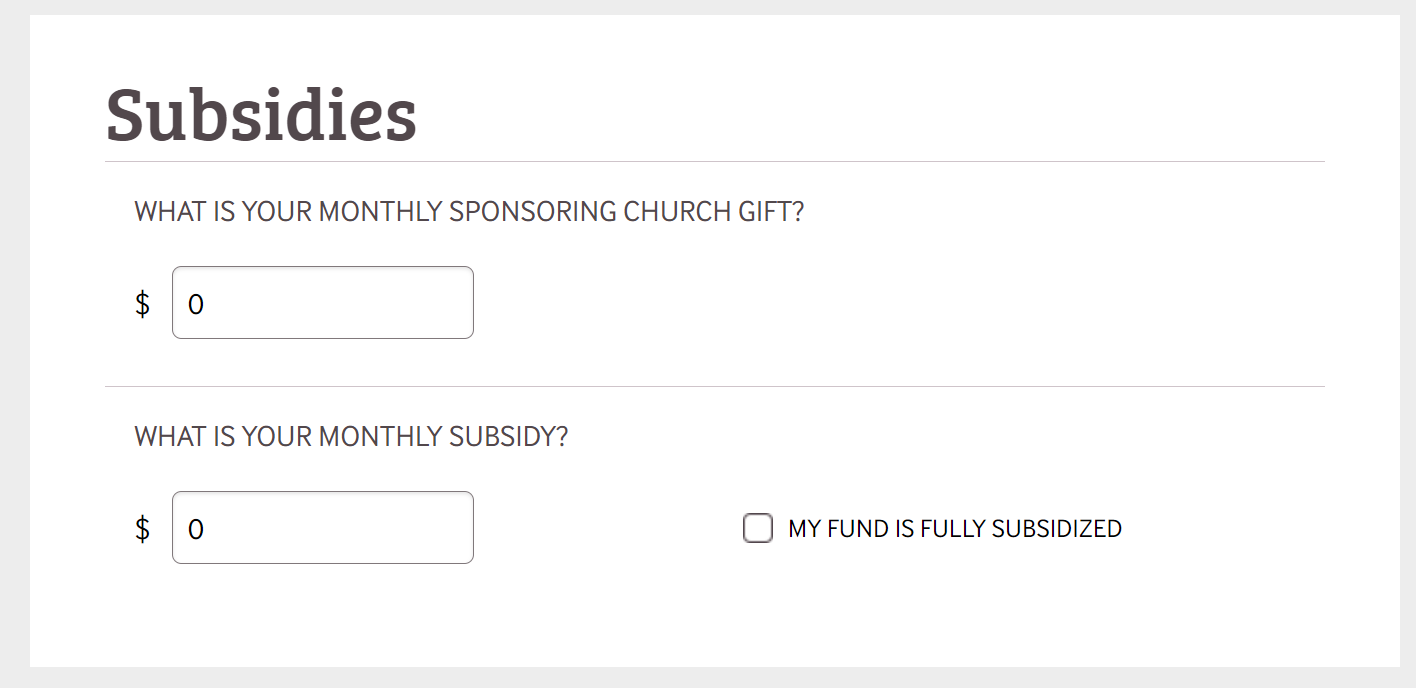
  • Subsidies

    • Let us know the MONTHLY amount that your sponsor church is committing
      • This will be assessed at a lower admin fee 
    • Please let us know if you are getting a monthly subsidy from Reliant
      • If you are unsure, please enter 0 for now and reach out to your team liaison
      • If you know you are not, please enter 0


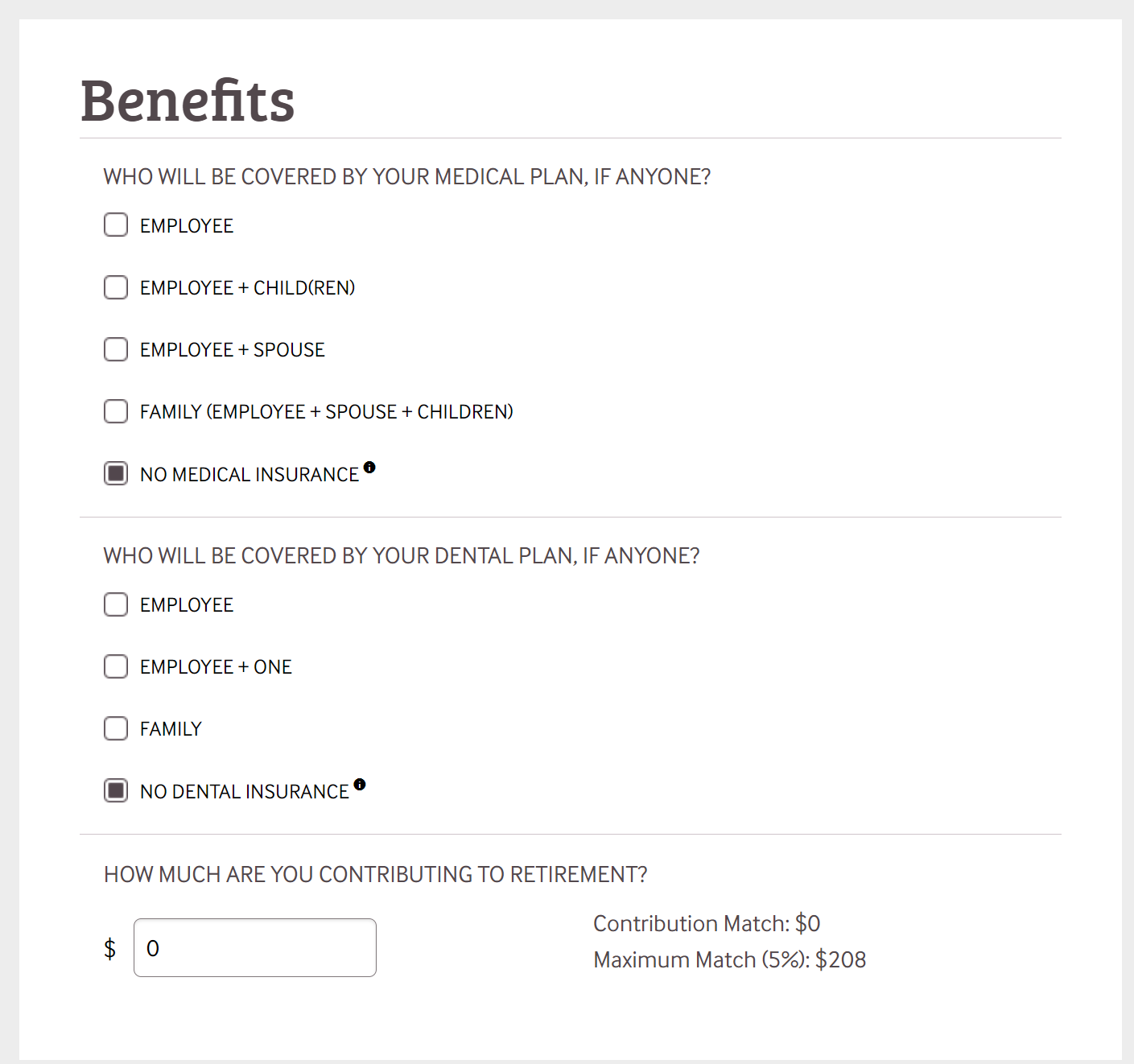
  • Benefits

    • Select your medical insurance option
      • NOTE: This will come out of your MTD account, NOT deducted from your monthly paycheck.
      • If none is needed, please select no medical insurance
        • NOTE: you will need to fill out a waiver form to show proof of other insurance coverage
    • Select your dental coverage
      • NOTE: This will come out of your MTD account each month, NOT deducted from your monthly paycheck. 
    • Select your Retirement Fund Monthy Contribution
      • To the right, you will see your contribution max. This indicates how much will be matched to your selected amount.
        • NOTE: This match will come from your MTD account, NOT from Reliant Central Budget
        • NOTE: Selecting this/ changing this amount on toolbox DOES NOT change the amount in princicple.com. You will need to log into your retirement account on Principle and make the change there for this to take effect!


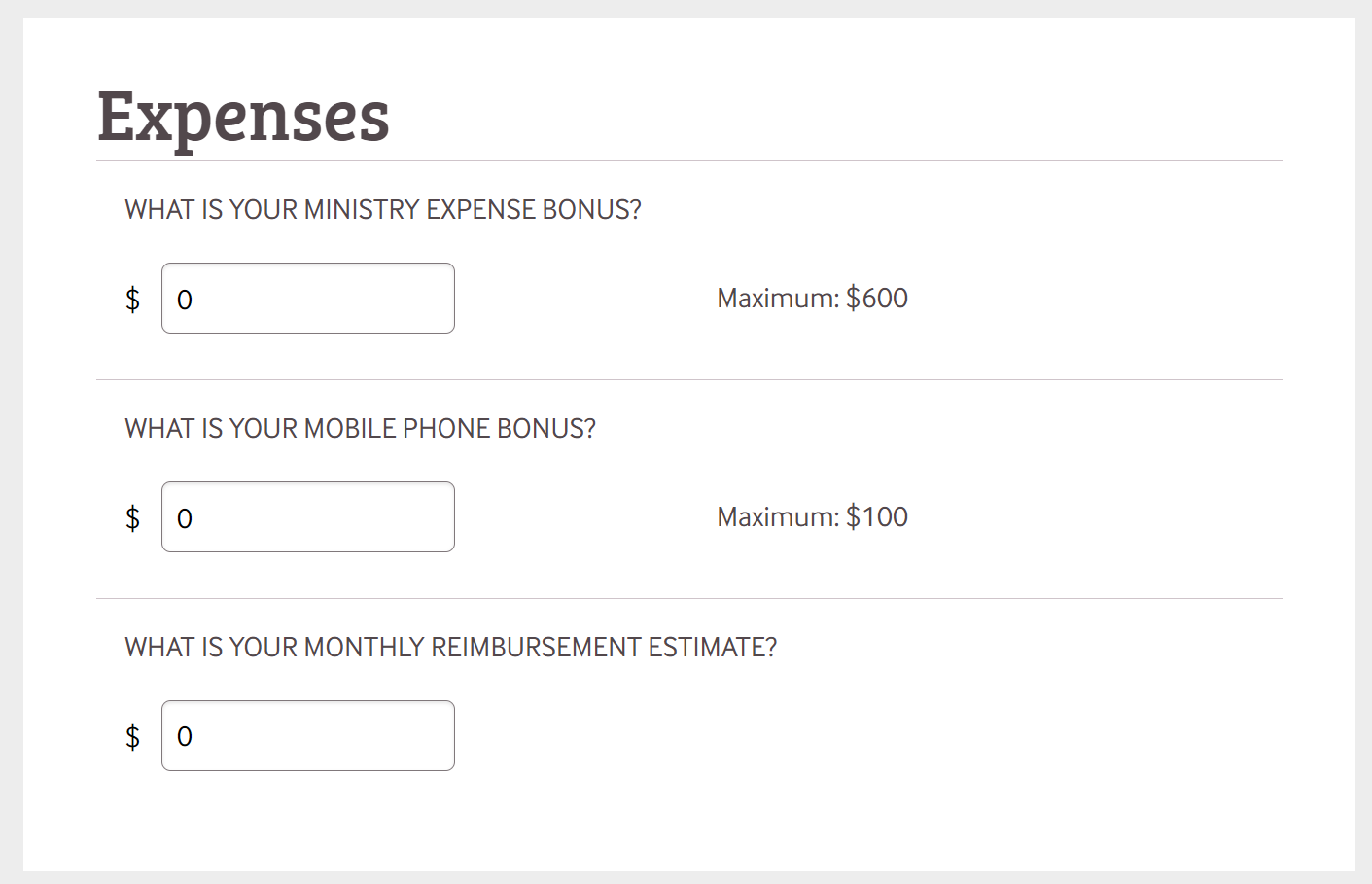
  • Expenses

    • Select the amount you want as a ministry expense bonus to show up in your paycheck.
    • Select the amount for your mobile phone to be paid out in your paycheck
    • Make an estimate on how much you plan to reimburse each month
      • NOTE: This is an estimate to ensure you are raising the amount of funds needed to cover this number each month

Fixed goals are built to calculate expenses for a resident/intern with predetermined start and end dates (e.g. 24 months). Residents/interns with fixed goals may see the following expense options. If you don't see an expense listed below, it's because it is not an offered or required expense for your program. (*Residents/interns under the Fixed Term Program Team will receive an Employment Parameters document at training that outlines their program details.)


Select the month in which the submitted information should take effect.
Must be a future month within processing deadlines. A red box will outline this field if invalid input.

  1. Select how many hours were offered and accepted to work from the dropdown.
  2. Input the annual salary you have accepted to receive (must be within max approved shown to the right).
    1. Note: You can accept a lower salary than offered, but not one that is higher.
    2. Supervisor approval may be required to approve a salary that is different from what was offered.

  1. Select your medical insurance coverage
    1. NOTE: This will come out of your MTD account each month; it is NOT deducted from your monthly paycheck.
    2. If you select "No medical insurance," you will need to fill out a waiver form to show proof of other insurance coverage.
  2. Select your dental insurance coverage
    1. NOTE: This will come out of your MTD account each month; it is NOT deducted from your monthly paycheck.


  1. Select your 403(b)(9) Retirement Fund monthy contribution
    1. On the right you should see your contribution max. This indicates how much will be matched to your selected amount.
      1. NOTE: This match will come from your MTD account, NOT from Reliant Central Budget
      2. NOTE: Selecting this/ changing this amount on toolbox DOES NOT change the amount in princicple.com. You will need to log into your retirement account on Principle and make the change there for this to take effect!


  • Expenses

    • Select the amount you want as a ministry expense bonus to show up in your paycheck.
    • Select the amount for your mobile phone to be paid out in your paycheck
    • Make an estimate on how much you plan to reimburse each month
      • NOTE: This is an estimate to ensure you are raising the amount of funds needed to cover this number each month


Please only hit the "Submit" button at the bottom of the Support Goal Calculator if your selections are approved if needed and final to the best of your knowledge. Hitting "Submit" may prompt Reliant Central to take action on any changes (e.g. a salary change).

Once you have finalized your selections, click the Submit button at the bottom of the calculator. A Reliant representative will review and approve this goal within 3-5 business days. 

Please only hit the "Submit" button at the bottom of the Support Goal Calculator if your selections are approved if needed and final to the best of your knowledge. Hitting "Submit" may prompt Reliant Central to take action on any changes (e.g. a salary change).


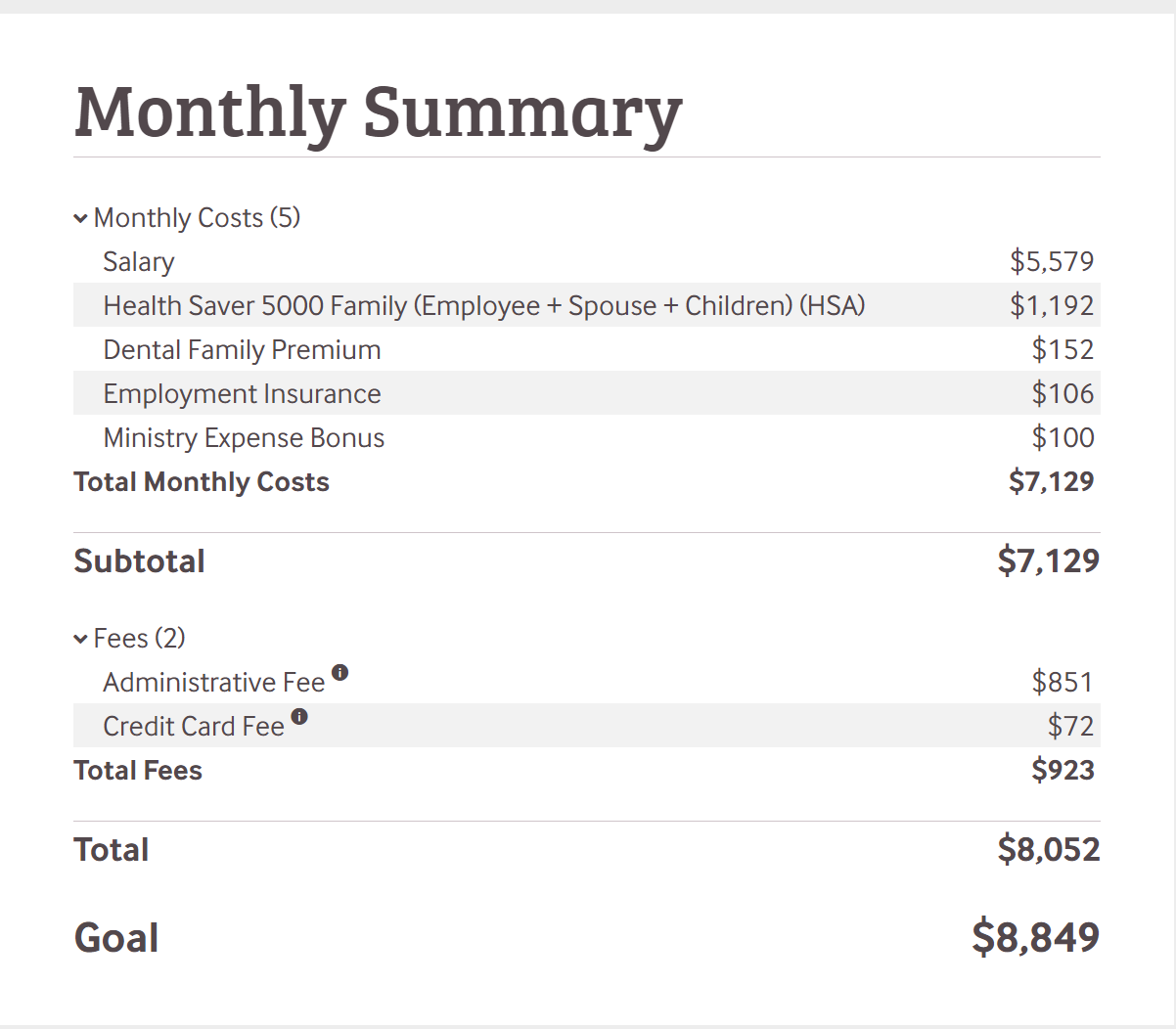
Once you have submitted your goal and it has been approved, you can see it in detail if you click on the Support Goal menu on your toolbox dashboard. This image has had Monthly Costs and Fees expanded so you may have to do the same at first. 


**

**Note about Updating Your Support Goal in Toolbox**

Currently, when you create a new support goal, it will NOT auto-populate the numbers you had previously summited. We hope to have this feature available in the future, but for now, we ask that you take a quick screenshot of your current goal to be able to review it as you make changes. 

In the support goal section of Toolbox, you'll be able to see your current goal. You can also create a new goal at any time if something in your program has changed. These goals will need to be approved by the Reliant Central Team, so be sure to communicate with your liaison when you make changes for things to be approved promptly. Click here for a guide to using Toolbox.


FAQ for Support Goals

Look through your goal for an orange box. It may be showing you there is an error. Correct all orange boxes and try to resubmit. 
You see an orange box because something you are typing in is not within the boundaries the support goal calculator allows. If you think you are getting this orange box in an error, please contact your liaison. 
Make sure you have put in the correct hours. When you change your hours, your annual salary will reflect worked hours. Remember that changing your hours on the Support Goal Calculator does not change your hours. You must submit a change form to change your hours.