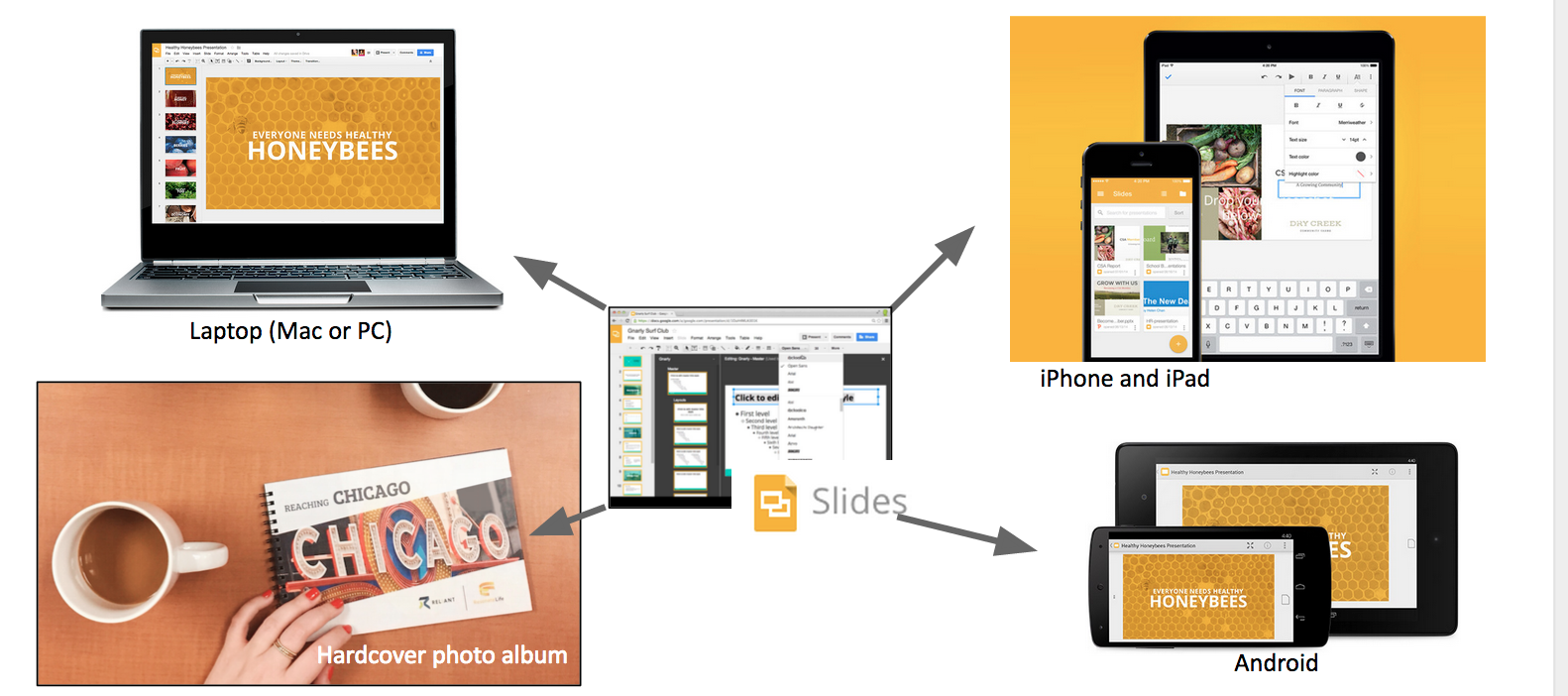
The MTD Presentation Book (sometimes we call it the MTD Photo Album) is the visual storytelling aid that is essential to sharing your story.
It starts as a slide deck on your computer. This allows you to easily add your digital photos, add and edit text, and rearrange slides as you write, practice, and edit your story.
Once complete, you'll be able to display this on a laptop screen, iPad / tablet or even a smartphone. This document then can be exported to make your printed, spiral-bound photo book.
Slides is a presentation "slide deck" program from Google.
Visit http://slides.google.com
Alternately, you may visit http://drive.google.com, which also will show Google Docs (documents) and Google Sheets (spreadsheets)
Sign in using your Reliant Google Account.
Your Reliant Google Account is assigned, and most missionaries already have an account. The are typically first.last@reliant.org. Ask for help if you don't know yours. |
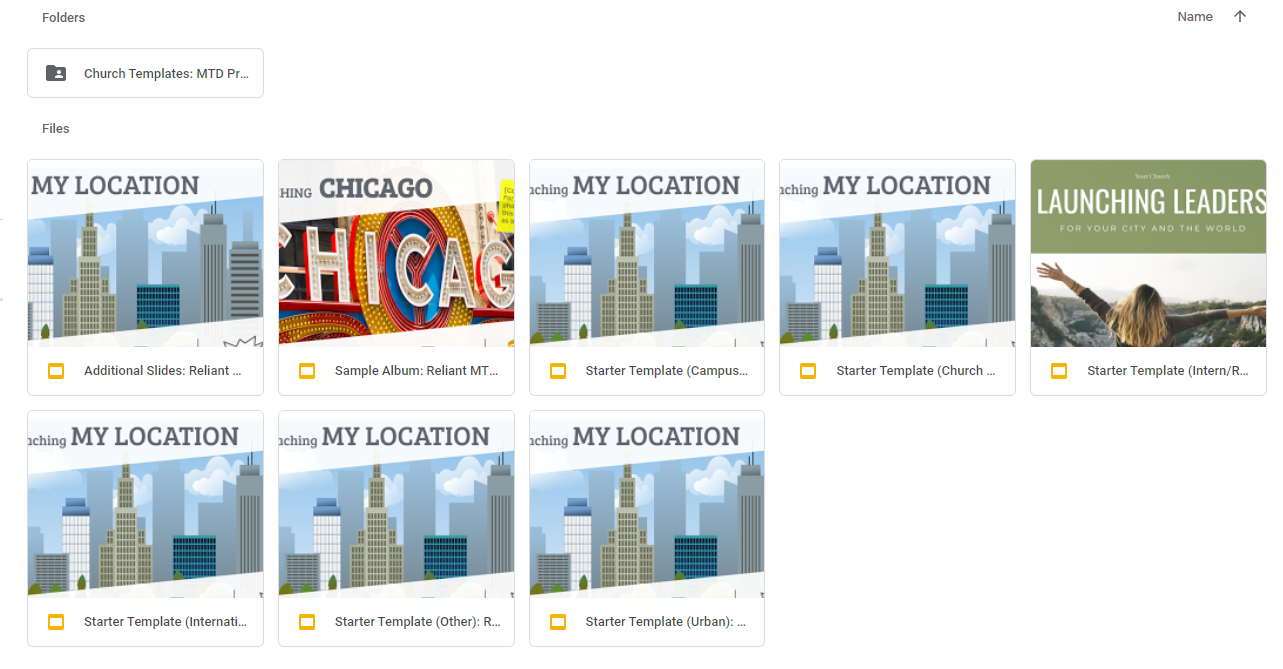
You'll need to copy the Starter Template for yourself.
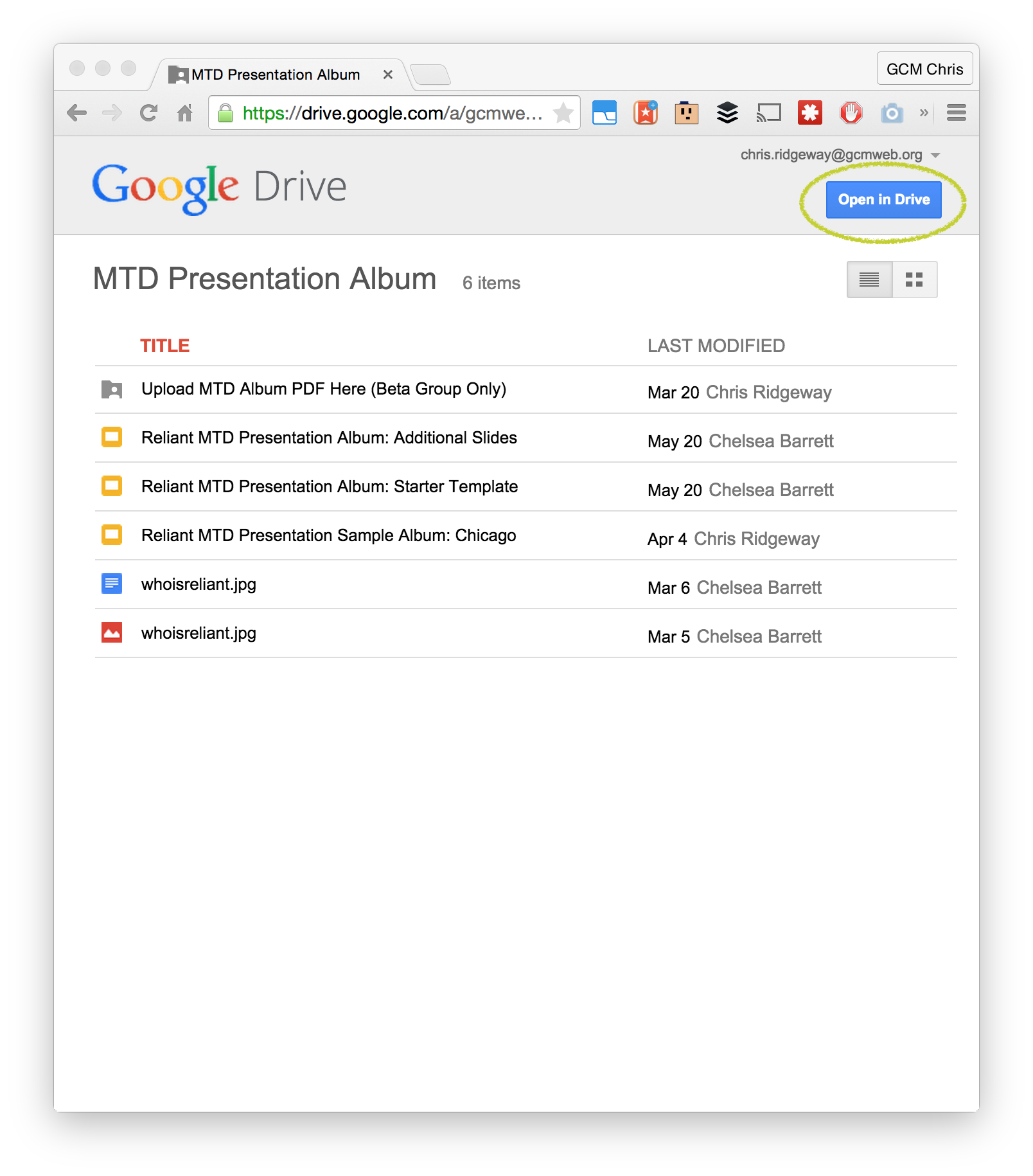
Template Files Appear in Preview Mode.
Use Open In Drive to move them to your Reliant Google Drive.
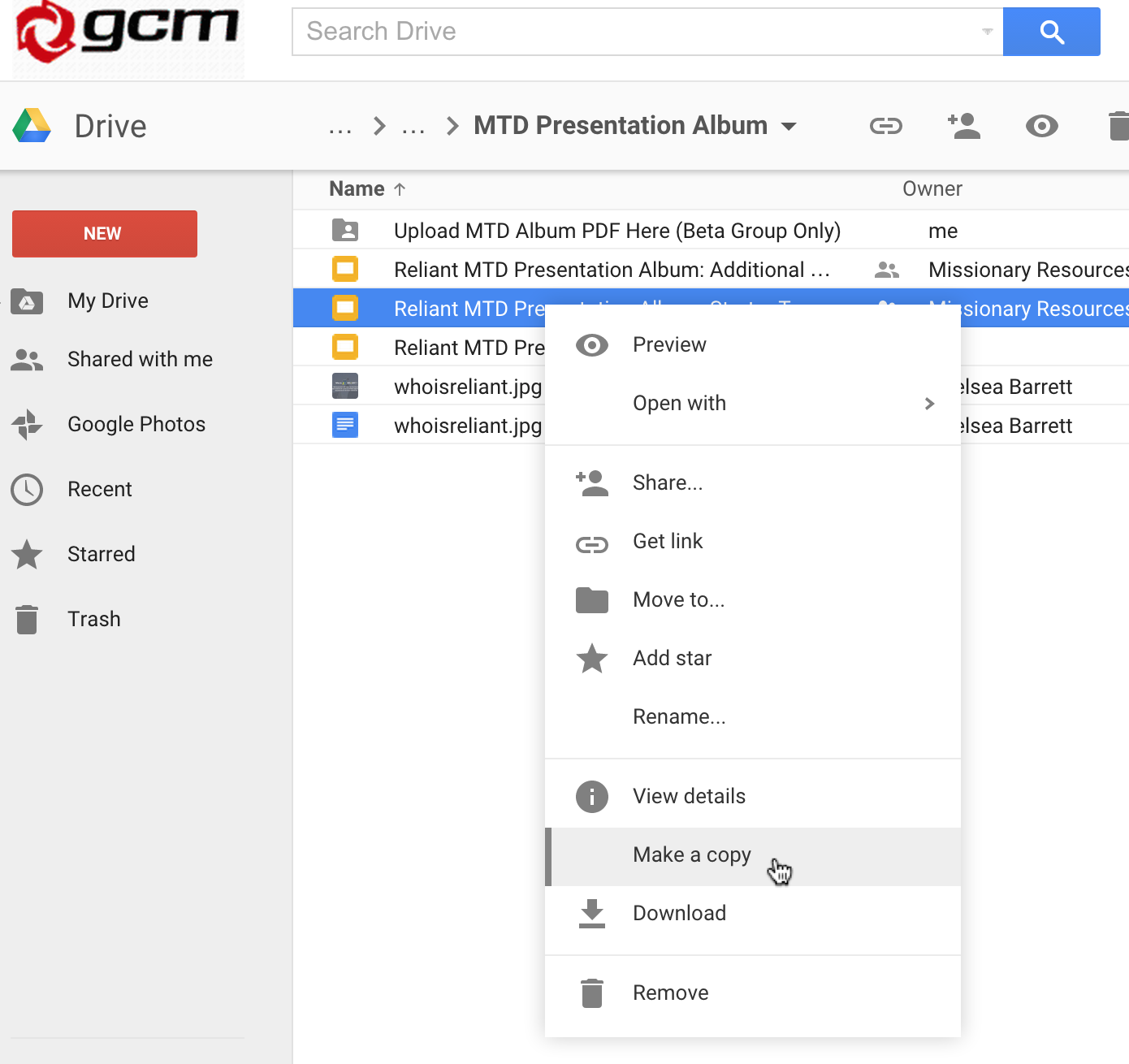
Find the Starter Template. You'll need to Make a Copy to begin editing your own copy. (You can view but not edit these) Rename your copy something to distinguish from others (e.g. "MyName MTD Presentation Album May 2015")
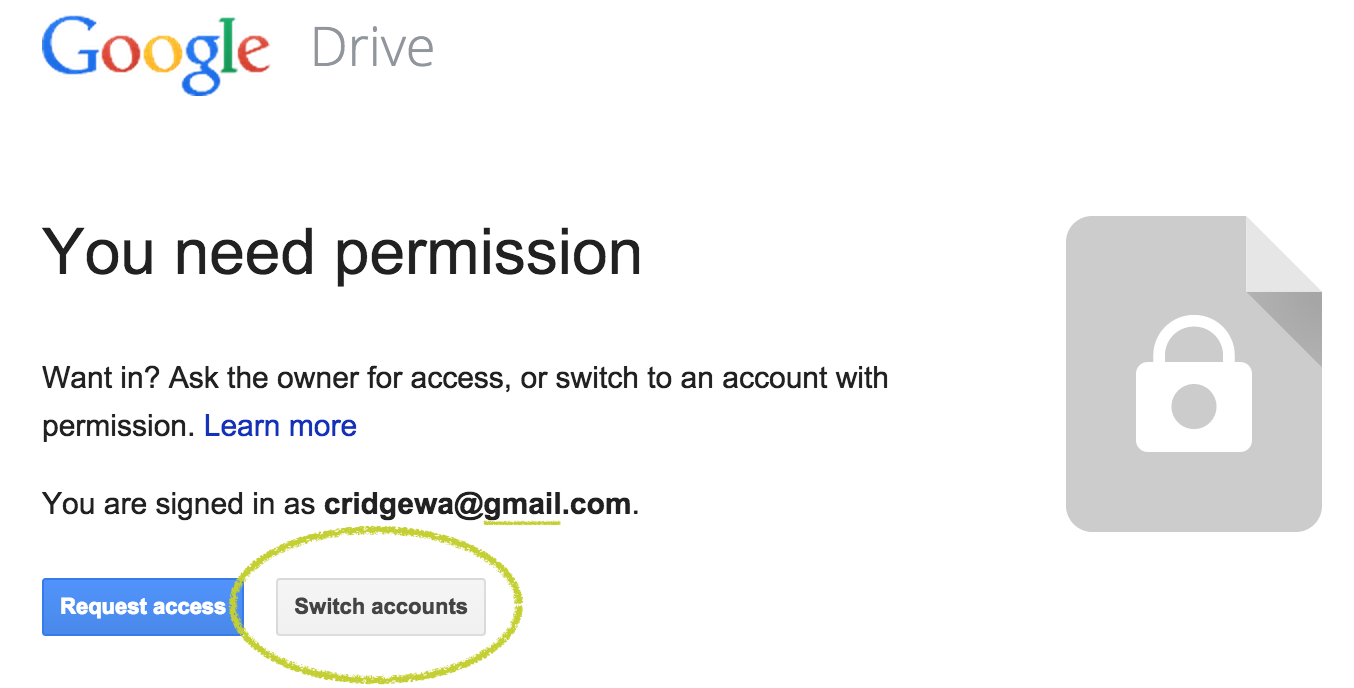
You Need Permission Error |
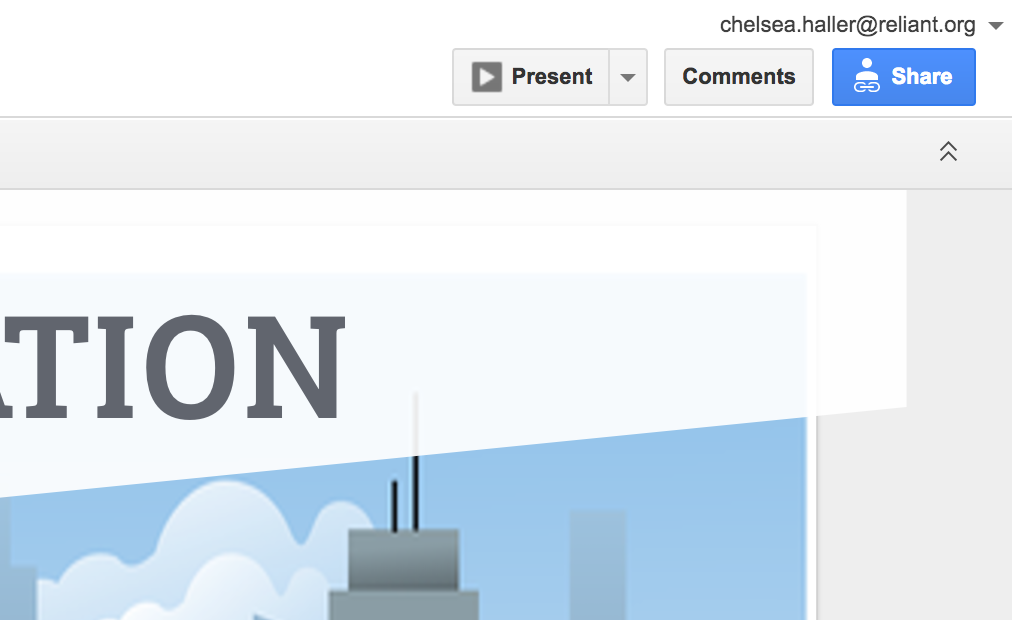
Click on the blue "Share" button on the top right and share with Communications@reliant.org. They will be the ones that will be able to look over your work and by sharing your slides they can leave comments directly on each page.
New to Google Slides?
The Google Help Center can provide some basics on how to create slides, use text boxes, add images, and more. Here are a few key highlights as it applies to your MTD Presentation Album: Starter Template.
Slide 3: LOCATION has # of people. Replace LOCATION with your actual location
Slide 5: For WHO WE ARE REACHING. Replace WHO WE ARE REACHING with who you are actually reaching.
Slide 7: The only hope for PEOPLE/PLACE. Replace PEOPLE/PLACE with the people you are reaching in your location.
Slide 19 LEFT SIDE: Our work with people. Replace people with who you're working with.
Slide 19 RIGHT SIDE: Missionary Name and Fund #. Replace with your info.
Slide 25: Reliant.org/first.last Replace with your URL.
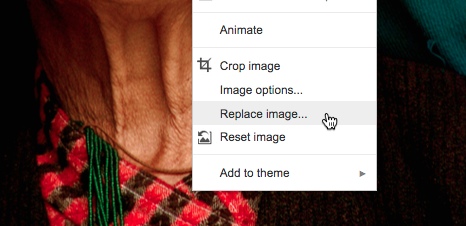
Use Replace image when the photos already on the slide are already arranged as you would like. This is the easiest way to stick with a layout we might have provided in a template.
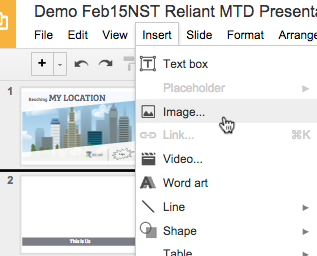
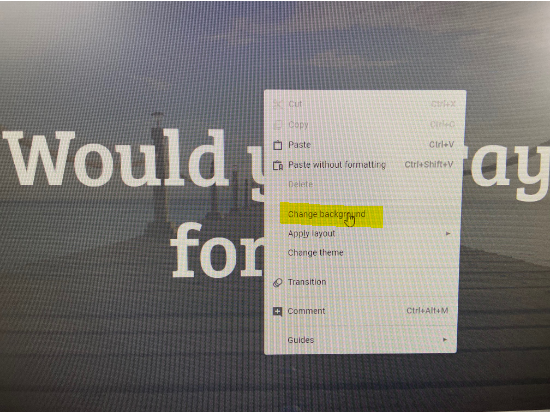
You can add your own photo to pages that have a shaded grey layer over a picture (for example the back cover of the photo album or many of the filler pages.) You can customize the picture by right clicking on the picture (make sure not to click on the words on those slides, but you want to right click on the photo itself) and then select change background. It will then ask you to upload your own photo and it will change the photo but still keep the shaded grey covering over the photo (and also keep any words written on the slide).
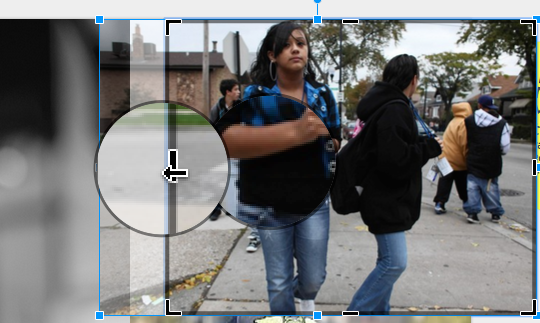
To make a photo fit your space, you can either resize the the photo, or crop it. Sometime you'll need to do a little of both.
Resizing a photo stretches or shrinks the photo.
Click the photo once to select.
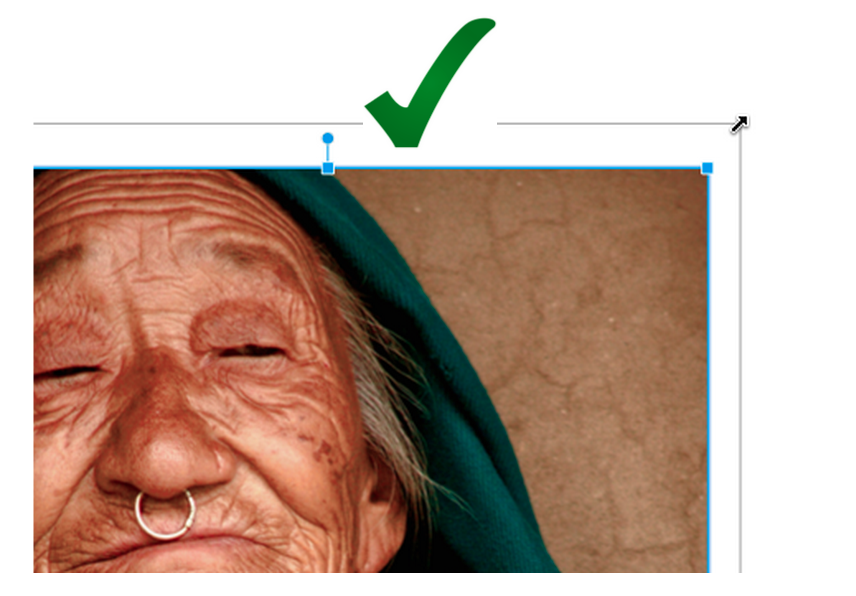
Use the corner handles to re-size the photo. Grab, hold, and drag.
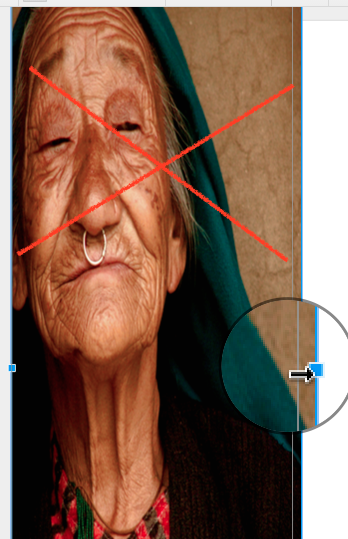
Never use the side handles to re-size a photo. It will s t r e t c h the photo and distort faces or text.
(if you feel the need to stretch the photo, you probably need to crop instead: see below). |
Cropping cuts off the edges of the photo like scissors.
The Reliant MTD Presentation Starter Template has all the slides you'll need to begin.
The template slides are already arranged in a specific order. Because the "presentation flow" is so important, we recommend not deleting or rearranging many slides until you have practiced a presentation several times through. This will you save you time and energy later. As you grow to learn your presentation, MTD Coaches will point out the perfect places to customize or rearrange to fit your story. |
Some slides are set up with fully editable parts, so text and images can be modified or completely removed. Other slides, such as the About Reliant slide, is a fixed image and is not editable.
We have provided many pre-designed layouts for the book. Some are already displayed in the Starter Template, while others are hidden but available to you via the built in Layouts.
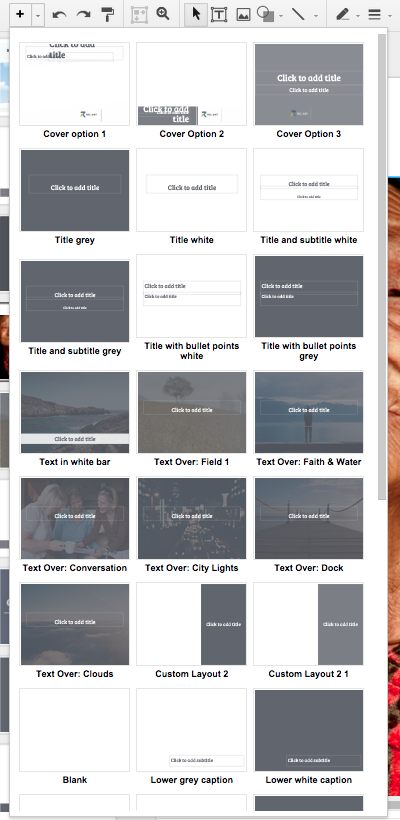
Some of these additional slide options are also provided separately in the Reliant MTD Presentation Album: Additional Slides template.
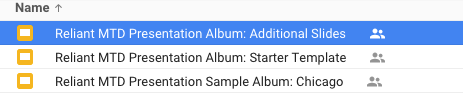
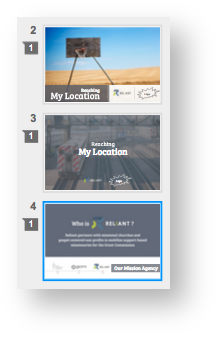
These slides are not presented in a particular order like the other templates. They just provide additional samples for you to copy and paste back into your own album.
Here’s how to copy slides within a presentation:
More on Copying and Pasting Slides from Google Help.
You are welcome to design your own individual pages or entire book. Guidelines:
Because your presentation is online, you can present on any computer that can bring up a web browser (Google Chrome, Firefox, Microsoft Internet Explorer). No additional software is needed.
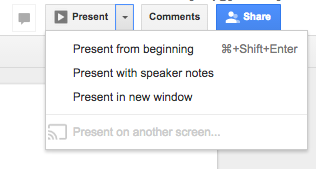
The Present button will start your full screen presentation.
Or use the connected drop down menu for additional options. (For instance, Present on another screen... can be used with a Google Chromecast dongle to throw your presentation to a living room TV).
The tablet can be perfect to share your presentation, because it easy to use, can be shared casually in a living room or coffee shop but looks professional enough to use an office setting.
Download and install Google Slides.
You might also optionally install companion apps such as Google Drive (browse files), Google Docs (word processor), or Google Sheets (spreadsheets). |
Use the Keep on Device option to make your presentation available even when your device isn't connected. |
More from Google Help: View and Create a presentation on iPad and iPhone
Use these steps to convert your finished google slide deck to a printed photo book.
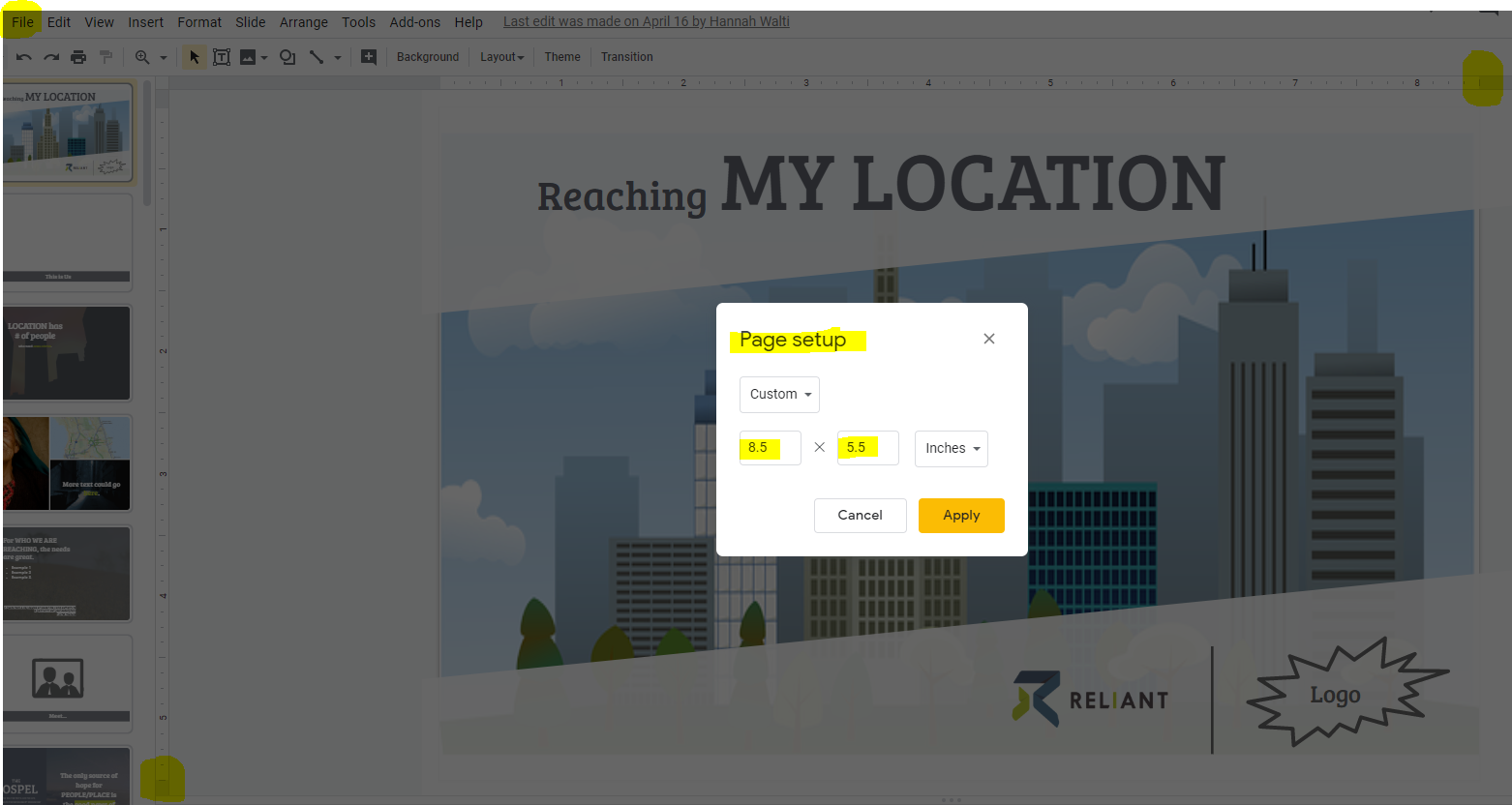
Make sure that when you begin editing your google slides for the printed presentation album that you begin with a template that has the correct dimensions. If you are using a Reliant template it should already be the correct template, but for example if you were sent a template from another Reliant employee because you wanted to borrow their slides from the same location, etc. make sure that before you begin adding your own photos that it is in the correct dimensions in order to be able to print correctly. It should be 8.5 x 5.5. You can view the picture below to see that you can confirm the dimensions both by looking at the measuring grid along the edges of the slide (8.5 on top and 5.5 on the side) or going to FILE and then selecting PAGE SETUP to view the dimensions.
Sometimes you will have to adjust the dimensions of your slides for electronic presentation viewing (such as switching it to widescreen for a projector presentation at a church, etc.) This is why we suggest making a copy of your presentation slides that is specifically just for printing. We also will usually have added pages that are filler slides for printing that are not used during an electronic presentation so we highly encourage having a separate google slide document specifically just for the purpose of printing.
If you intend to export your slide deck to a hardcover photo album, you will need to pay attention to the number of pages.
For more on this see Layout & Pages Help for MTD Presentation Album.
Low resolutions images will appear grainy or pixelated when printed. Check to see that you are using the highest quality image available. See Photo Resolution Help.
Slide 5: Who are we reaching
Slide 7: People/Place
Slide 17: [people] and your info on the right
Silde 23: (reliant.org/first.last)
Our style for writing the Reliant website is "Reliant.org"
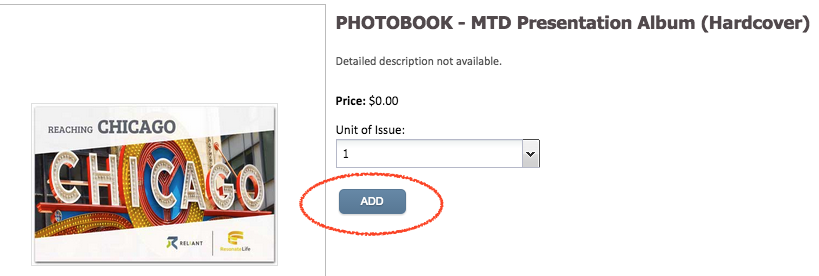
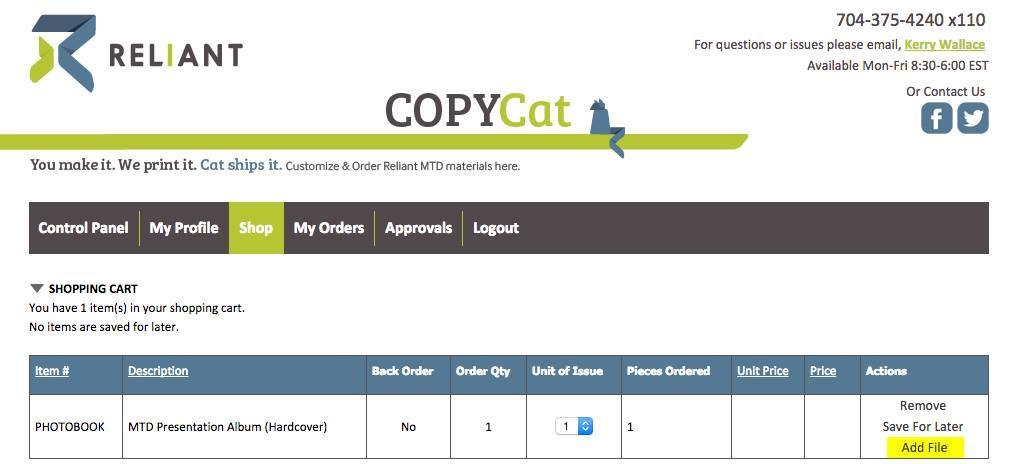
On CopyCat: Complete an Order for the MTD Presentation Album. Use steps to Add to Cart and "checkout." including adding your shipping information.