


For assistance, problems or questions, please email us.
Page History
Ramp utilizes Microsoft Single Sign-On (SSO) for access. New users will receive an email from Reliant’s network administrator containing a Microsoft Reliant account and a temporary passwordor liaison with a temporary password and their assigned Reliant email for logging in.
Getting Started with Ramp:
- Open the Ramp invitation sent to your Reliant email by the Reliant Network Administrator .
Sign in to Microsoft 365
- or liaison.
- Note: The Ramp invitation must be sent to a @reliant.org email and accepted before logging in.
Open a browser and go to https://app.ramp.com/sign-in.
Enter your Reliant email address and click Continue.
- On the next screen, click "Claim with SSO."
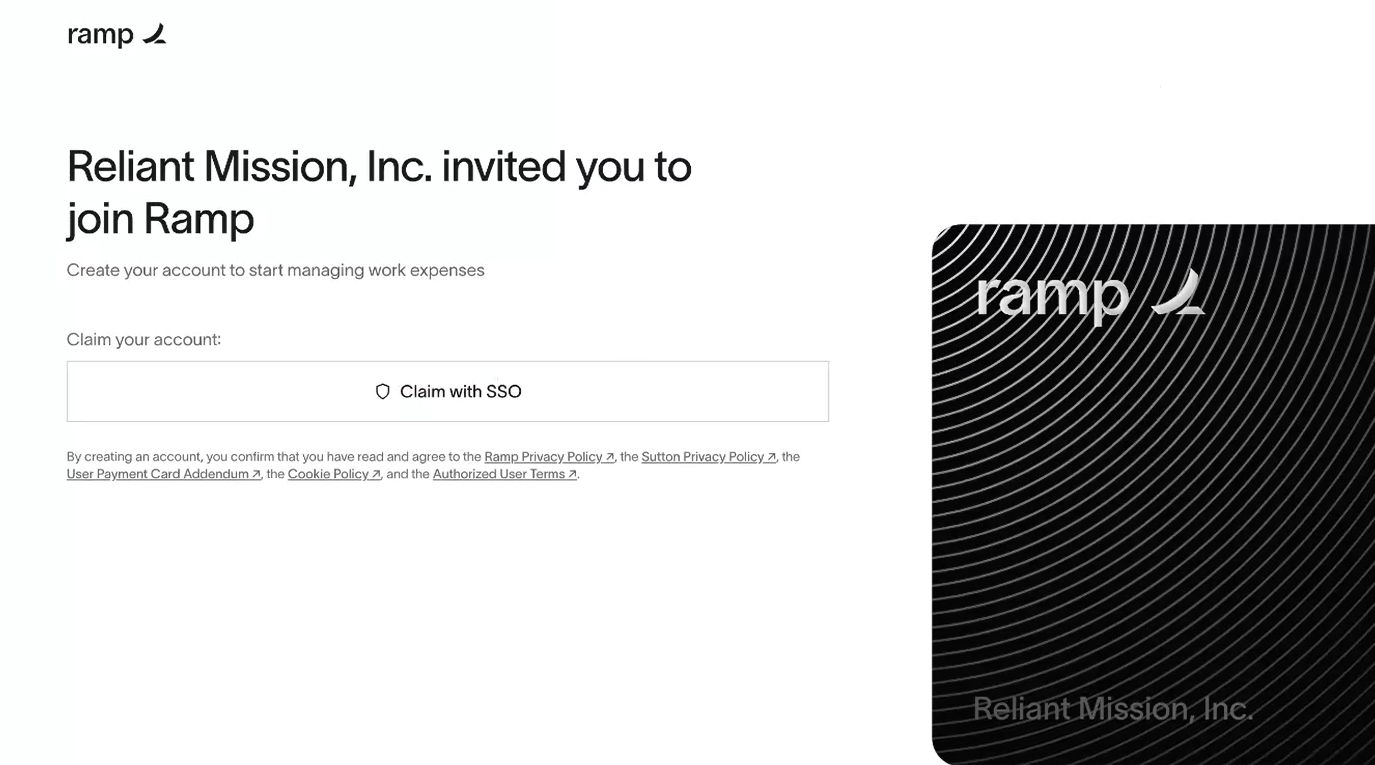
- Select "
...
- work or school email" and
...
- enter temporary password provided by the network administrator or liaison.
Update Your Password
- Follow the prompts to create a new password.
...
...
- Once your password is updated, proceed to log in
...
Ramp uses Microsoft Single Sign On (SSO) to log into Ramp - new users should receive an email from Reliant's network administrator with a Microsoft Reliant account and a temporary password.
Open the Ramp invitation:
You should see:
...
- to
...
It will ask you to change your password
Sign in.
...
- Ramp
...
- .
...
