Welcome to Solomon!

Enter the Access Code below

Access code is invalid

Solomon Logo

Versions Compared

Key

  • This line was added.
  • This line was removed.
  • Formatting was changed.

...

UI Steps
sizesmall


UI Step

Gather Information

Gather the below information for all covered individuals that you may need to complete the form

  • Legal Name - Name on the social security card
  • Social Security Numbers
  • Countries of citizenship and residence for self and dependents
  • Gender
  • Birthdate
  • Mailing address - Both international and stateside, as applicable
  • E-mail address
  • Phone number
  • Images of the front and back of your insurance card if you need to renew a Reliant and supervisor-approved waive


UI Step

Select your Forms

Go to 2027 International Open Enrollment and determine whether you want to CHANGE your current plan or ENROLL in a new plan.

Select the button that first what you want to do. (Enroll in new coverage, add dependents to your existing plan, or remove dependents from your existing plan.)

Click that button will open the SignNow documents.


UI Step

Complete the Form

Begin filling out the required fields on the document.

UI Expand
titleAetna Form Options

UI Expand
titleEnrolling in New Coverage


UI Steps


UI Step

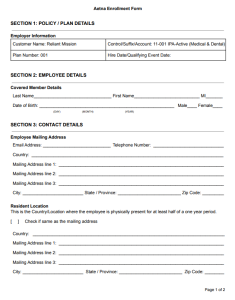
Section 1: Policy / Plan Details

This section is to be done by Reliant office staff. Nothing needs to be completed by you at this time.


UI Step

Section 2: Employee Details

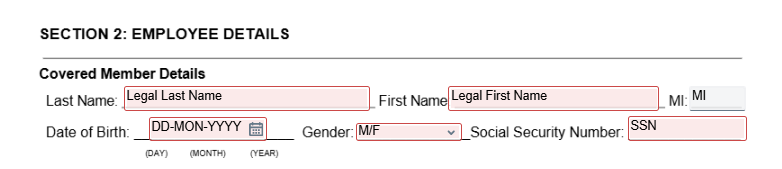
Covered Member Details

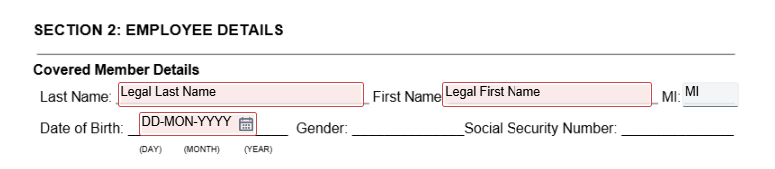
This is where you (the field staff member) will fill out your personal details. The boxes outlined in red are required and will not let you move forward without completing them.

  • Last Name: full legal last name
  • First Name: full legal first name
  • MI: middle initial (optional)
  • Date of Birth: make sure to select the month, day, and correct year for your birth day
  • Male / Female: select whichever applies to you
  • Social Security Number


UI Step

Section 3: Contact Details

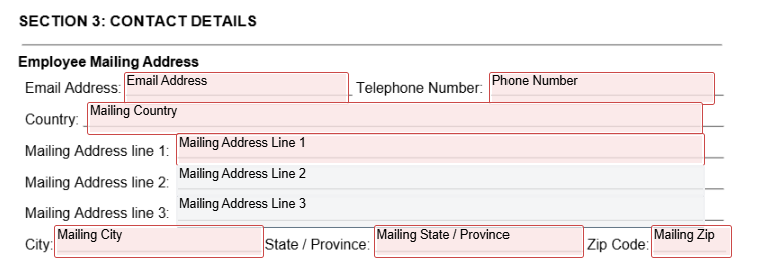
Employee Mailing Address

Please input the address where you would like to receive mail.

  • Email address: this can be your reliant.org email address or another email address you have access to
  • Telephone Number
  • Country
  • Mailing Address line 1
  • Mailing Address line 2 (optional)
  • Mailing Address line 3 (optional)
  • City
  • State / Province (if outside of the US)
  • Zip Code

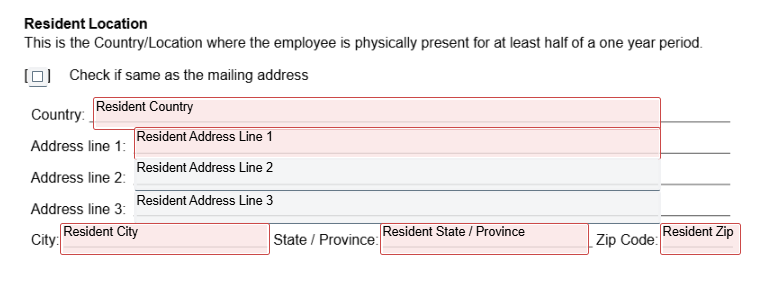
Resident Location

This is the country or location where you are physically present for at least half of a one-year period.

Note

If your Resident Location is the same as your mailing address, you can check the box that says "Check If same as the mailing address."

This will eliminate the boxes, and we will use your mailing address information for your resident location.

If it's not the same as your mailing address, fill out the sections below:

  • Country
  • Mailing Address line 1
  • Mailing Address line 2 (optional)
  • Mailing Address line 3 (optional)
  • City
  • State / Province (if outside of the US)
  • Zip Code


UI Step

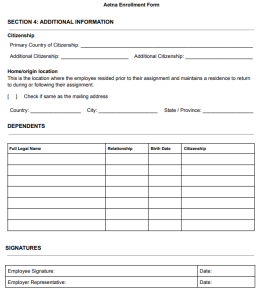
Section 4: Additional Information

Citizenship

Please input your primary country of citizenship.

You can add two additional citizenships if desired. If you have more than 2 additional citizenships, please email benefits@reliant.org

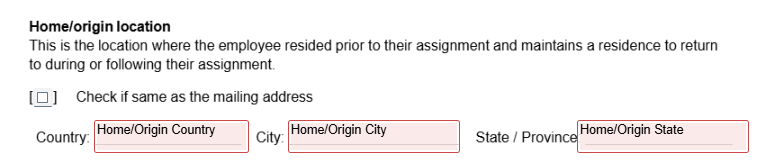
Home/origin location

This is the location where the employee resided prior to their assignment and maintains a residence to return to during or following their assignment.

Note

If your Home/origin Location is the same as your mailing address, you can check the box that says "Check If same as the mailing address."

This will eliminate the boxes, and we will use your mailing address country, city and state for your home/origin location.

  • Country
  • City
  • State / Province


UI Step

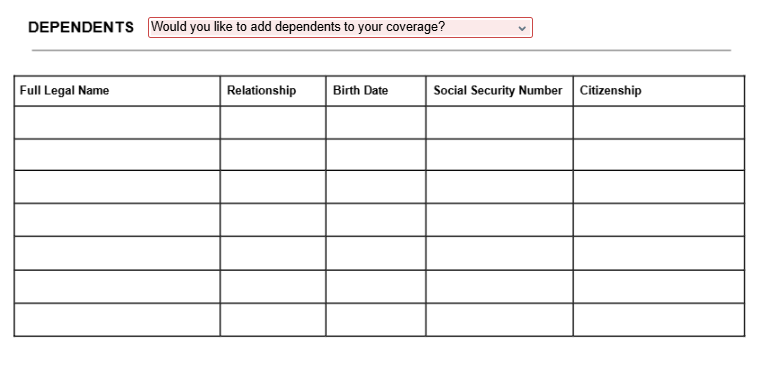
Dependents

Here is where you can add dependents if desired.

Expand
titleIf you are adding dependents, please select "yes"

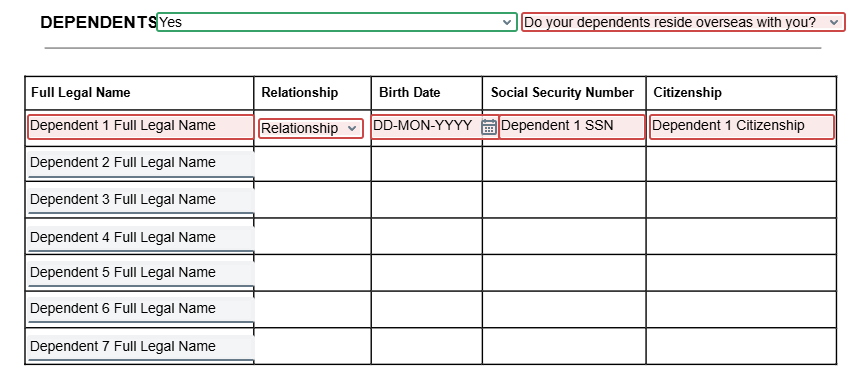
Boxes will appear, and you can add your dependents. You can add up to seven dependents. If you need more than seven, please email benefits@reliant.org to get them added to your insurance plan.

  • Dependent's Full Legal Name
  • Dependent's Relationship to you (husband, spouse, daughter, son)
  • Dependent's Birth date
  • Dependent's Primary Country of Citizenship

Note

If you select "No," then no dependent fields will populate.

If you select "Yes," then fields will populate to add dependent information.

One dependent will be required, and if you add more dependents, once you complete the first line, the rest of the line will be required.


UI Step

Signatures

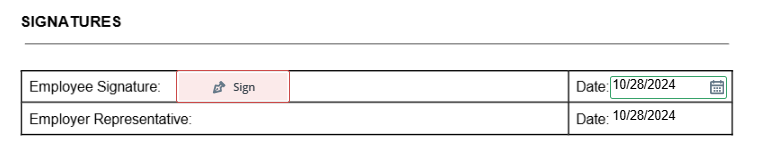
Sign the document, and adopt the signature if needed.


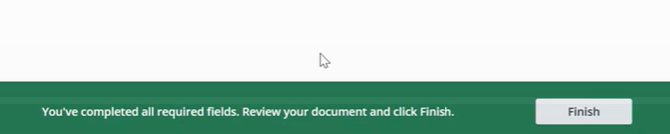
Then click "Finish" to submit your form.

Warning

If you miss anything, the form will require you to complete the red boxes before you can select "finish."


Tip

If you see the option to download and print your form, then your form is submitted!


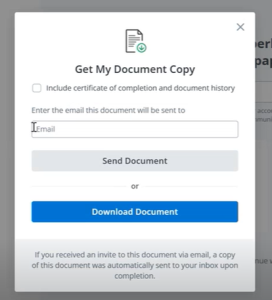
You can select "Get my Document Copy" to get a copy of your submitted form.


UI Expand
titleAdding and/or Removing Dependents to your Existing Plan


UI Steps


UI Step

Section 1: Policy / Plan Details

This section is to be done by Reliant office staff. Nothing needs to be completed by you at this time.


UI Step

Section 2: Employee Details

Covered Member Details

This is where you (the field staff member) will fill out your personal details. The boxes outlined in red are required and will not let you move forward without completing them.

  • Last Name: full legal last name
  • First Name: full legal first name
  • Middle initial: optional
  • Date of birth: make sure to select the correct month, day and year. It will automatically change it to the correct format

Additional information will not be needed since your information is already in Aetna.

If you need to make changes to other information like your mailing address or resident address, please complete the Contact Info Change Form - International.


Sections 3 and 4 will not be required since you are a covered employee already under Aetna's group plan.

Note

If you are not covered by Aetna, please use the new enrollment form.


UI Step

Dependents

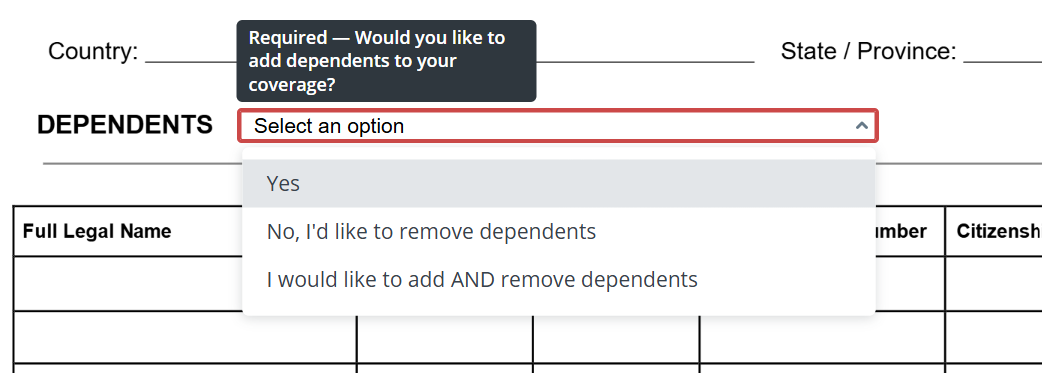
You will have 3 options in this section 

  • Add dependents to your current coverage effective 1/1/2027
  • Remove dependents from your current coverage effective 1/1/2027
  • Add AND remove dependents from your current coverage effective 1/1/2027

You can add and/or remove up to seven dependents. 

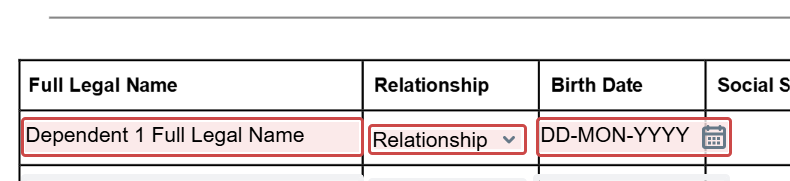
  • Dependent's full legal name
  • Dependent's relationship to you
  • Dependent's birth date
  • Dependent's social security number - If adding dependent 
  • Dependent's country of citizenship - If adding dependent 
Note

If you are married and your spouse needs coverage, your spouse is considered a dependent for insurance.


UI Steps
UI Step

Select the type of change you would like to make "Would you like to add dependents" 

  • If yes - You will add dependents to your coverage effective 1/1/2026 
  • If no, I'd like to remove dependents - You will list the dependents to remove from your coverage effective 1/1/2026
  • If I would like to add AND remove dependents - You will add AND remove dependents to your coverage effective 1/1/2026

UI Step

Once you select the change type, you will enter the required dependent information in . Once you start typing on any of the optional fields, the rest of the line will populate and become mandatory fields to complete.

  • If adding dependents, on page 2 you will enter their
    • Full legal name 
    • Relationship to you from the dropdown 
    • Date of Birth 
    • Social Security Number
    • Country of Citizenship 
  • If removing dependents, on page 3you will enter their 
    • Full legal name 
    • Relationship to you 
    • Date of Birth 


UI Step

Signatures

Sign the document, and adopt the signature if needed.

Then click "Finish" to submit your form.

Warning

If you miss anything, the form will require you to complete the red boxes before you can select "finish."


Tip

If you see the option to download and print your form, then your form is submitted!

You can select "Get my Document Copy" to get a copy of your submitted form.


UI Step

Sign the Document

The first time you select "Sign" on the form, you will need to select a signature design. You can choose one of their fonts or draw your own.


UI Step

Submit the Form

When you've finished filling out all the required fields and signing the document, a green banner should appear at the bottom of your screen with a button that says "Finish" or "Finish and Send." Click that button and wait for the next page to be sure that your document has been submitted.

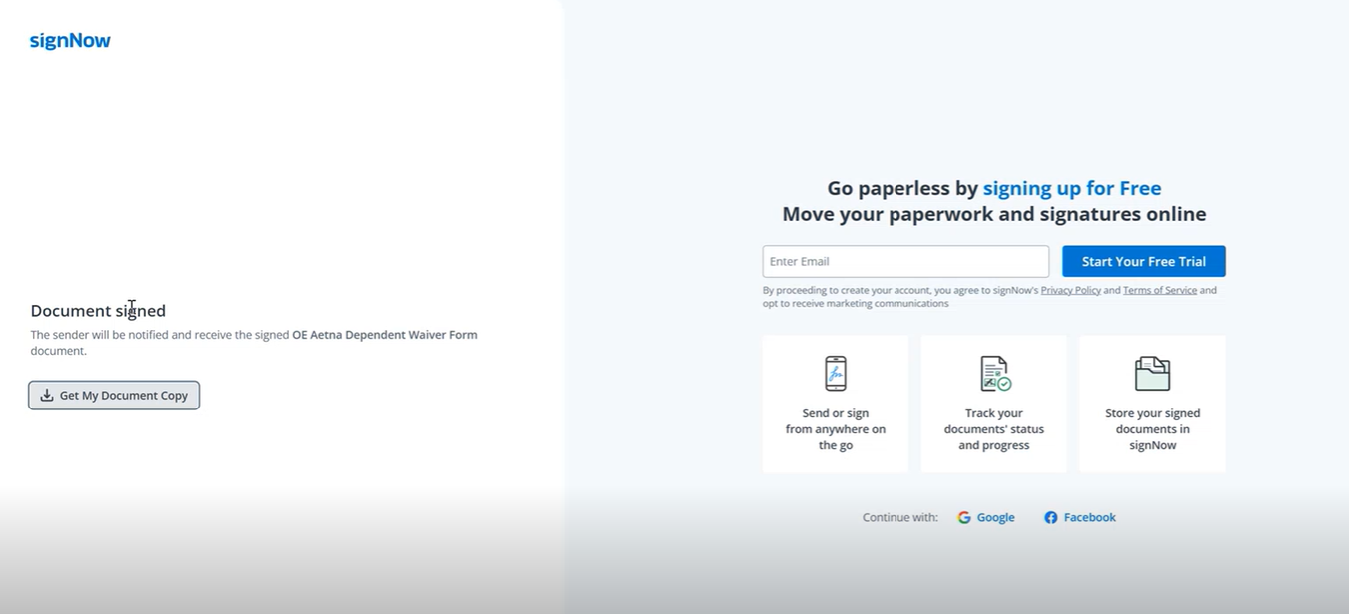
You should see a fairly blank page with a note that says "Document Signed" on the left side of the screen.

Note

By signing and submitting these forms, you are verifying that all information is correct to the best of your knowledge according to your current situation and allowing Reliant to process any benefits changes according to the information on these forms. 

If you don't see the green banner, there are still required fields to complete.


UI Step

Download a Copy (if you want to)

To make sure that you submitted the form, you will be on a screen that allows you to download a copy of your submitted forms.

This is optional, but recommended.

You can choose to either send a copy to your email, or you can download the copy directly to your computer.

It doesn't matter if you download a copy or not-- once you've reached this page, the form has been submitted to Reliant for processing.


UI Expand
titleVoluntary Life Enrollment Form

After you have determined you want coverage for yourself, your spouse, and/or your child(ren), please follow the instructions on the 2027 International Open Enrollment Solomon page.

  • Completing this form will help the Benefits Team determine if the coverage you are requesting is over the Guaranteed Issue amount; if it is, you will be sent instructions on going through the underwriting process with RSLI by completing an RSLI power form.
  • If you request coverage for yourself and/or your spouse over the Guaranteed Issue amount, you must complete an RSLI power form. 
  • To be eligible for child(ren) voluntary life coverage, you and/or your spouse must carry double the amount of child(ren) coverage requested. 
  • See 2027 Open Enrollment Voluntary Life Insurance and Group Life and Voluntary Life Insurance for more information and details about coverage.


Include Page
FMHOME:Open Enrollment International Staff Contact

...