


Page History
...
After logging in, you will see the FIELD MANUAL tab. Click on the down arrow and then select the space you would like to open.

There is also a search function that you can use on the upper right hand side to search for a specific page within a space.
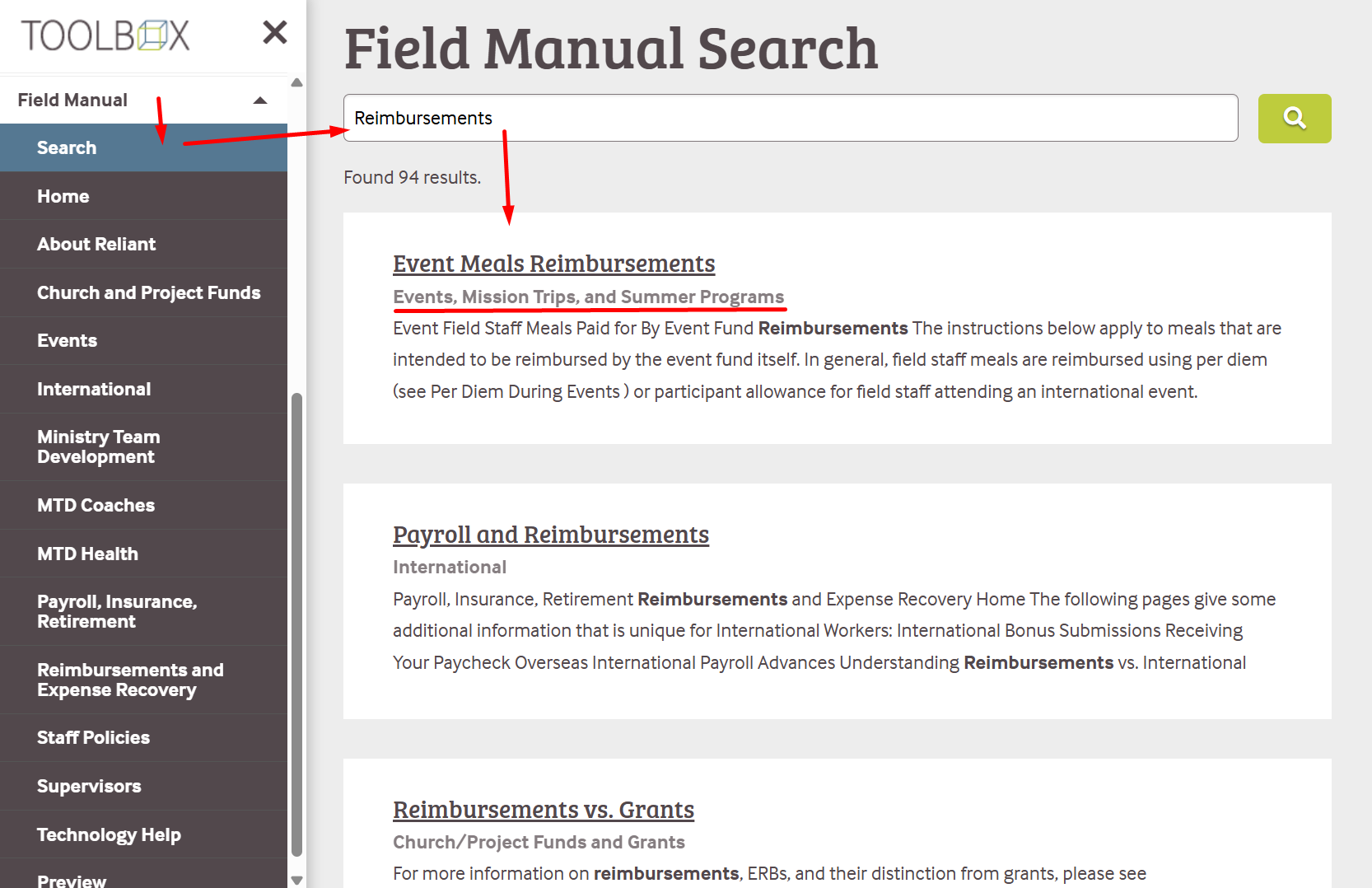
in the navigation. The first item in the navigation is "Search".
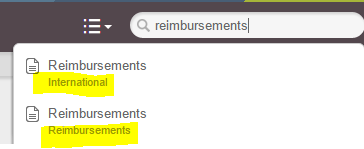
The field manual pages are housed in different spaces. The field manual pages are housed in different spaces. You may find something that has the same topic listed more than once. (Ex. Reimbursement). You can see which space that topic is housed in to help your decision on which page to open. In the example below, you can see there are two pages called Reimbursements. But they are located in two different spaces: International and Reimbursements. So if you are not an international missionary, then you would select the one in the space called Reimbursements.
...
the line below each page title to help your decision on which page to open.
...
Navigation
Once you click on a name of a page after searching, you will see a list on the left side of the page that includes pages and links available in the space.
In the example below, we have chosen the space Ministry Team Development. It has automatically opened to the Ministry Team Development home page, and then you see the list of all of the pages within the Ministry Team Development space.
Anytime you open up a page, you will see the name of the open page bolded on the left column to help you know where you are within the Field Manual.
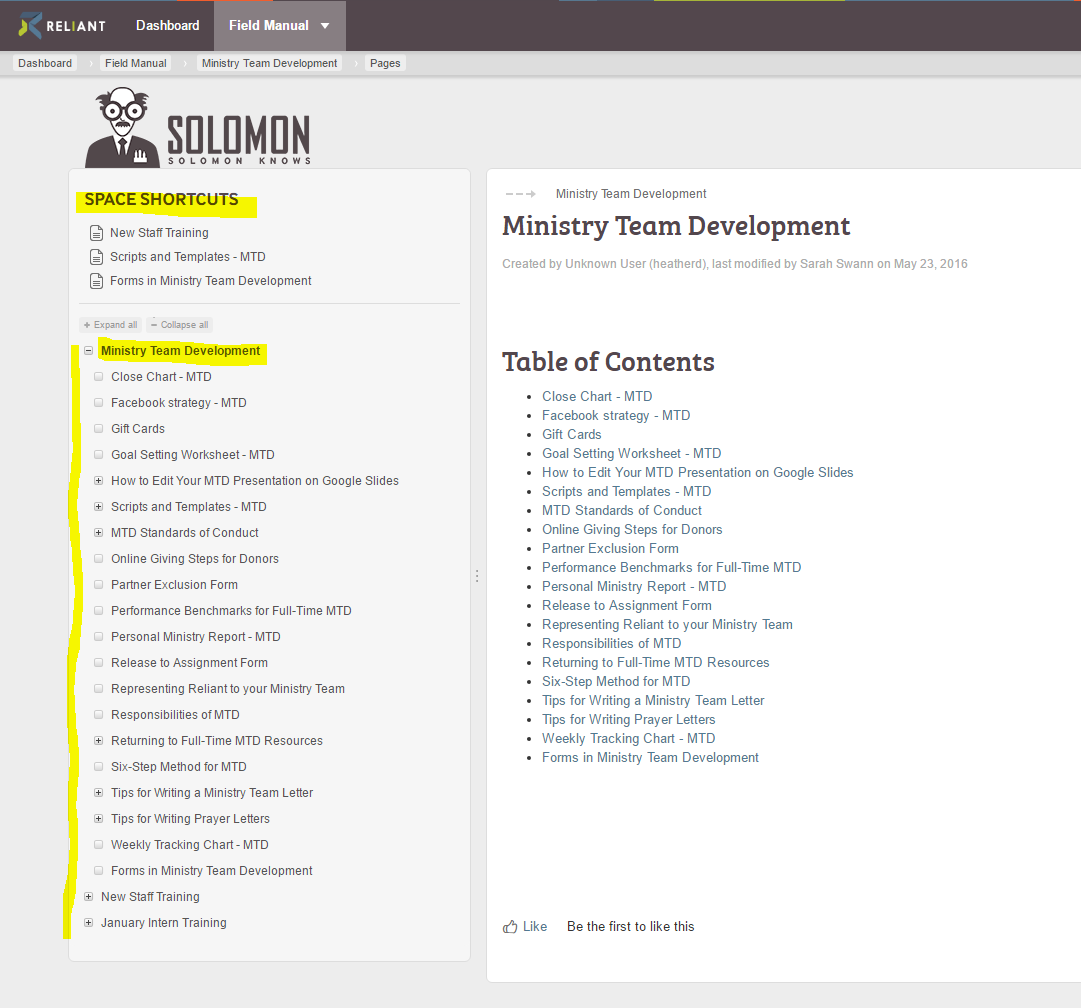
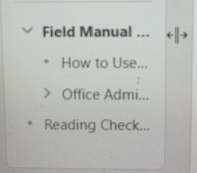
On the left side, initially the pages you see listed are the parent pages. If you click on the arrow to the left of the words, it will open up into more visible pages. (See picture below).
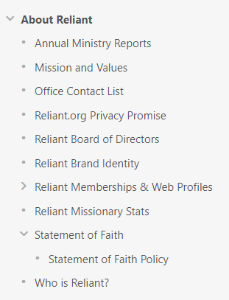
- If you see the arrow sign, it means you are not seeing all the pages in that section.
- When you see the dot in front of the page, that means that all the pages in that section are now visible.
If you accidentally lose your page tree, the list of pages on the left-hand side will disappear and just show you a file tree icon.
You can get the list of pages back by clicking on the right side of the column of the page tree. You will see a double line, and you can then drag the column back to the right.
 File tree icon
| Anchor | ||||
|---|---|---|---|---|
|
...
